Client
36 cases31 passed 2 failed 2 manual 1 retired
1A. Marketing & Public Pages
4 passed 1 failed 1 retired
PassedTC-C-01Homepage loads correctly3.7s
Test script
Preconditions None
Steps
- Navigate to
https://paxpsychology.dev/ - Scroll through the full page
Expected
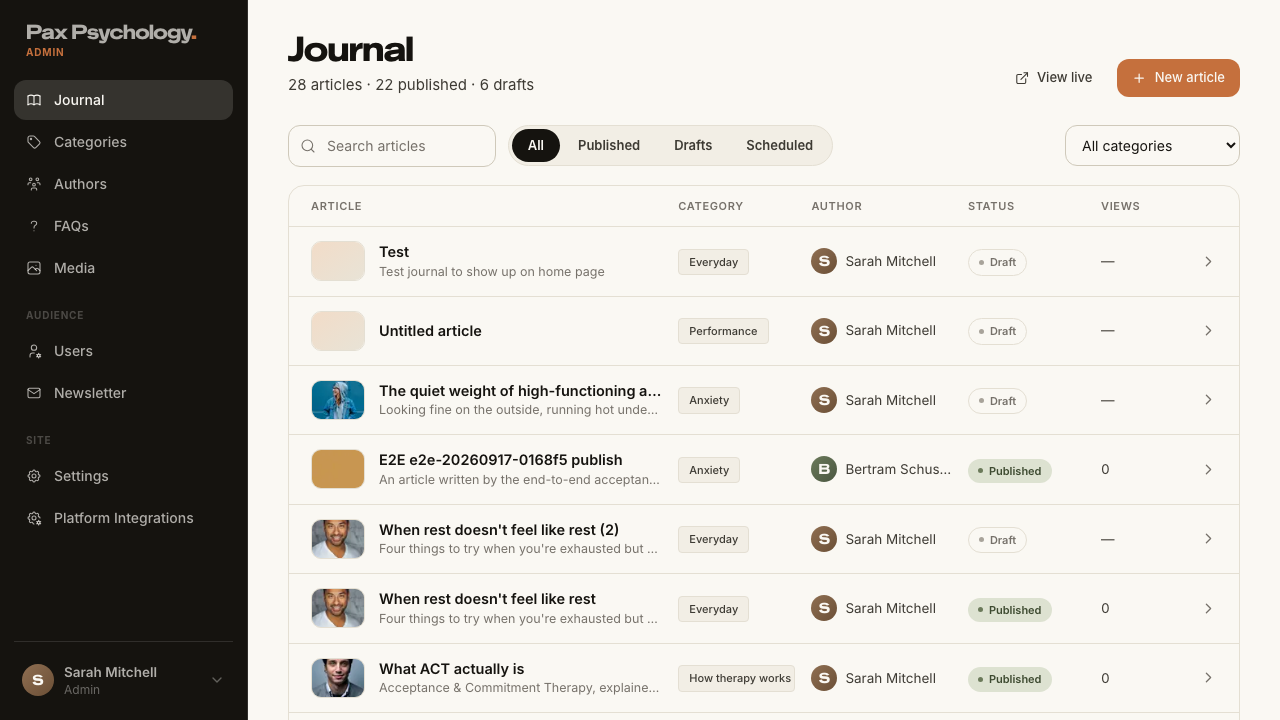
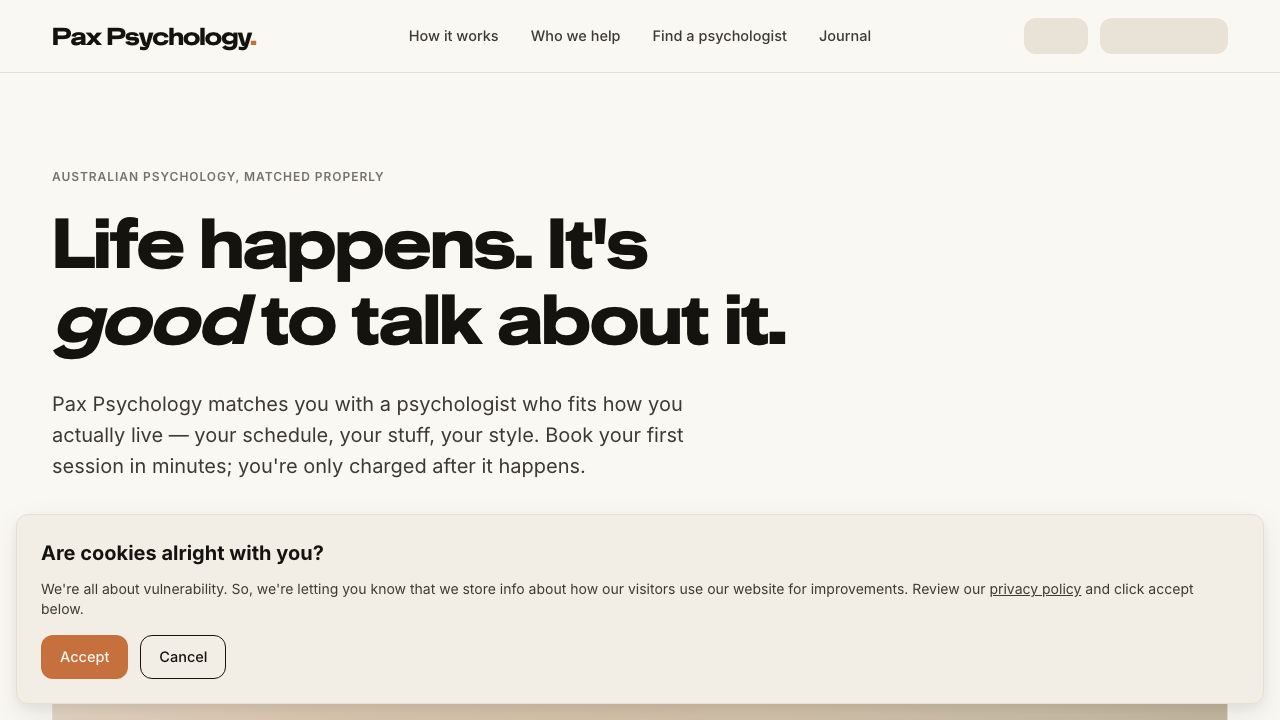
- Header: brand "Pax Psychology." plus nav "How it works", "Who we help", "Find a psychologist", "Journal"; right-hand "Sign in" and "Book a session"
- Hero eyebrow "Australian psychology, matched properly", H1 "Life happens. It's _good_ to talk about it.", buttons "Find my psychologist" (→
/onboarding) and "Meet our psychologists" (→/psychologists), footnote "Takes about 3 minutes · Medicare rebates available" - The hero band is a plain CSS gradient – there is no photo and no caption pill. (The old "Morning light, anywhere in Australia" caption is gone.)
- Sections in order: "How it works" → "Three steps. No waiting rooms." (cards 01/02/03); "Who we help" → "Mostly grown-ups figuring it out."; the Priya pull-quote; "A few of our psychologists" → "Every one of them would get along with your mum."; "When you're ready – _whenever that is_ – we're here."; "From the journal" → "Things worth reading." with a "Go to journal" button; FAQs ("Common questions" / "FAQs", lazy – may pop in a beat later)
- There is no newsletter form on the homepage and none in the footer, and there is no "give it a go" carousel
- Cookie banner "Are cookies alright with you?" with "Accept" / "Cancel" on first visit
- Footer columns "For you", "For psychologists", "Pax Psychology"; the third column links "For business" (→
/for-business)
Notes Check mobile at 375px: the nav collapses to a hamburger (aria-label "Open menu"/"Close menu") whose panel adds a "Contact" link that the desktop nav does not have.
Automated run
- 1. Navigate to https://paxpsychology.dev/
- 2. Scroll through the full page
- Notes. At 375px the nav collapses to a hamburger whose panel adds Contact
PassedTC-C-02Navigate to Our Story page2.5s
Test script
Preconditions None
Steps
- Navigate to
https://paxpsychology.dev/our-story
Expected
- Browser tab title "Our Story | Pax Psychology"
- Eyebrow "Our story", H1 "How Pax Psychology started."
- Founders section with eyebrow "The founders" and the founders portrait
- Pull-quote "Peace of mind over perfection."
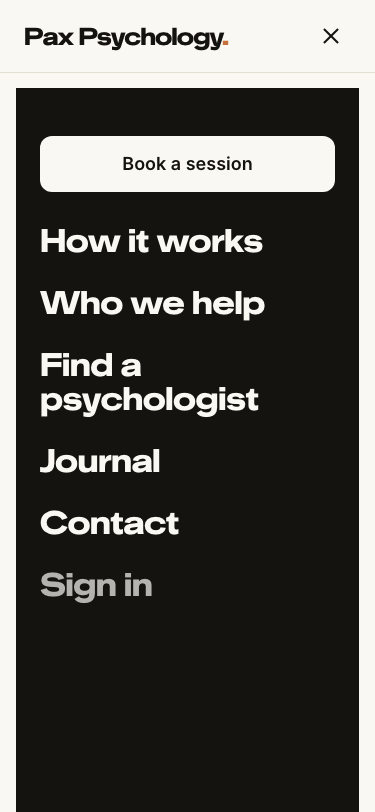
- Three service-area blocks: "Wellbeing Psychology" (
#wellbeing), "Performance Psychology" (#performance), "Mental Health Psychology" (#mental-health) – each with a gradient block, no photograph - CTA "We'll help find a psychologist for you." with button "Find my match" →
/onboarding
Automated run
- 1. Navigate to https://paxpsychology.dev/our-story
PassedTC-C-03Navigate to For Business page2.0s
Test script
Preconditions None
Steps
- Navigate to
https://paxpsychology.dev/for-business - Click "Enter" with the code field empty
- Type any code and click "Enter"
Expected
- Eyebrow "For organisations", H1 "Look after the people who look after the work."
- Unique-code panel "Already have a unique code?" with a single input (placeholder "Enter your unique code") and an "Enter" button
- Empty submit shows the red error "The code you entered is invalid. Please check and try again."
- A non-empty code navigates to
/psychologists?unique-code=<code> - Four service cards: "Employee assistance programs", "Workplace wellbeing", "Performance psychology", "Custom solutions"
- CTA with buttons "Get in touch" (→
/contact) and "Browse psychologists"
Notes Known quirk – the code is not validated here; any non-empty string is accepted and passed through to the directory.
Automated run
- 1. Navigate to https://paxpsychology.dev/for-business
- 2. Click “Enter” with the code field empty
- 3. Type any code and click “Enter”
FailedTC-C-04Navigate to Contact page19.4s
Test script
Preconditions None
Steps
- Navigate to
https://paxpsychology.dev/contact - Click "Submit" with the form empty, and check the validation messages
- Fill in the form: Name
Test User, Email addresstestuser@example.com, Phone0412 345 678, MessageThis is a staging test submission. - Click "Submit"
Expected
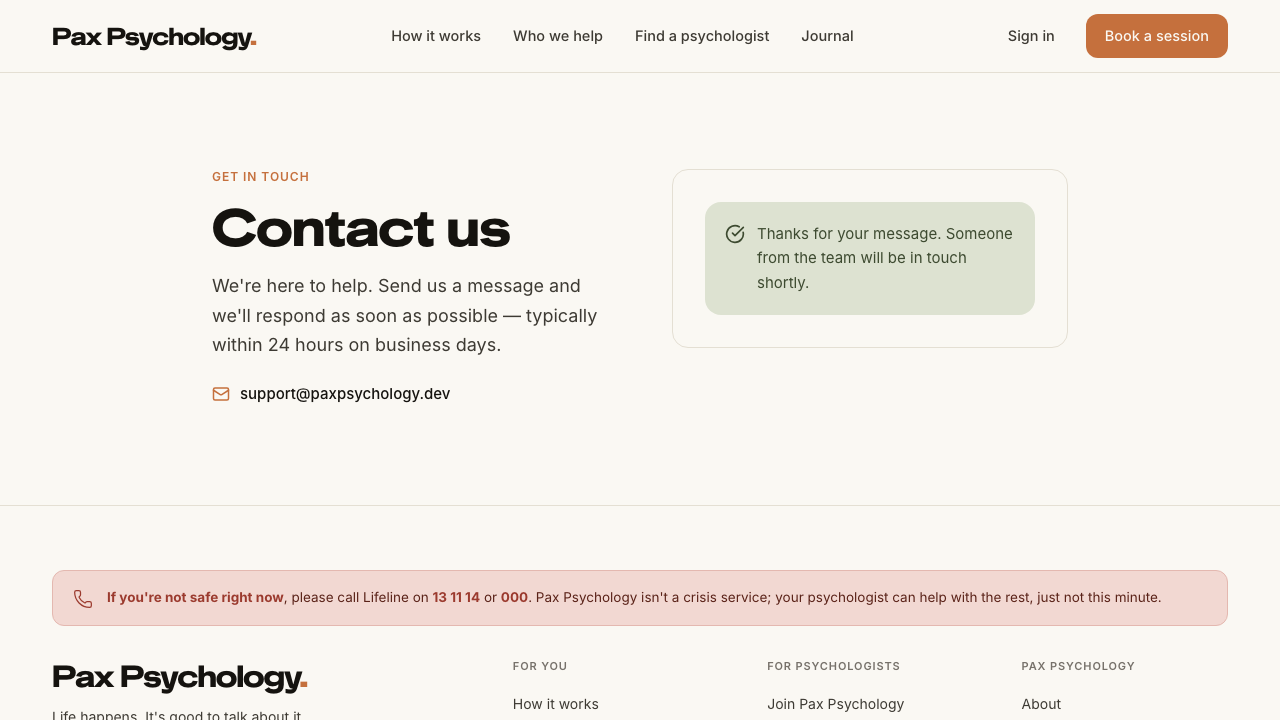
- Eyebrow "Get in touch", H1 "Contact us"
- Fields, each with both a visible label and a placeholder: "Name", "Email address", "Phone", "Message"
- Validation: "Name must be at least 2 characters", "Please enter a valid email address", "Phone number is required" / "Please enter a valid Australian phone number", "Message must be at least 10 characters"
- Button shows a spinner and "Sending…" while submitting
- On success the form is replaced by a green panel reading "Thanks for your message. Someone from the team will be in touch shortly."
- Two emails go out:
Contact Form: Test Userto support, and "Thank you for contacting Pax Psychology" to the sender
Notes Cloudflare Turnstile runs invisibly when a site key is configured; if verification fails the red banner reads "Verification failed. Please try again." The invisible widget takes a moment to issue its token after the page loads; "Submit" is clickable before that, and a click in that window does nothing at all. Give the page a second before submitting. Likewise, after a failed validation the next Submit is ignored until the field you last typed into loses focus – tab out of "Message" before clicking (open defect).
Automated run
- 1. Navigate to https://paxpsychology.dev/contact
- 2. Click “Submit” with the form empty, and check the validation messages
- 3. Fill in the form: Name, Email address, Phone and Message
- 4. Click “Submit” – failed
Error: Submit did nothing after step 2's failed validation – no request was made and no error was shown (blurring the last field first makes the same click work)

expect(received).toBe(expected) // Object.is equality

Expected: true
Received: false
PassedTC-C-05Privacy Policy and Terms of Use pages load1.8s
Test script
Preconditions None
Steps
- Navigate to
https://paxpsychology.dev/privacy-policy - Navigate to
https://paxpsychology.dev/terms-of-use
Expected
- Privacy Policy: H1 "Privacy Policy", 12 numbered sections (1. Introduction … 12. Contact Us), entity named as "PaxAnimi Platform Pty Ltd atf PaxAnimi Platform Unit Trust t/as Pax Psychology"
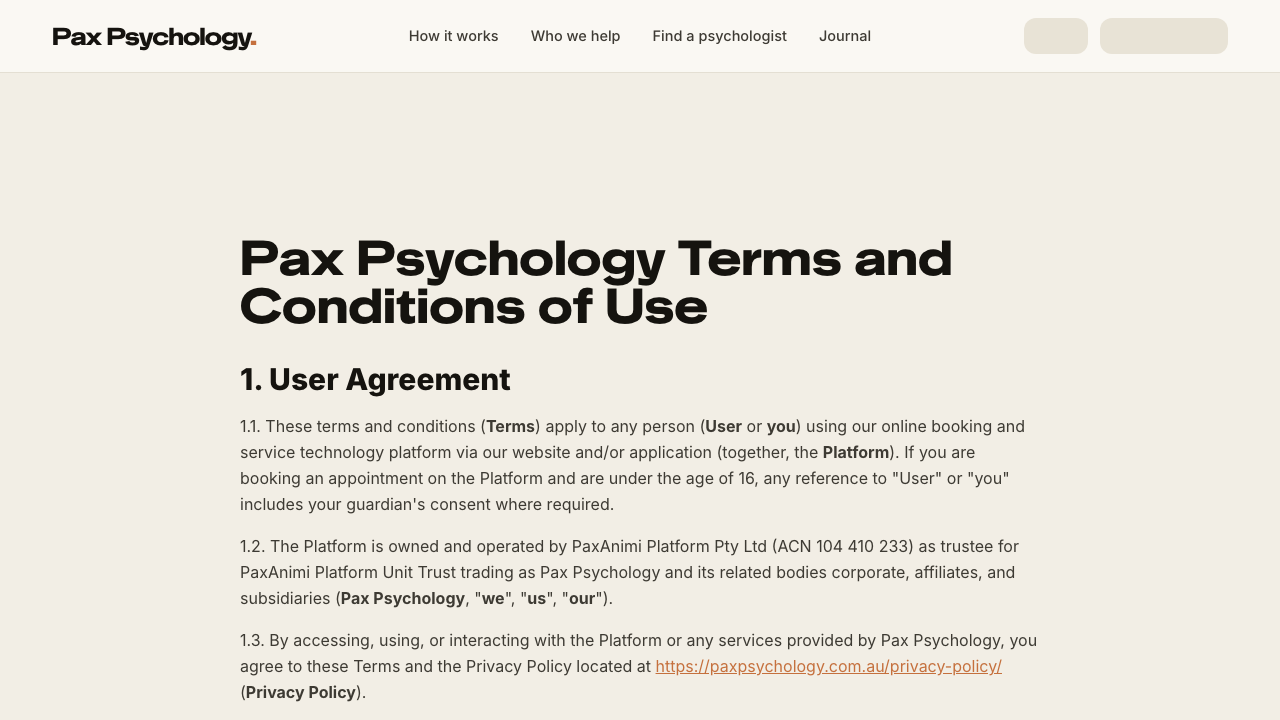
- Terms: H1 "Pax Psychology Terms and Conditions of Use", 21 numbered sections including 7. Cancellation Policy (24-hour window) and 6. Fees
- Both pages readable with no broken layout
Notes The footer links Privacy but not Terms – reach Terms by URL or from the booking consent checkbox.
Automated run
- 1. Navigate to https://paxpsychology.dev/privacy-policy
- 2. Navigate to https://paxpsychology.dev/terms-of-use
RetiredTC-C-06Newsletter signup from homepage footer–
Retired by the 2026-09-03 script revision: the homepage and footer no longer contain a newsletter form. The only signup on the site is the strip at the foot of /journal, covered by TC-C-27.
1B. Find Your Match (6-step wizard)
3 passed
PassedTC-C-07Complete the full match wizard11.1s
Test script
Preconditions At least one bookable psychologist (i.e. test@paxpsychology.dev). Clear localStorage first if you have a part-finished run.
Steps
- Navigate to
https://paxpsychology.dev/onboarding - Confirm the chrome: brand link, "Step 1 of 6" counter, ochre progress bar, and a "Save & exit" button top-right
- Step 1 – focus. Eyebrow "Let's find your person", H1 "What's bringing you to Pax Psychology?". Select one or more chips (e.g. "Burnout & overwork", "Anxiety"). "Continue" is disabled until at least one is chosen; click it
- Step 2 – story. H1 "Anything you'd want them to know?". Type a sentence in the textarea, or use "Skip for now". Click "Continue"
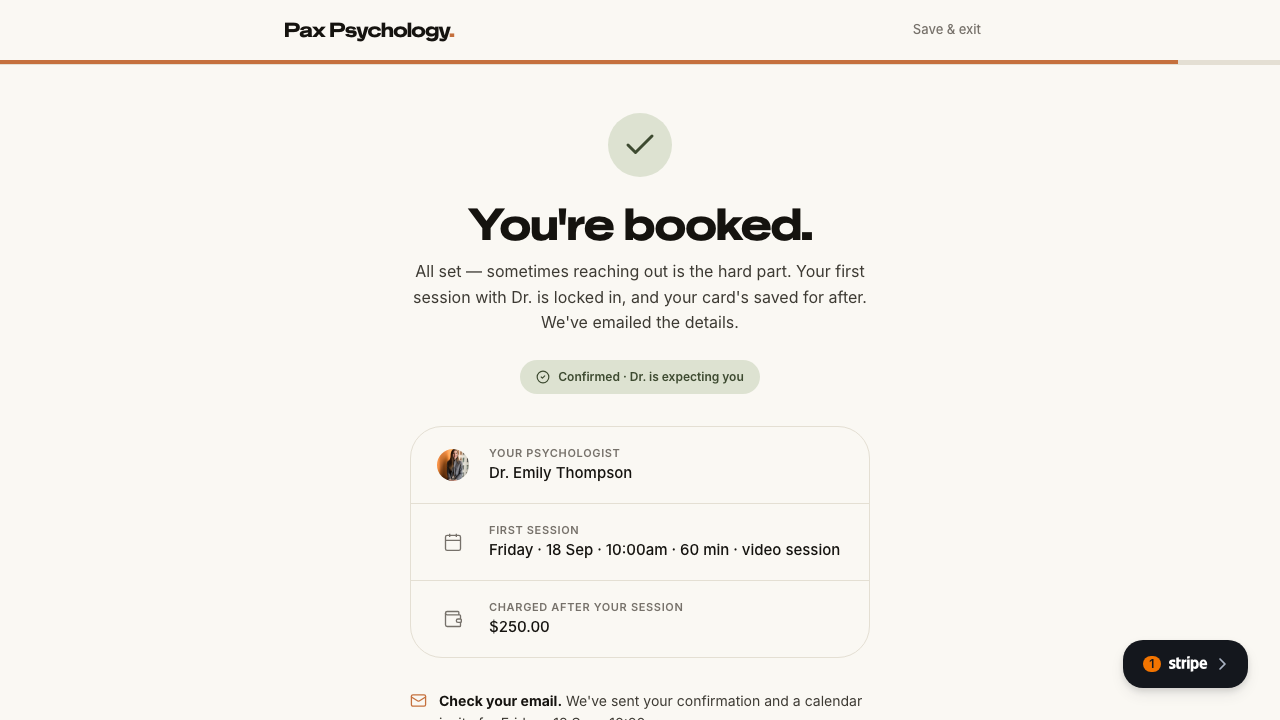
- Step 3 – availability. H1 "When are you usually free?". Pick one chip: "Weekdays · daytime", "Weekday evenings", "Weekends", or "I'm flexible". Click "See my matches" - Confirm there is no video-vs-in-person question anywhere; the lede states sessions are by video
- Step 4 – shortlist. H1 "Three psychologists we think get you.". Each card shows a match percentage and a "Choose" pill that becomes "Chosen". Pick one, then click "Pick a session time"
- Step 5 – time slot. H1 "When suits for your first session?". Wait for the calendar, pick a day and a slot, then click "Continue to details"
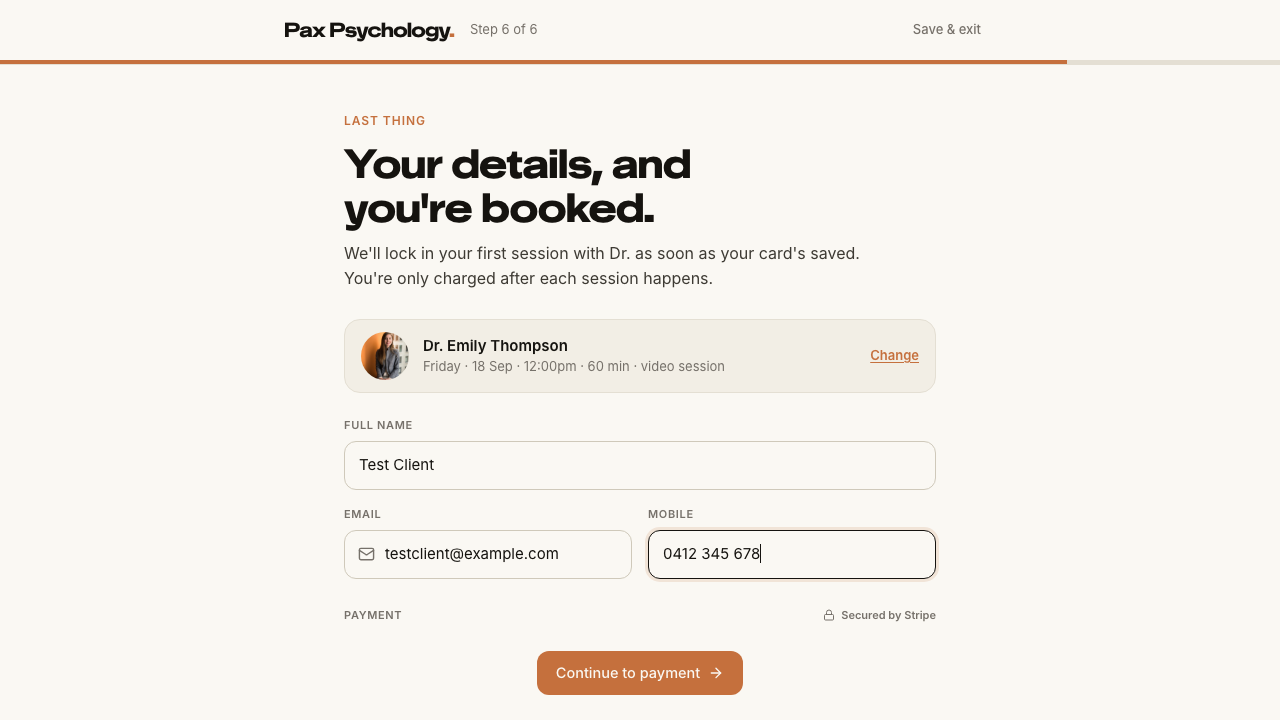
- Step 6 – details + payment. H1 "Your details, and you're booked.". Fill "Full name", "Email", "Mobile". Click "Continue to payment", then complete the Stripe card form with
4242 4242 4242 4242/12/30/123and click "Save card & confirm booking" - Confirmation. Verify the success screen
Expected
- All six steps advance without error; the progress bar and "Step n of 6" counter track the current step
- The payment block reads "Nothing comes out today – your card's saved securely and only charged after your session happens." and the summary row is "Charged after your session"
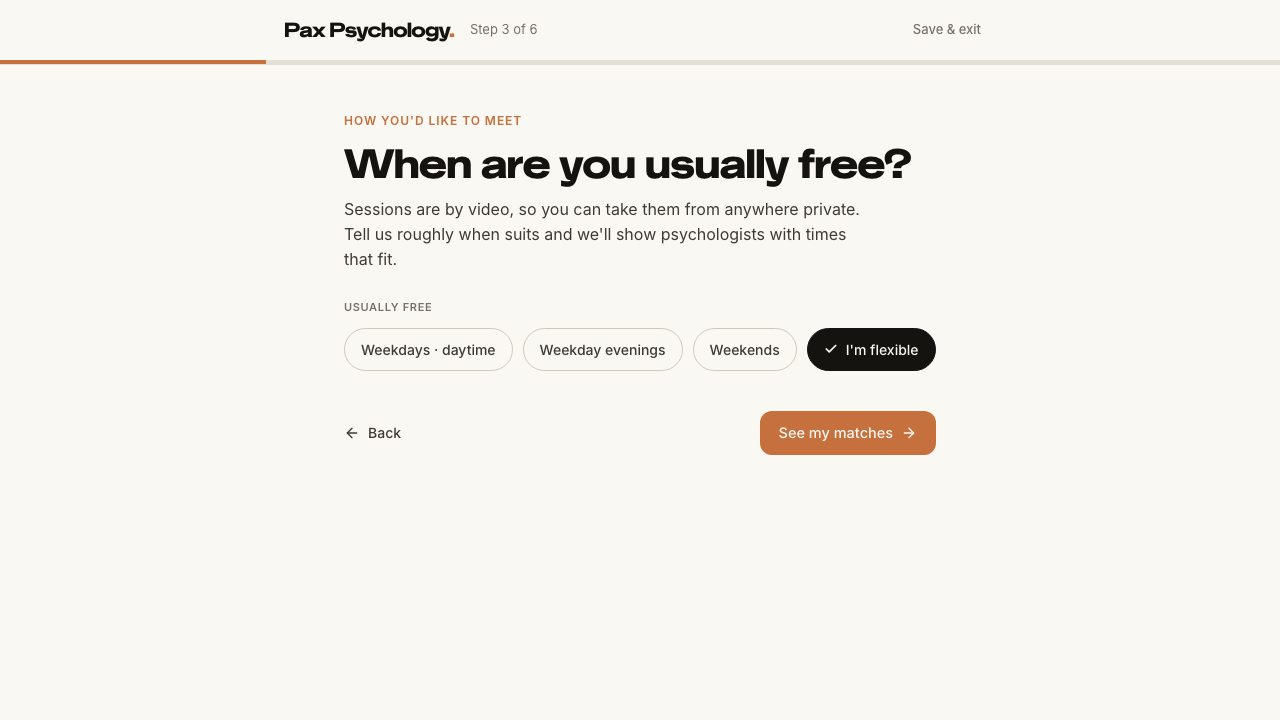
- Confirmation screen: H1 "You're booked.", a "Confirmed · <First> is expecting you" badge, summary rows "Your psychologist" / "First session" / "Charged after your session", and the button "Go to your Pax Psychology home" →
/dashboard - A confirmation email arrives at the address entered
- The appointment appears in the psychologist's Schedule
Notes The "Change" links on steps 5 and 6 jump back to the shortlist / slot picker. Stripe failures surface as "Please check your card details." or "We couldn't confirm your card."
Automated run
- 1. Navigate to https://paxpsychology.dev/onboarding
- 2. Confirm the chrome: brand link, “Step 1 of 6” counter, ochre progress bar and “Save & exit”
- 3. Step 1 – focus. Select a chip; “Continue” is disabled until one is chosen
- 4. Step 2 – story. Type a sentence, then click “Continue”
- 5. Step 3 – availability. Pick a chip, then click “See my matches”
- 6. Step 4 – shortlist. Pick a psychologist, then click “Pick a session time”
- 7. Step 5 – time slot. Pick a day and a slot, then “Continue to details”
- 8. Step 6 – details + payment. Fill the details and save the card
- 9. Confirmation. Verify the success screen
PassedTC-C-08Match wizard progress persistence4.6s
Test script
Preconditions None
Steps
- Navigate to
https://paxpsychology.dev/onboarding - Complete step 1 (focus) and step 2 (story), and land on step 3 (availability)
- Close the tab, then reopen
https://paxpsychology.dev/onboarding - Repeat, but this time get as far as step 4 (shortlist) before closing the tab
Expected
- After step 3, reopening restores your focus chips, your story text and puts you back on step 3
- Only steps 1–3 persist. After reaching step 4 or later, reopening drops you back to at most step 3 – the shortlist, slot and details are never stored
- Progress lives in
localStorageunder the keypax-match-wizard({ step, focus, story, when }); it is cleared once payment succeeds
Notes Clear that key in DevTools to start fresh.
Automated run
- 1. Navigate to https://paxpsychology.dev/onboarding
- 2. Complete step 1 (focus) and step 2 (story), and land on step 3 (availability)
- 3. Close the tab, then reopen https://paxpsychology.dev/onboarding
- 4. Repeat, but get as far as step 4 (shortlist) before closing – only steps 1–3 persist
PassedTC-C-08aEmail validation on the details step (new)3.1s
Test script
Preconditions Reached step 6 of the wizard
Steps
- Type
notanemailinto "Email" then click elsewhere (blur the field) - Correct it to a valid address
Expected
- On blur, the inline error "Enter a valid email address" appears; it then updates live on each keystroke until the address is valid
- With any of name / email / mobile still incomplete, the gate text reads "Add your name, email and mobile above to continue to payment." instead of the "Continue to payment" button
Automated run
- Precondition. Reach step 6 of the wizard
- 1. Type `notanemail` into “Email” then click elsewhere (blur the field)
- 2. Correct it to a valid address – the error updates live on each keystroke
1C. Psychologist Directory
2 passed
PassedTC-C-09Browse the directory and use the desktop filters14.1s
Test script
Preconditions At least one psychologist profile exists
Steps
- Navigate to
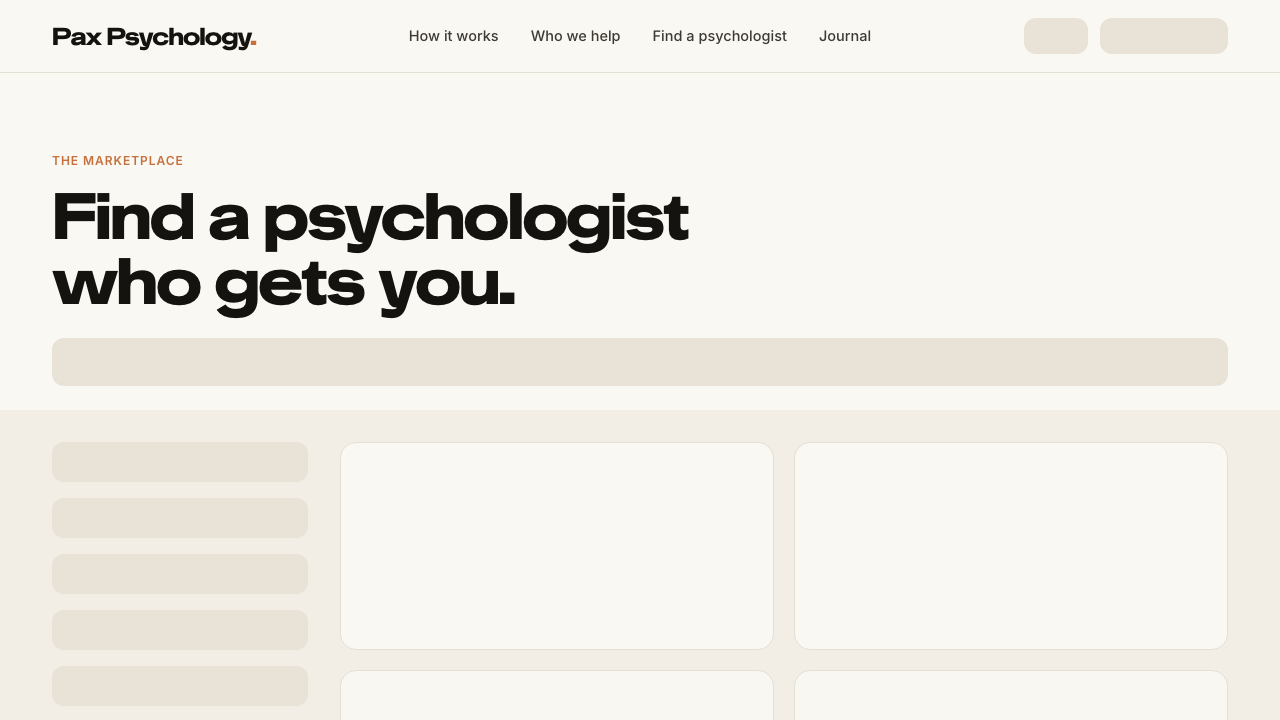
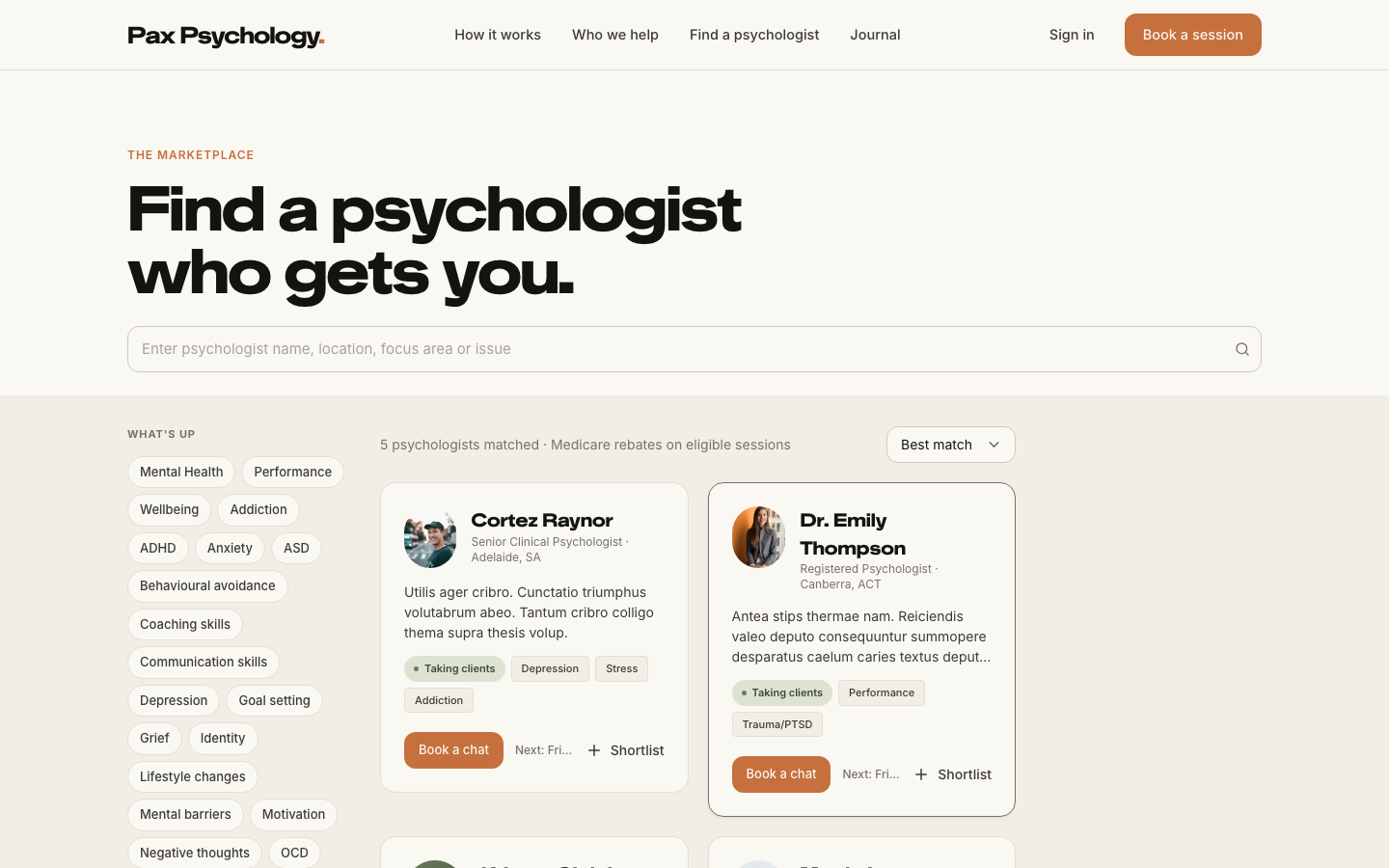
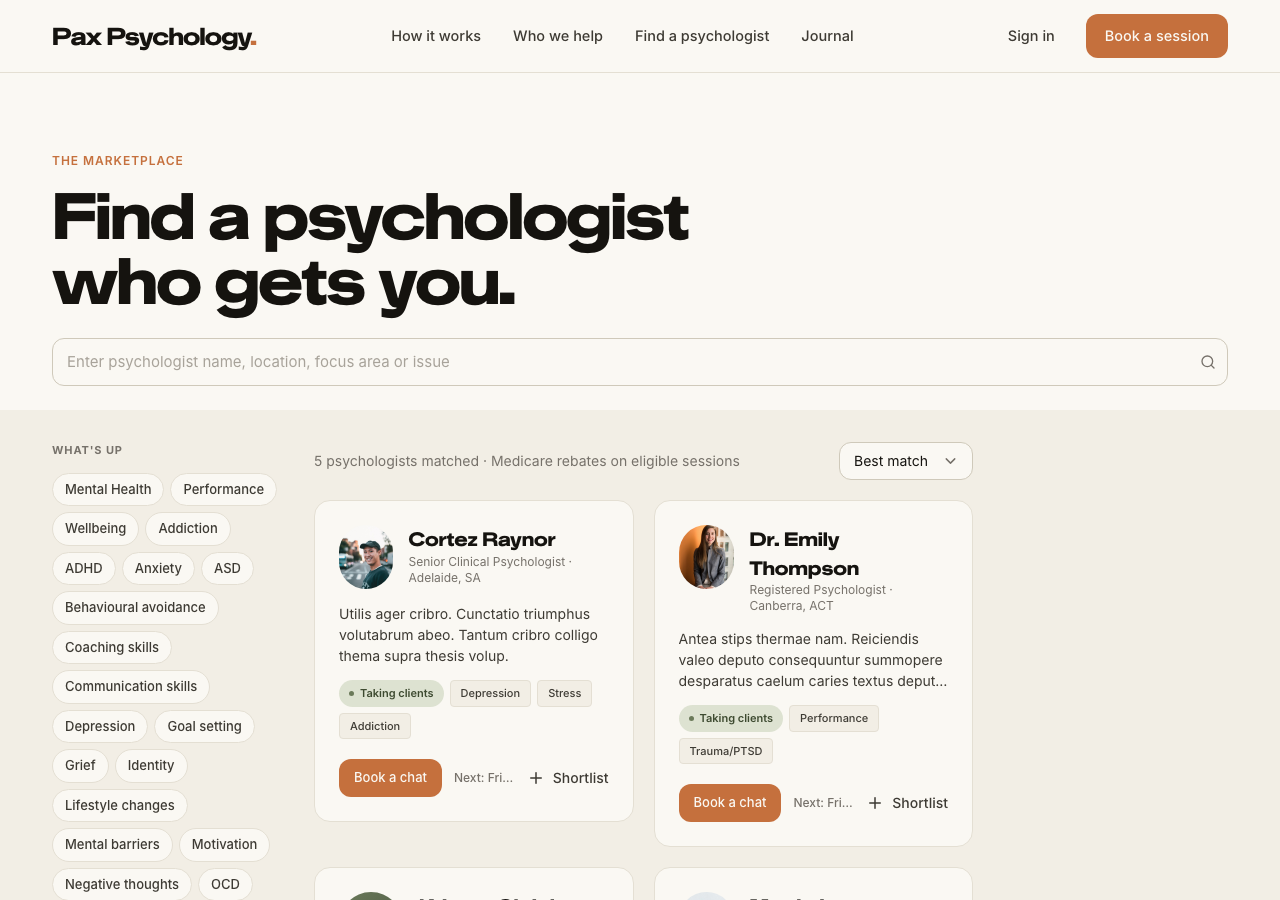
https://paxpsychology.dev/psychologistson a desktop-width window - Confirm the eyebrow "The marketplace" and H1 "Find a psychologist who gets you."
- Search using the box (placeholder "Enter psychologist name, location, focus area or issue") – try a psychologist's name, then a location
- In the left sidebar, tick a "Location" checkbox
- Choose a "Psychologist's gender" radio option
- Select a chip under "What's up"
- Toggle "Taking clients now"
- Change the sort dropdown from "Best match" to "Lowest rate"
- Click "Clear all" in the pill row above the results
Expected
- Results header reads "<n> psychologists matched · Medicare rebates on eligible sessions"
- Sidebar filter groups, in order: "What's up" (chips), "Session type" (chips), "Location" (checkboxes), "Psychologist's gender" (radios), "Availability" (a "Taking clients now" switch). A group with no options is not rendered
- Location checkbox labels are city names where the profile location parses as one, and otherwise fall back to the raw location string from the profile
- Search matches psychologist name, bio, location, qualifications and speciality (case-insensitive, 300 ms debounce)
- Every control applies immediately – there is no Apply button – and the list dims while the new results load
- Active filters show as ochre pills with an X; "Clear all" resets them while keeping the search term
- Empty state: "Nothing matches those filters. Try loosening one up." with a "Clear all filters" link
- Cards show avatar, name, credentials · location, bio, a "Taking clients" or "Waitlist" pill, up to three speciality tags, a "Book a chat" button and a "Shortlist" toggle
- Below the directory: the journal carousel, the "find my match" CTA and the journal preview
Notes Clicking anywhere on a card (other than a link or button) opens a quick-view drawer with "Book a chat" and "Full profile".
Automated run
- 1. Navigate to /psychologists on a desktop-width window
- 2. Confirm the eyebrow “The marketplace” and H1 “Find a psychologist who gets you.”
- 3. Search using the box – try a psychologist’s name, then a location
- 4. In the left sidebar, tick a “Location” checkbox
- 5. Choose a “Psychologist’s gender” radio option
- 6. Select a chip under “What’s up”
- 7. Toggle “Taking clients now”
- 8. Change the sort dropdown from “Best match” to “Lowest rate”
- 9. Click “Clear all” in the pill row above the results
PassedTC-C-10View an individual psychologist profile page3.4s
Test script
Preconditions At least one psychologist profile exists
Steps
- From
/psychologists, click a psychologist's name and then "Full profile" (or go straight to/psychologists/[username])
Expected
- Back link "All psychologists", portrait, H1 = psychologist name, credentials line, and a "Shortlist" toggle that becomes "Shortlisted"
- Pills row, full bio, a "The facts" grid ("Session rate", "Telehealth", "In person"; "Medicare rebate" only when the insurance flag is on), and a "Specialties" list
- A "Book your first session" block whose copy says the card is saved securely when you book and is only charged after the session, with next-available slot pills
- Primary CTA "Book a session" →
/book/[username] - An "Other psychologists" section ("Keep looking" / "Other psychologists") with a "Browse all psychologists" button
- An unknown username returns a real 404
Notes Signed in as an admin or psychologist you see "As a staff member, please create appointments through the dashboard." instead of the CTA.
Automated run
- 1. From /psychologists, click a psychologist['’]s name and then “Full profile”
- An unknown username returns a real 404
1D. Authentication
4 passed 2 manual
PassedTC-C-11Login with email/password2.6s
Test script
Preconditions client@paxpsychology.dev exists
Steps
- Navigate to
https://paxpsychology.dev/auth/login - Check the page copy
- Enter
client@paxpsychology.devandTest123! - Click "Sign in"
Expected
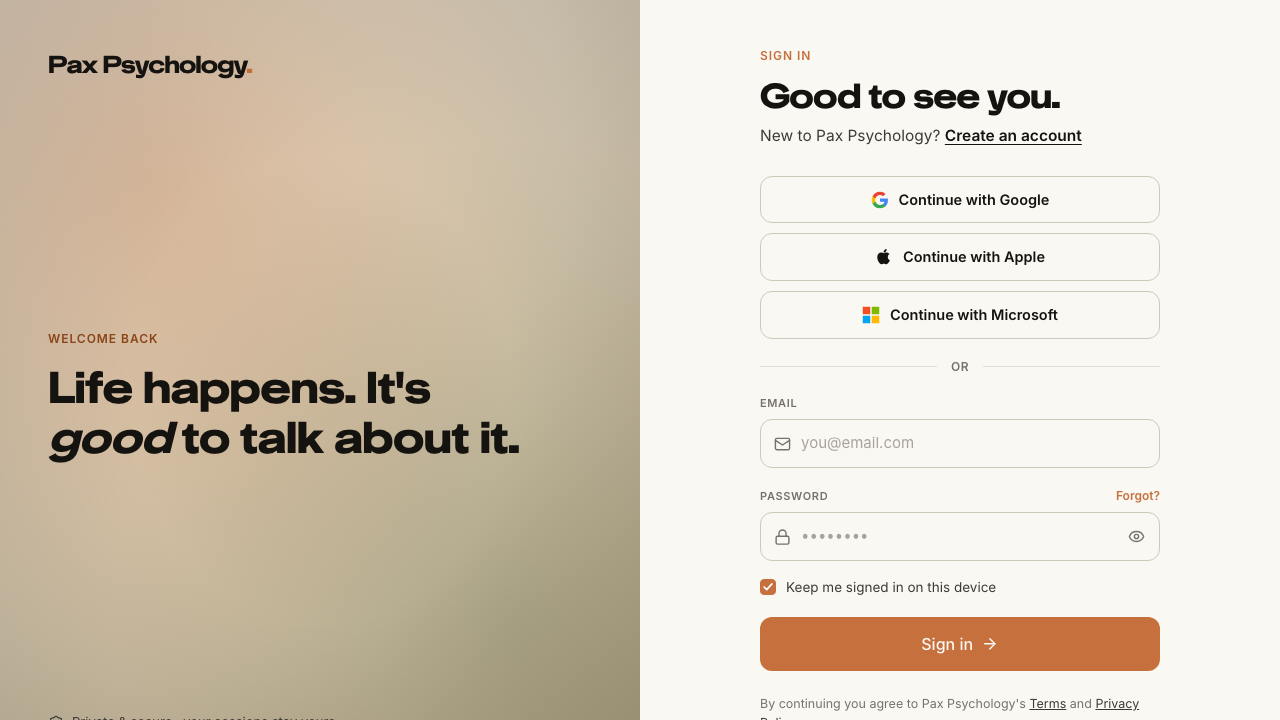
- Left panel eyebrow "Welcome back", headline "Life happens. It's _good_ to talk about it.", footnote "Private & secure · your sessions stay yours"
- Form eyebrow "Sign in", H1 "Good to see you.", sub "New to Pax Psychology? Create an account"
- Fields "Email" (placeholder
you@email.com) and "Password" (placeholder••••••••) with a "Forgot?" link inline on the password label - Checkbox "Keep me signed in on this device", ticked by default
- Button "Sign in", showing "Signing in…" while pending
- Footer "By continuing you agree to Pax Psychology's Terms and Privacy Policy."
- Redirected to
/dashboard, which loads the client portal Home (see TC-C-20)
Notes The old "Welcome back" / "Login" wording and the "Login with Google" button labels are gone.
Automated run
- 1. Navigate to https://paxpsychology.dev/auth/login
- 2. Check the page copy
- 3. Enter client@paxpsychology.dev and Test123!
- 4. Click “Sign in”
ManualTC-C-12Login with Google OAuth–
Google's hosted consent screen cannot be driven from Playwright (bot detection plus a real Google account and 2FA). Verify by hand: /auth/login → “Continue with Google” → land on /dashboard.
Test script
Preconditions A Google account linked to a staging user
Steps
- Navigate to
https://paxpsychology.dev/auth/login - Click "Continue with Google" and complete the OAuth flow
Expected
- Redirected to
/dashboardafter successful Google authentication.
Notes The social buttons are "Continue with Google", "Continue with Apple" and "Continue with Microsoft", separated from the form by an "or" divider. On /auth/register the same buttons read "Sign up with …".
ManualTC-C-13Login with Microsoft OAuth–
Microsoft Entra's hosted sign-in cannot be driven from Playwright (bot detection plus a real tenant account). Verify by hand: /auth/login → “Continue with Microsoft” → land on /dashboard.
Test script
Preconditions A Microsoft account linked to a staging user
Steps
- Navigate to
https://paxpsychology.dev/auth/login - Click "Continue with Microsoft" and complete the OAuth flow
Expected
- Redirected to
/dashboardafter successful Microsoft authentication.
Notes Signing in with a provider whose email already belongs to a password account shows "That email's already linked to a different way of signing in. Try the method you first signed up with."
PassedTC-C-14Forgot password flow4.0s
Test script
Preconditions An account with email/password credentials
Steps
- From
/auth/login, click "Forgot?" to reach/auth/forgot-password - Enter the account email and click "Send reset link"
- Open the reset email and follow the link to
/auth/reset-password?token=… - Enter a new password twice and click "Save & sign in"
- Log in with the new password
- Separately, open
/auth/reset-passwordwith no?token
Expected
- Forgot page: back link "Back to sign in", eyebrow "Forgot password", H1 "No worries.", sub "Pop in your email and we'll send you a link to set a new one.", button "Send reset link" ("Sending…" while pending)
- Success state: H1 "Check your email." with "We've sent a reset link to your inbox. Click it to set a new password – it expires in 30 minutes." and "Didn't get it? Check spam, or try again."
- Reset page: eyebrow "Set a new password", H1 "Let's get you back in.", fields "New password" (with a strength meter) and "Confirm new password", button "Save & sign in"
- Landing back on login shows the banner "Password reset successful – sign in with your new password."
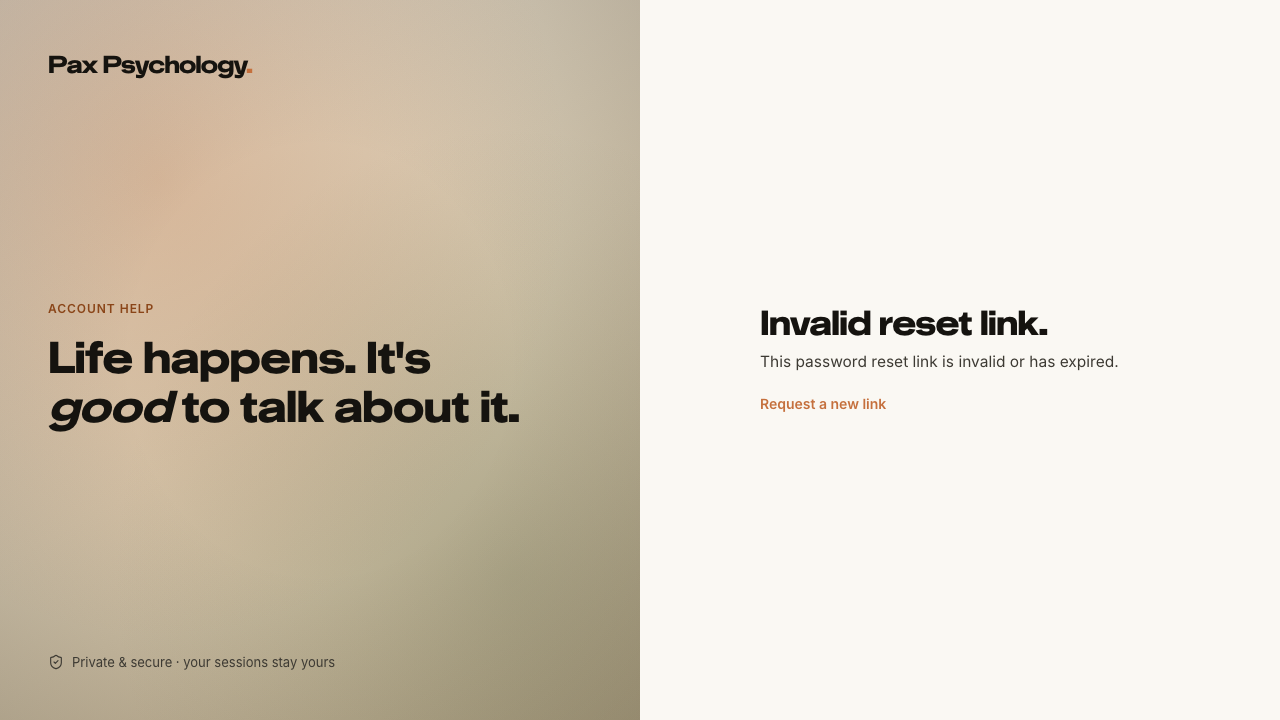
- With no token: H1 "Invalid reset link." and a "Request a new link" link
Notes The same route is linked as "Change password" from Settings › Account (TC-C-25).
Automated run
- 1. From /auth/login, click “Forgot?” to reach /auth/forgot-password
- 2. Enter the account email and click “Send reset link”
- 3–5. MANUAL: open the reset email, follow the link, set a new password and sign in with it
- 6. Separately, open /auth/reset-password with no ?token
PassedTC-C-15Login with invalid credentials1.4s
Test script
Preconditions None
Steps
- Navigate to
https://paxpsychology.dev/auth/login - Enter
invalid@example.com/wrongpasswordand click "Sign in"
Expected
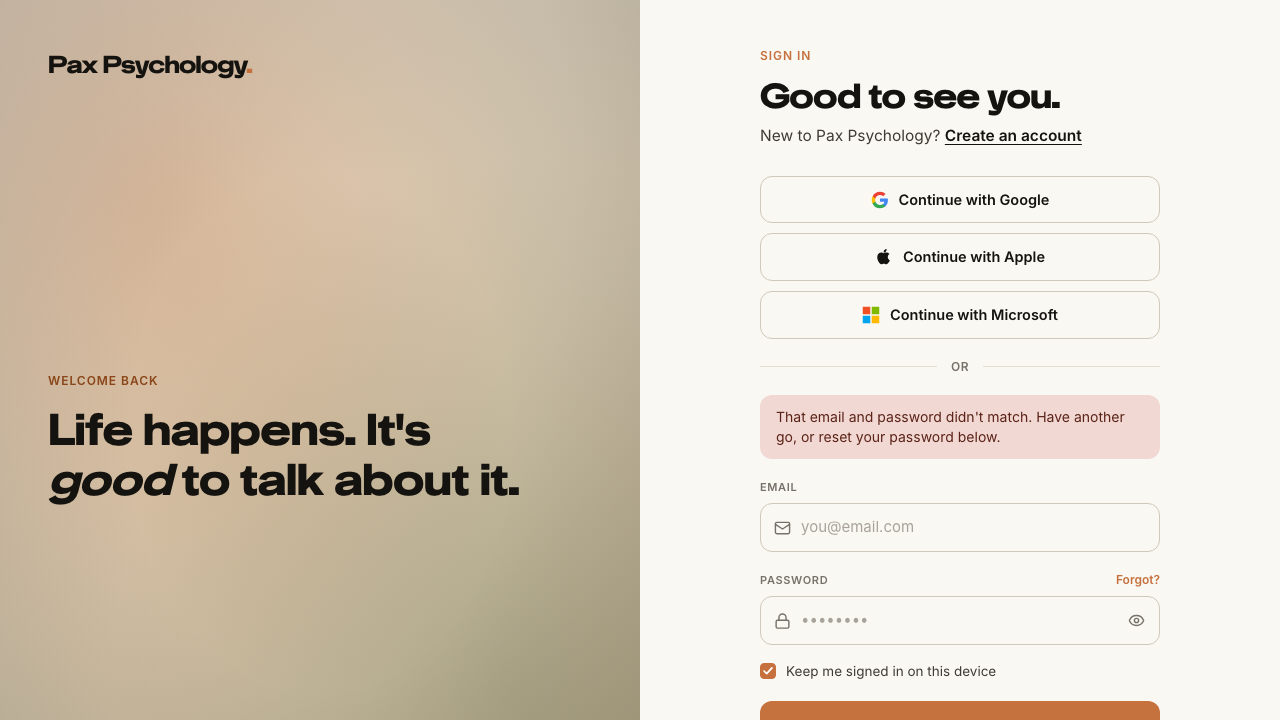
- The user stays on the login page and sees "That email and password didn't match. Have another go, or reset your password below."
- No hint is given as to whether the email exists
Automated run
- 1. Navigate to https://paxpsychology.dev/auth/login
- 2. Enter invalid@example.com / wrongpassword and click “Sign in”
PassedTC-C-16Sign out5.8s
Test script
Preconditions Logged in as the client
Steps
- From any dashboard page, click the user chip at the bottom of the left sidebar
- Confirm the menu contains "Settings" and "Sign out"
- Click "Sign out"
- Log back in, then go to
/dashboard/settings?section=accountand use the "Sign out" button in the red "Account" panel
Expected
- The sidebar chip menu is a new sign-out route added in this redesign; the label changes to "Signing out…" while pending and you land back on
/ - Settings › Account also offers "Sign out" ("Sign out of Pax on this device.") and, below it, "Delete account"
Notes Clients have no separate "Account actions" settings section – sign-out and delete live in the Account section's red panel. Psychologists and admins get a dedicated "Account actions" section instead.
Automated run
- 1. From any dashboard page, click the user chip at the bottom of the left sidebar
- 2. Confirm the menu contains “Settings” and “Sign out”
- 3. Click “Sign out”
- 4. Log back in, then use the “Sign out” button in the red “Account” panel of Settings › Account
1E. Booking Flow
2 passed 1 failed
PassedTC-C-17Complete a full booking (card saved, charged later)13.9s
Test script
Preconditions A psychologist with an appointment type, availability and Stripe Connect (use test@paxpsychology.dev). Do this signed out first.
Steps
- From a psychologist profile click "Book a session" to reach
/book/[username]/[appointmentName] - Step "Select Time": pick a date on the calendar, then a slot under "Available times for <Day>, <Mon. d>". The button reads "Pick a time" until a slot is chosen, then "Continue"
- Step "Your Info": fill First Name, Last Name, Your Email, Mobile Phone Number, optionally Referring General Practitioner and GP Clinic Name and Provider Number and Notes; tick "I confirm I am over 18 years of age" and "I accept the Privacy Policy and Terms of Use"; click "Continue to Payment"
- Step "Payment": read the two callouts, then enter card
4242 4242 4242 4242/12/30/123and click "Confirm Booking - $<amount>"
Expected
- The stepper shows SELECT TIME → YOUR INFO → PAYMENT for a signed-out visitor
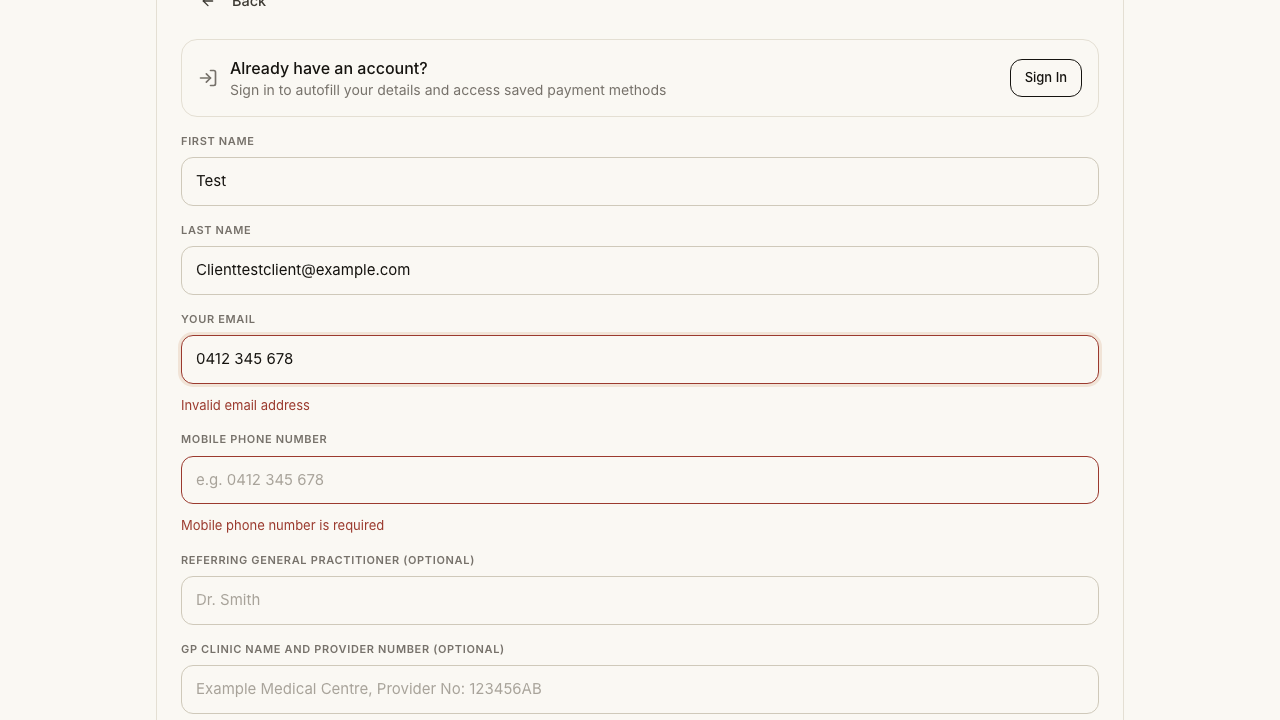
- A sign-in prompt appears above the info form: "Already have an account?" / "Sign in to autofill your details and access saved payment methods"
- The payment card is headed "Payment Details" and the amount row is labelled "Charged after your session"
- The green callout reads "Secure Payment: Your payment information is encrypted and securely processed through Stripe…" and the blue one reads "Payment Policy: Your card will be saved now but only charged after your appointment is completed. You can cancel up to 24 hours before your appointment at no charge."
- "Save payment method for future bookings" is ticked by default
- On success: "Booking Confirmed!" / "Your card has been saved. Payment will be charged after your appointment is completed. Redirecting…", then
/booking-successwith H1 "You're in." and CTAs "View my appointments" and "Back to browsing" - A confirmation email arrives; the appointment appears in the psychologist's Schedule
- No charge appears in Stripe yet – only a saved payment method. The charge is raised when the psychologist completes the session (TC-P-10)
Notes Times are shown in the client's timezone; when it differs from the psychologist's a line reads "Times shown in <ABBREV>". The Lifeline crisis strip appears at the foot of every booking page.
Automated run
- 1. From a psychologist profile click “Book a session” to reach /book/[username]/[appointmentName]
- 2. Step “Select Time”: pick a date, then a slot under “Available times for …”
- 3. Step “Your Info”: fill the form, tick both consents and click “Continue to Payment”
- 4. Step “Payment”: read the callouts, enter 4242 4242 4242 4242 and click “Confirm Booking - $<amount>”
- 5. Housekeeping: cancel the booking so the psychologist's calendar stays clean
FailedTC-C-18Booking as a signed-in client (Review Info step)36.7s
Test script
Preconditions Logged in as client@paxpsychology.dev
Steps
- Go to a booking page and select a date and time
- Continue
Expected
- The stepper shows SELECT TIME → REVIEW INFO → PAYMENT (the "Your Info" step is replaced, not added to)
- The "Already have an account? Sign in" prompt does not appear
- A "Your Information" card lists Name, Email, Mobile and, when stored, Referring GP and GP Clinic Name and Provider Number, all pre-filled from the profile
- An "Edit" button switches to an editable form whose submit button reads "Save & Continue"; the read-only view's button reads "Continue to Payment"
- Any saved cards are offered on the payment step under "Payment Method", with the default one marked "Default", plus an "Add new payment method" option
Automated run
- 1. Go to a booking page and select a date and time
- 2. Continue
- Saved cards are offered under “Payment Method”, with the default one marked “Default” – failed
Error: expect(locator).toBeVisible() failed

Locator: getByText('Default', { exact: true }).filter({ visible: true })
Expected: visible
Timeout: 30000ms
Error: element(s) not found

Call log:
  - Expect "toBeVisible" with timeout 30000ms
  - waiting for getByText('Default', { exact: true }).filter({ visible: true })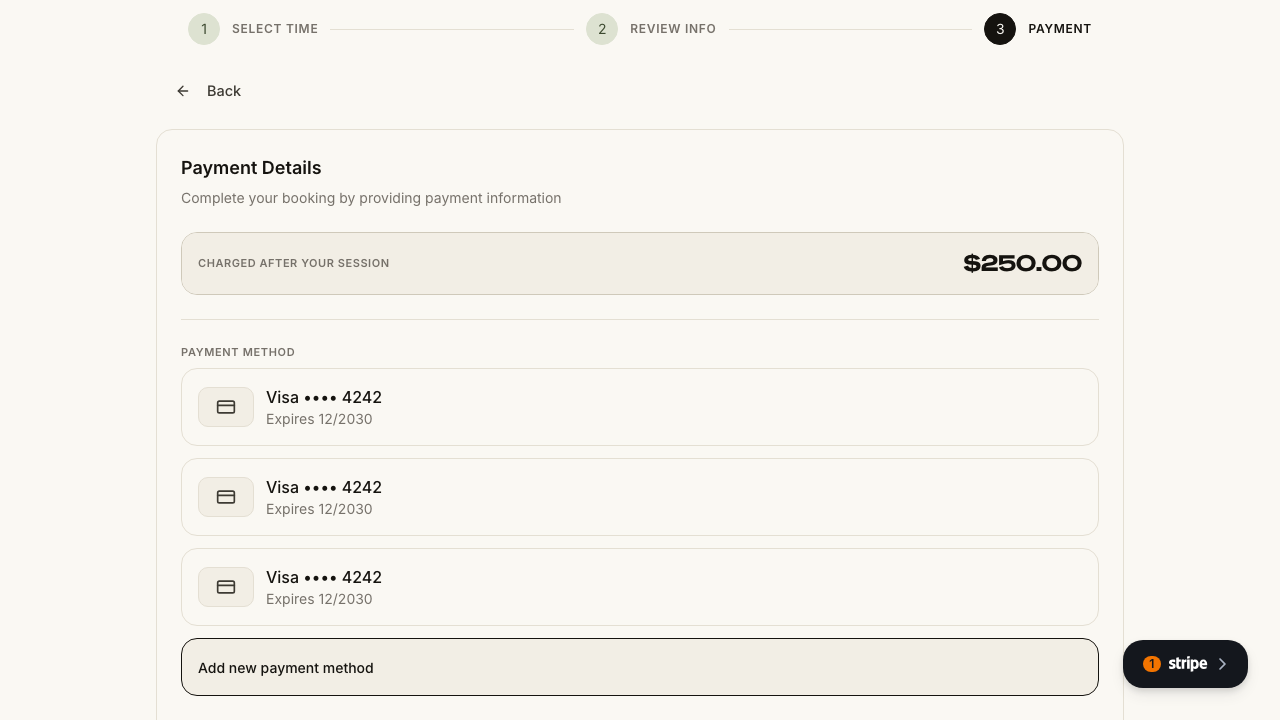
PassedTC-C-19Booking information validation4.3s
Test script
Preconditions None (do this signed out)
Steps
- Go to a booking page and select a date and time
- On the "Your Info" step leave every field empty and click "Continue to Payment"
- Scroll up and note where the page has moved you
- Enter
notanemailin "Your Email" and blur the field - Fill the text fields correctly but leave the two checkboxes unticked, and submit again
Expected
- Per-field errors appear in red: "First name is required", "Last name is required", "Invalid email address", "Mobile phone number is required", "You must confirm you are over 18", "You must accept the Privacy Policy and Terms of Use"
- Invalid fields get
aria-invalidstyling - The page scrolls the first invalid field into the centre of the viewport and focuses it (instantly rather than smoothly if you have reduced motion on)
- A summary alert sits directly above the submit button reading "Please fix the highlighted fields above before continuing." It clears itself as you fix fields on blur
- The form cannot advance until all required fields are valid and both checkboxes are ticked
Notes The Review Info step (signed-in path) validates on blur and has neither the summary alert nor the scroll-to-error behaviour.
Automated run
- 1. Go to a booking page and select a date and time
- 2. On “Your Info” leave every field empty and click “Continue to Payment”
- 3. Scroll up and note where the page has moved you
- 4. Enter `notanemail` in “Your Email” and blur the field
- 5. Fill the text fields correctly but leave the checkboxes unticked, and submit again
1F. Client Portal
8 passed
PassedTC-C-20Client Home2.9s
Test script
Preconditions Logged in as client@paxpsychology.dev with an upcoming and some past sessions
Steps
- Navigate to
https://paxpsychology.dev/dashboard
Expected
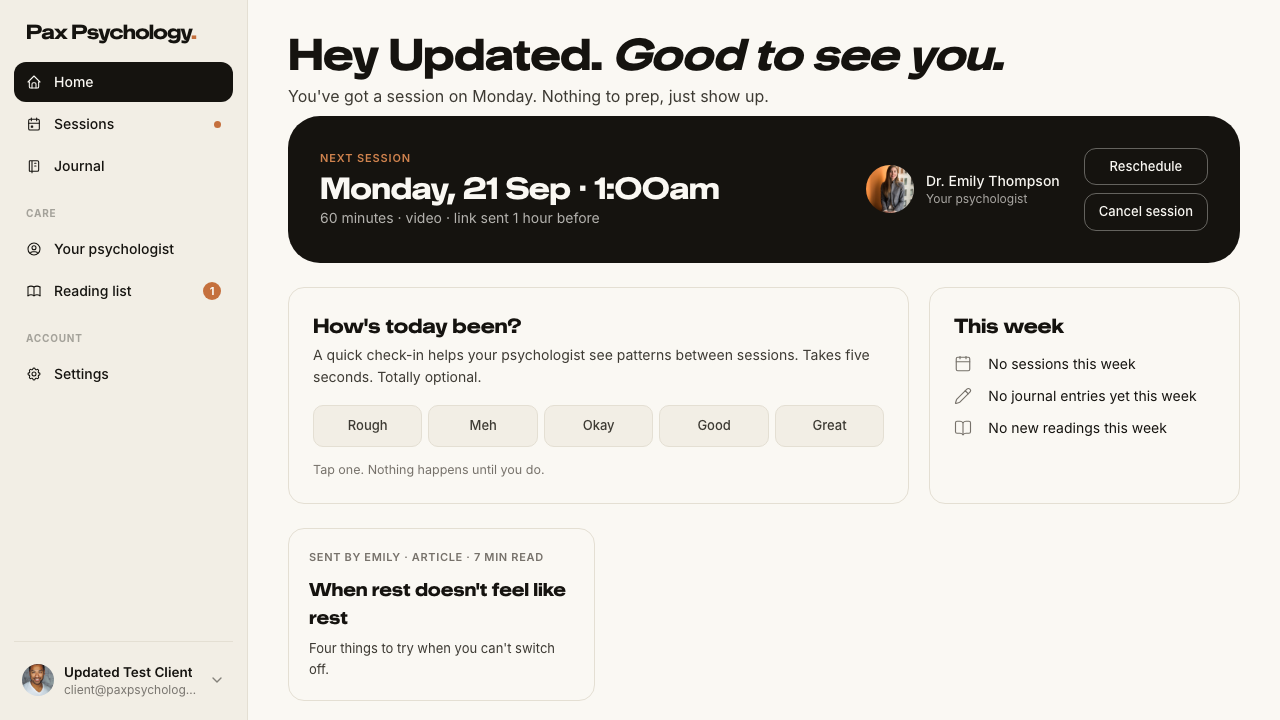
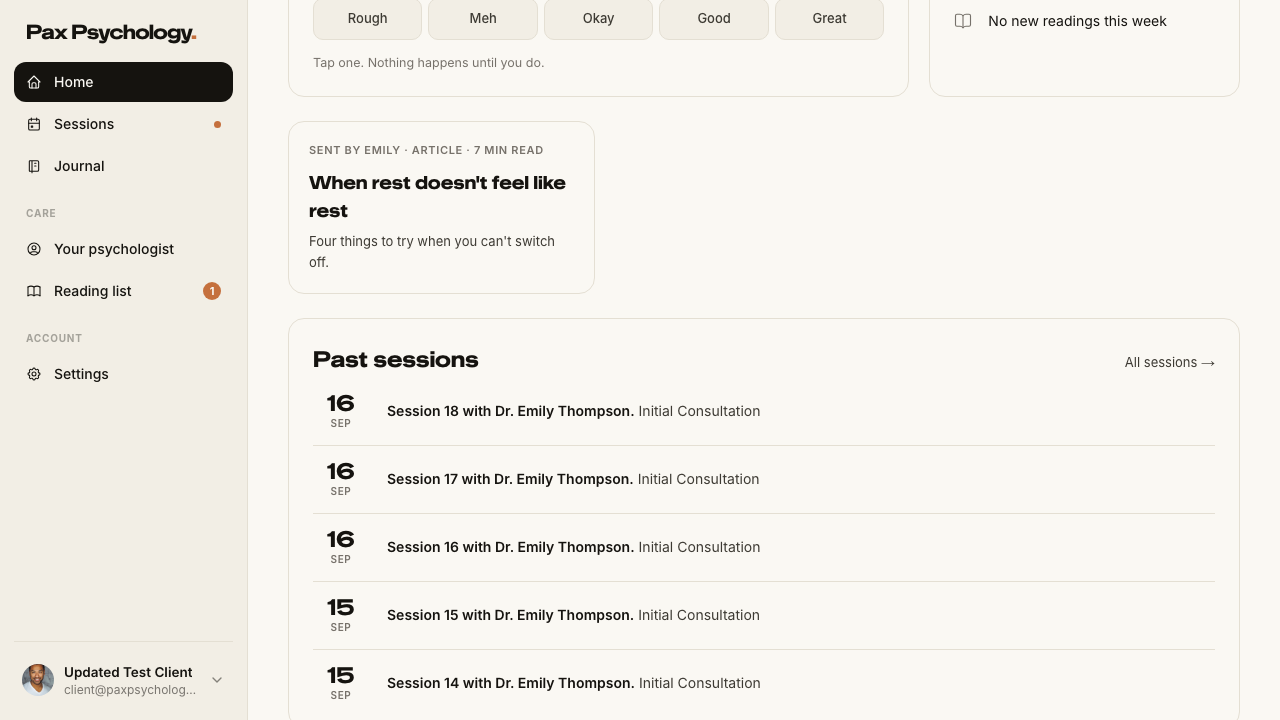
- Sidebar nav: Home, Sessions, Journal under the main group; Your psychologist and Reading list under "Care"; Settings under "Account". (Messages and Medicare/Insurance appear only when their flags are on – off on staging.) Sessions carries a dot when a session is upcoming
- Greeting H1 "Hey <FirstName>. Good to see you." with a sub-line naming the day of the next session, or "No sessions booked – book when you're ready."
- Dark "Next session" hero: date · time (linked to the appointment detail), "<n> minutes · video · link sent 1 hour before", the psychologist's avatar and name, and buttons "Join early" / "Reschedule" / "Cancel session"
- A "How's today been?" mood check-in with buttons "Rough", "Meh", "Okay", "Good", "Great", and a "This week" card
- A resources row (hidden once everything is read)
- A "Past sessions" card with an "All sessions →" link
Notes The stats cards, Journey Progress, Total Spent, Account Balance and the four Quick Action buttons from the old dashboard are all gone.
Automated run
- 1. Navigate to https://paxpsychology.dev/dashboard
- Sidebar nav: Home · Sessions · Journal, then Care and Account groups
- Greeting, “Next session” hero, mood check-in, “This week” and “Past sessions”
PassedTC-C-21Sessions list (Upcoming / Past)4.0s
Test script
Preconditions Logged in as a client with upcoming and past sessions
Steps
- Navigate to
https://paxpsychology.dev/dashboard/appointments - Confirm the "Upcoming" tab is selected, then click "Past"
- Click a session title
Expected
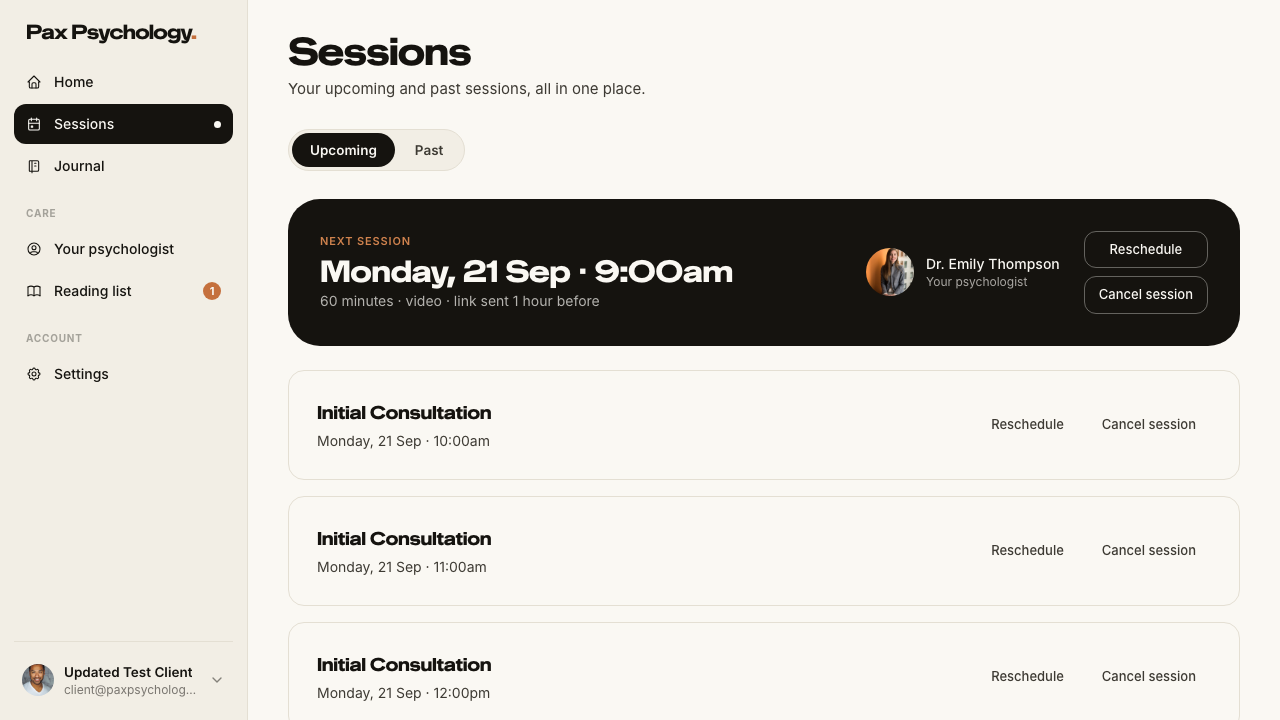
- H1 "Sessions", sub "Your upcoming and past sessions, all in one place."
- A pill-shaped segmented control with just "Upcoming" and "Past" – no counts in the labels; the choice is reflected in the URL as
?tab=past - Upcoming: the soonest session renders as the dark "Next session" hero, the rest as "booked ahead" cards titled with the session type
- Session titles link to
/dashboard/appointments/[id] - Past: numbered rows ("Session 4 with Emily"), the shared notes text or "Your session with Emily. No notes were shared for this one.", a "Session notes" badge when notes were shared, a "Receipt" link and a "Rebook" button
- Empty states: "Nothing booked yet." / "Pick a time that suits and you're set." and "No past sessions yet. They'll show up here after your first one.", each with a "Book a session" button
- Pagination appears at 10+ items
Notes The old search box and "Upcoming (X)" / "Past (X)" counts are gone. The 24-hour reschedule rule on these cards is covered by TC-C-35.
Automated run
- 1. Navigate to https://paxpsychology.dev/dashboard/appointments
- 2. Confirm the “Upcoming” tab is selected, then click “Past”
- 3. Click a session title
PassedTC-C-35Reschedule and cancel from the Sessions list14.2s
Test script
Preconditions Logged in as a client with (a) a session more than 24 hours away and (b) one less than 24 hours away
Steps
- On
/dashboard/appointments, find the session more than 24 hours out - Confirm both "Reschedule" and "Cancel session" buttons are present
- Click "Reschedule", pick a new date and time, and confirm
- Now look at the session that is less than 24 hours away
Expected
- More than 24 hours out: both "Reschedule" and "Cancel session" show
- The reschedule modal is titled "Reschedule session" with the sub-line "Pick a new date and time from your psychologist's open slots.", fields "New date" and "New time", and buttons "Cancel" / "Reschedule" ("Rescheduling…" while pending). On success it shows "Session moved." and a "Done" button, and both parties are notified
- Within 24 hours: the "Reschedule" button is hidden and the line "Within 24 hours – contact your psychologist to change this session." appears in its place. "Cancel session" is still offered
Notes This is new in the redesign. On the Sessions page the 24-hour line only appears after hydration (the clock is sampled client-side); on Home it is computed on the server. The reschedule modal is the kit's Scrim shell – a div[role="dialog"][aria-modal="true"], not a native <dialog> like the Pax confirm dialogs – so it is dismissed by clicking the scrim or its "Close" button rather than with Esc. Reschedule the session you booked as the precondition: the list also offers "Reschedule" on PENDING sessions, and submitting one of those is refused with "Cannot reschedule an appointment with status: PENDING" (the button should not be offered – raise it separately).
Automated run
- 1. On /dashboard/appointments, find the session more than 24 hours out
- 2. Confirm both “Reschedule” and “Cancel session” buttons are present
- 3. Click “Reschedule”, pick a new date and time, and confirm
- 4. Now look at the session that is less than 24 hours away
PassedTC-C-22View appointment detail (client)4.9s
Test script
Preconditions Logged in as a client with at least one appointment
Steps
- From Sessions, click a session title to open
/dashboard/appointments/[appointmentId]
Expected
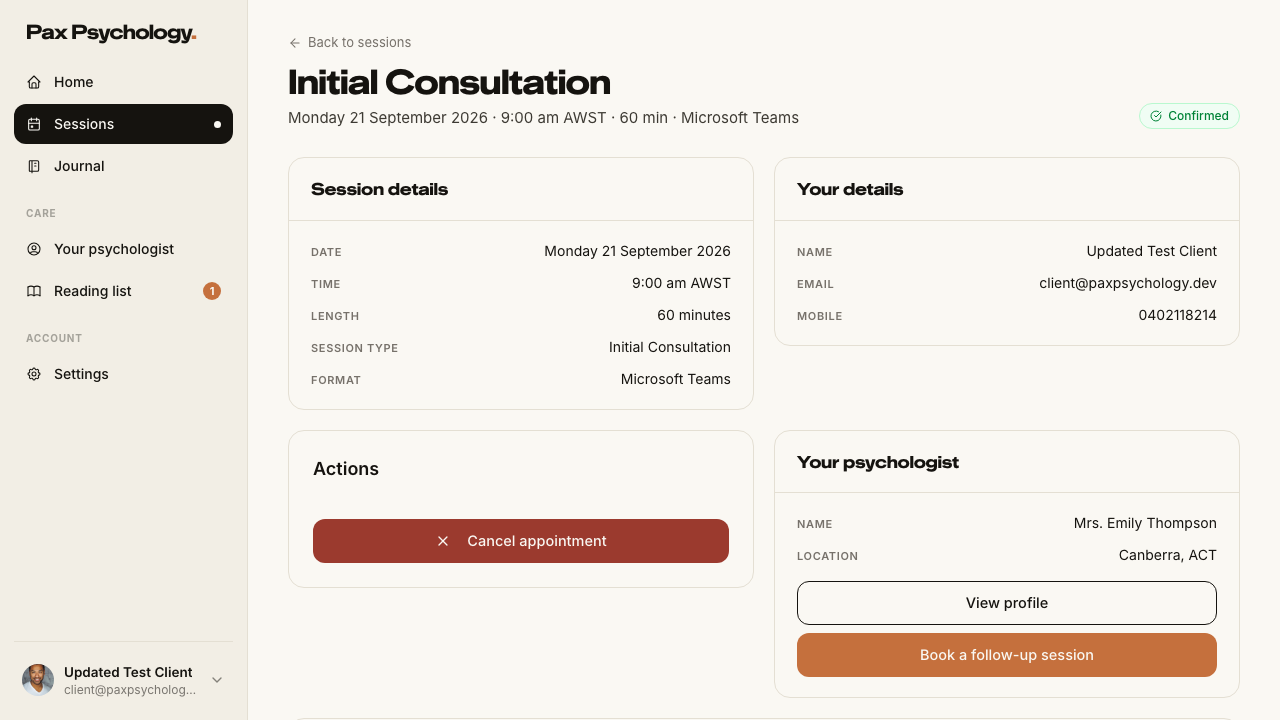
- Back link "Back to sessions"; H1 = the session type; meta line date · time · duration · video provider; a status pill
- Panel "Session details": Date, Time, Length, Session type, Format
- Panel "Your details": Name, Email, Mobile, and Referring doctor (with clinic name and "Provider no. …" beneath it) when stored
- An Actions card with "Join video call" and "Cancel appointment" for future confirmed sessions
- Panel "Receipt" (only once the session is COMPLETED and paid): Amount, Status pill, Paid on, and a "View receipt" button →
/dashboard/invoices/[id] - Panel "Your psychologist": Name, Location, "View profile" and "Book a follow-up session" (→
/rebook/[appointmentId]) - A "Session Notes" card only when the psychologist shared notes, and a "Documents" card
Notes All times are in the client's timezone.
Automated run
- 1. From Sessions, click a session title to open /dashboard/appointments/[appointmentId]
PassedTC-C-23Cancel an upcoming appointment19.0s
Test script
Preconditions Logged in as a client with an upcoming CONFIRMED appointment more than 24 hours away
Steps
- Click "Cancel session" (Sessions list or Home hero) or "Cancel appointment" on the detail page
- In the dialog, check the title and body copy
- Optionally enter a reason
- Click "Cancel Appointment"
Expected
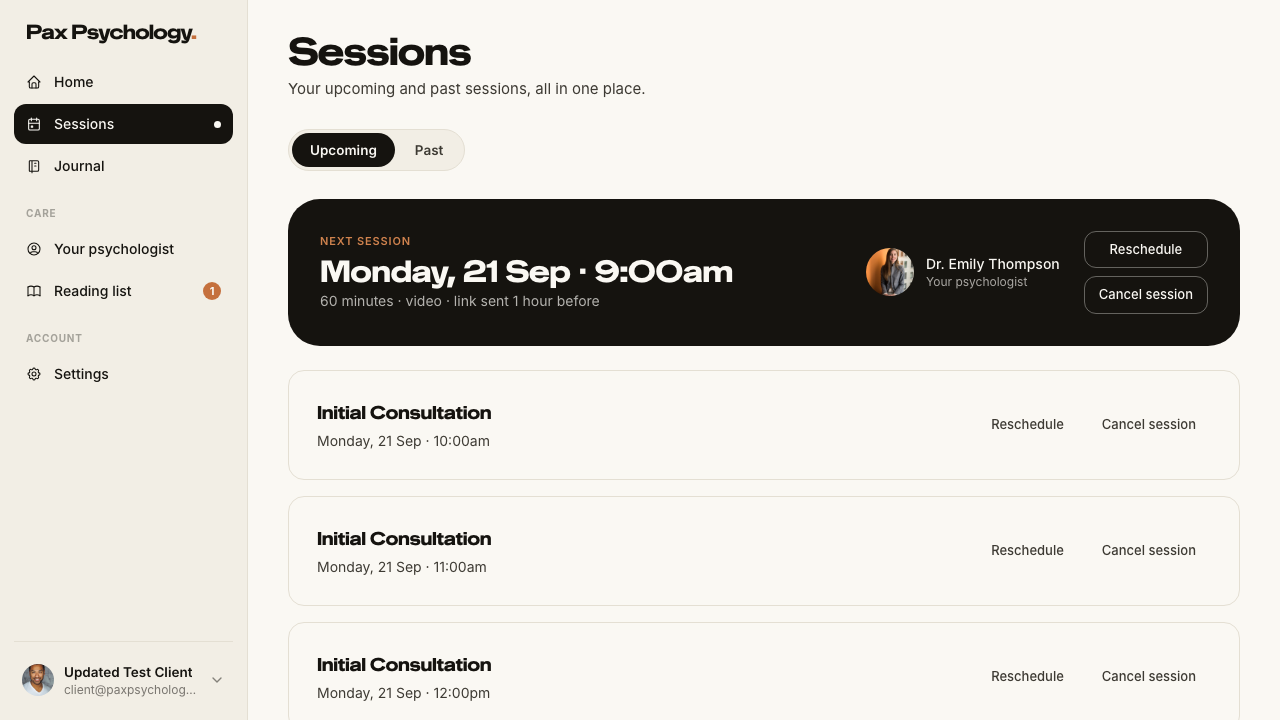
- Dialog title "Cancel Appointment?"; body "Are you sure you want to cancel the <session type> appointment with <psychologist> on <Weekday, D Month YYYY>?"
- Field "Cancellation reason (optional):" with placeholder "Please provide a reason for cancellation..."
- Buttons "Keep Appointment" (dismiss) and "Cancel Appointment"; the latter shows a spinner and "Cancelling..."
- Toast "Appointment cancelled successfully"; status changes to Cancelled and a notification email is sent
- Within 24 hours the dialog adds the warning "This appointment is within the 24-hour cancellation window. A late cancellation fee will be charged to the client." and the toast becomes the warning "Appointment cancelled. Late cancellation fee has been charged."
Notes The dialog copy is still practitioner-worded ("charged to the client") in the client portal – expected, not a bug to raise twice.
Automated run
- Precondition. Book a session more than 24 hours out to cancel
- 1. Click “Cancel session” on the Sessions list
- 2. In the dialog, check the title and body copy
- 3. Optionally enter a reason
- 4. Click “Cancel Appointment”
PassedTC-C-24Receipts (client invoices)5.4s
Test script
Preconditions Logged in as a client with at least one completed, paid session
Steps
- Navigate directly to
https://paxpsychology.dev/dashboard/invoices - Go to
/dashboard/appointments, open the "Past" tab, and click "Receipt" on a completed session - On the receipt page, click "Download Receipt"
Expected
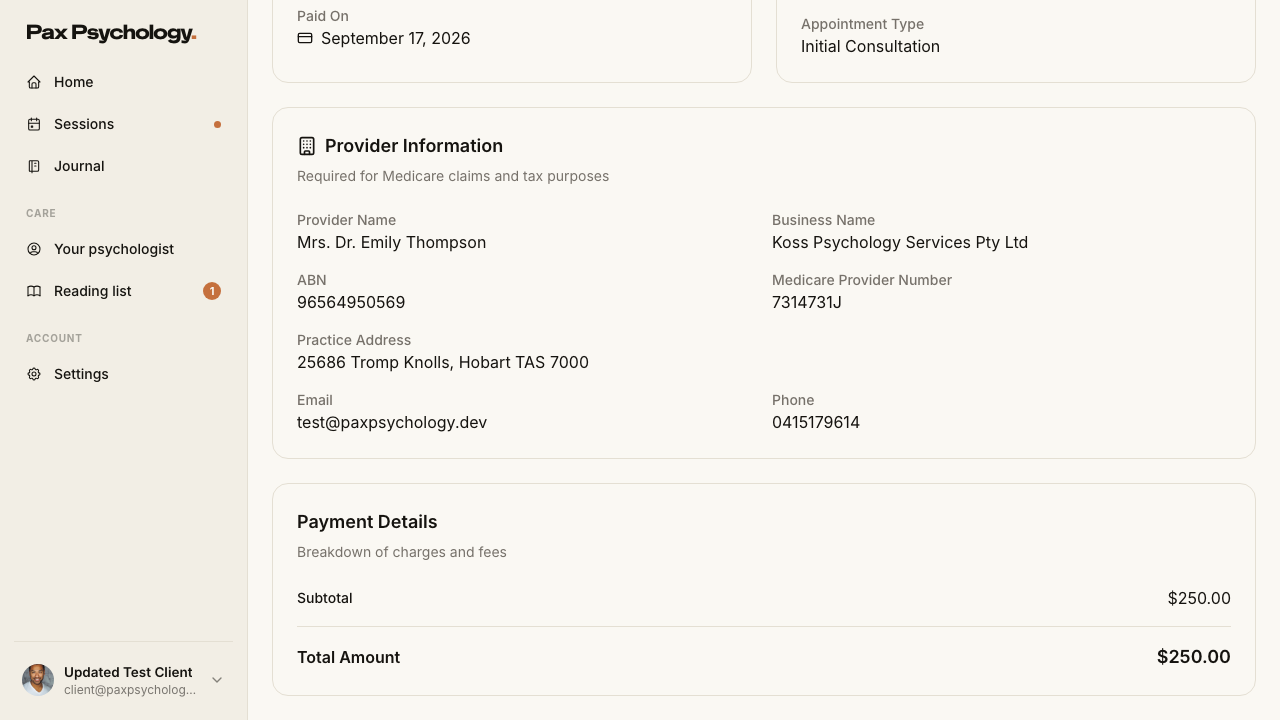
/dashboard/invoicesredirects a client to/dashboard/appointments– there is no invoices index in the client portal any more- "Receipt" opens
/dashboard/invoices/[id]showing the invoice number, "Created on <date>", a status pill, and cards for Invoice Information, Client Information, Provider Information and Payment Details - "Download Receipt" is offered only for a paid client invoice; the "Resend" button is hidden from clients
Notes Because cards are charged after the session, a receipt only exists for sessions the psychologist has completed.
Automated run
- 1. Navigate directly to https://paxpsychology.dev/dashboard/invoices
- 2. Go to /dashboard/appointments, open the “Past” tab, and click “Receipt”
- 3. On the receipt page, click “Download Receipt”
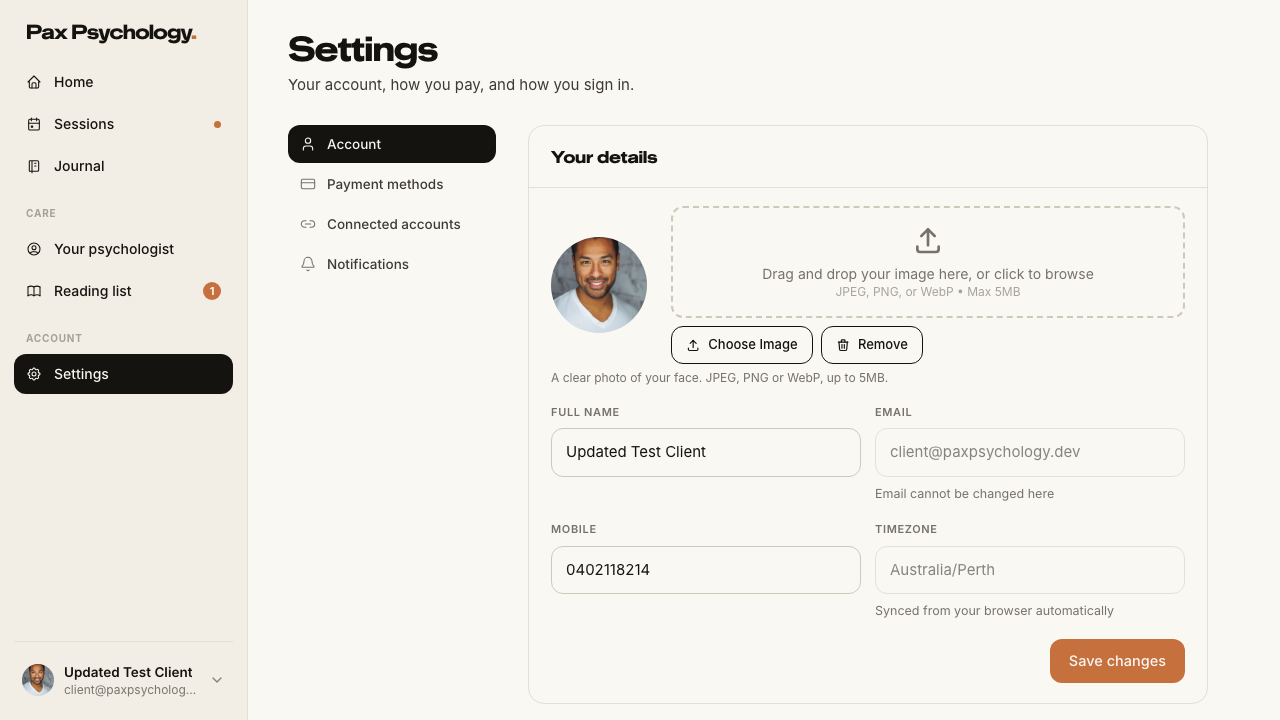
PassedTC-C-25Client settings – Account6.3s
Test script
Preconditions Logged in as a client
Steps
- Navigate to
https://paxpsychology.dev/dashboard/settings?section=account - Confirm the section nav and the fields
- Change "Full name" to
Updated Test Clientand click "Save changes" - Reload the page
Expected
- H1 "Settings", subtitle "Your account, how you pay, and how you sign in."
- Client section nav: "Account", "Payment methods", "Connected accounts", "Notifications" (plus "Insurance" only when that flag is on). Sections are chosen via
?section=<id>; an unknown value falls back to Account - Panel "Your details": avatar upload (helper "A clear photo of your face. JPEG, PNG or WebP, up to 5MB."), "Full name", "Email" disabled with the hint "Email cannot be changed here", "Mobile" (placeholder
0400 000 000), and "Timezone" disabled with the hint "Synced from your browser automatically" - Save button "Save changes"; toast "Account updated" on success
- Panel "Password" with "Change password" →
/auth/forgot-password - Red panel "Account" with "Sign out" and "Delete account"
- The new name persists after reload
Notes Timezone is no longer a dropdown – it is read-only and synced from the browser. The old /dashboard/settings/profile URL 307-redirects here.
Automated run
- 1. Navigate to /dashboard/settings?section=account
- 2. Confirm the section nav and the fields
- 3. Change “Full name” to `Updated Test Client` and click “Save changes”
- 4. Reload the page – the new name persists
- Housekeeping: restore the seeded client's name
PassedTC-C-26Client settings – Payment methods and Medicare10.8s
Test script
Preconditions Logged in as a client
Steps
- Navigate to
/dashboard/settings?section=payment-methods - Click "+ Add payment method", enter
4242 4242 4242 4242/12/30/123and click "Save card" - Add a second card, then click "Make default" on it
- Click "Remove" on the non-default card and confirm
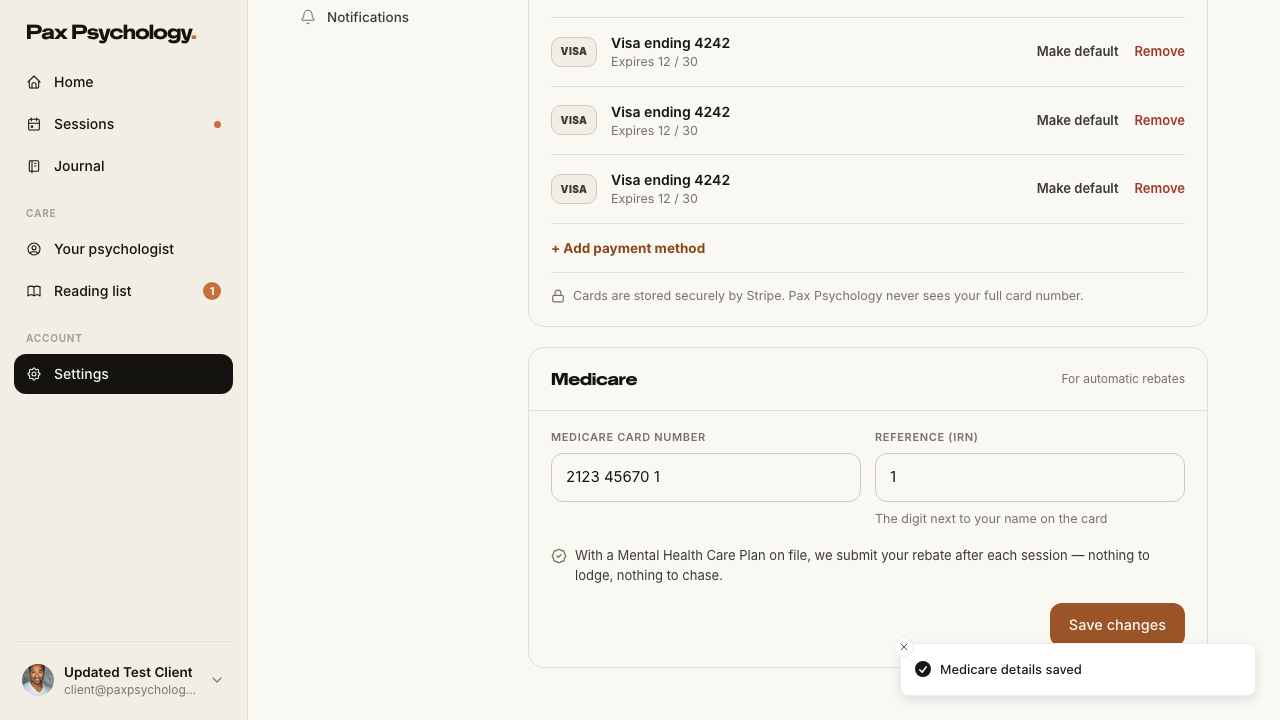
- Scroll to the "Medicare" panel, enter a Medicare card number and IRN, and save
Expected
- Panel "Payment methods" with the header note "Charged when you book a session"
- Empty state: "No cards saved yet. Add one and paying for sessions is one less thing to think about."
- Each card row reads "<Brand> ending <last4>" with "Expires MM / YY"; the default one carries a "Default" pill and hides its "Make default" action
- Toasts: "Card saved", "Default card updated", "Card removed" (errors: "Couldn't save that card. Try again.", "Couldn't change your default card", "Couldn't remove that card")
- Remove opens a confirm dialog titled "Remove this card?" with a "Remove" button
- Footer note: "Cards are stored securely by Stripe. Pax Psychology never sees your full card number."
- The Medicare panel sits directly beneath payment methods, headed "Medicare" with the note "For automatic rebates", fields "Medicare card number" (placeholder
0000 00000 0) and "Reference (IRN)" (placeholder1), and the toast "Medicare details saved"
Notes The Medicare number has moved here from the old profile form. Reload the page between step 4 and step 5. On a Stripe test key, adding a card leaves Stripe's transparent "developer tools" easel parked in the bottom-right corner, and the toasts from steps 3–4 stack in the same place – both sit over the Medicare panel's "Save changes", which is the last control on the page. A reload clears them.
Automated run
- 1. Navigate to /dashboard/settings?section=payment-methods
- 2. Click “+ Add payment method”, enter 4242 4242 4242 4242 / 12/30 / 123 and click “Save card”
- 3. Click “Make default” on the new card
- 4. Click “Remove” on the non-default card and confirm
- 5. Scroll to the “Medicare” panel, enter a Medicare card number and IRN, and save
1G. New public surfaces
6 passed
PassedTC-C-27Journal index, article and newsletter signup8.6s
Test script
Preconditions At least one published journal article
Steps
- Navigate to
https://paxpsychology.dev/journal - Click a category chip, then click "All"
- Open an article
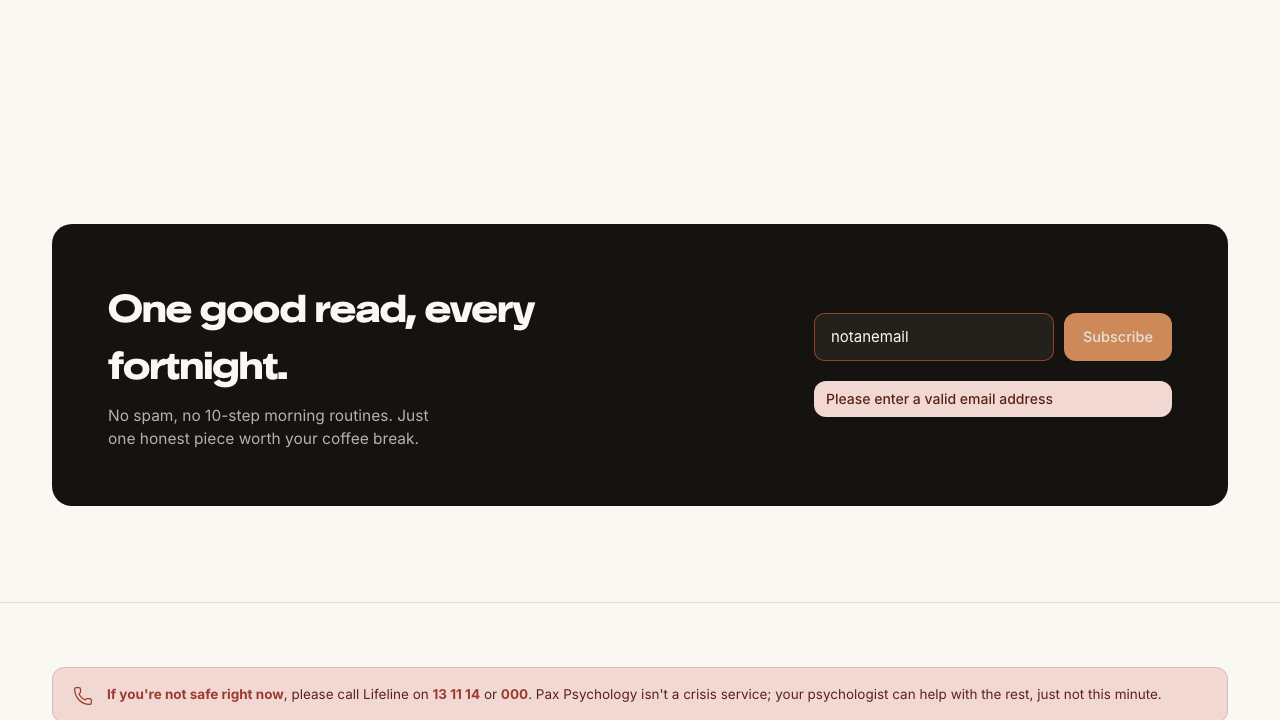
- Scroll to the newsletter strip at the foot of
/journal, enternewsletter-test@example.comand click "Subscribe" - Try again with
notanemail
Expected
- Eyebrow "The Pax Psychology journal", H1 "Things worth reading when you've got ten minutes."
- Category chips start with "All"; the active chip is dark and the URL carries
?category=<name>. A category with no matches shows "Nothing here yet. Try another category, or check back soon." - The unfiltered view leads with a featured article ("Featured · <category> · <n> min read")
- An article page shows the breadcrumb-style eyebrow, title, byline, share buttons, and a "Keep reading" section; if the author is a Pax psychologist an author booking card appears with "Book a session"
- Newsletter strip: H2 "One good read, every fortnight.", body "No spam, no 10-step morning routines. Just one honest piece worth your coffee break.", a single email field (placeholder
you@email.com) and a "Subscribe" button ("Subscribing..." while pending) - Success replaces the form with "Thanks <FirstName>! You've been subscribed to our newsletter." – the first name is derived from the email local part; there is no first-name input
- An invalid address shows "Please enter a valid email address"
Notes This is the only newsletter form on the site (TC-C-06 retired).
Automated run
- 1. Navigate to https://paxpsychology.dev/journal
- 2. Click a category chip, then click “All”
- 3. Open an article
- 4. Scroll to the newsletter strip and subscribe
- 5. Try again with `notanemail`
PassedTC-C-28Newsletter unsubscribe2.4s
Test script
Preconditions A subscribed email address and its unsubscribe link (from a newsletter email, or built as /newsletter/unsubscribe?token=…)
Steps
- Open the unsubscribe link
- Then open
/newsletter/unsubscribewith no token
Expected
- Valid link: H1 "You're off the list." with the email named, plus buttons "Back to the homepage" and "Browse the journal"; a confirmation email subject "You're off the list" is sent; the subscriber shows as Unsubscribed in
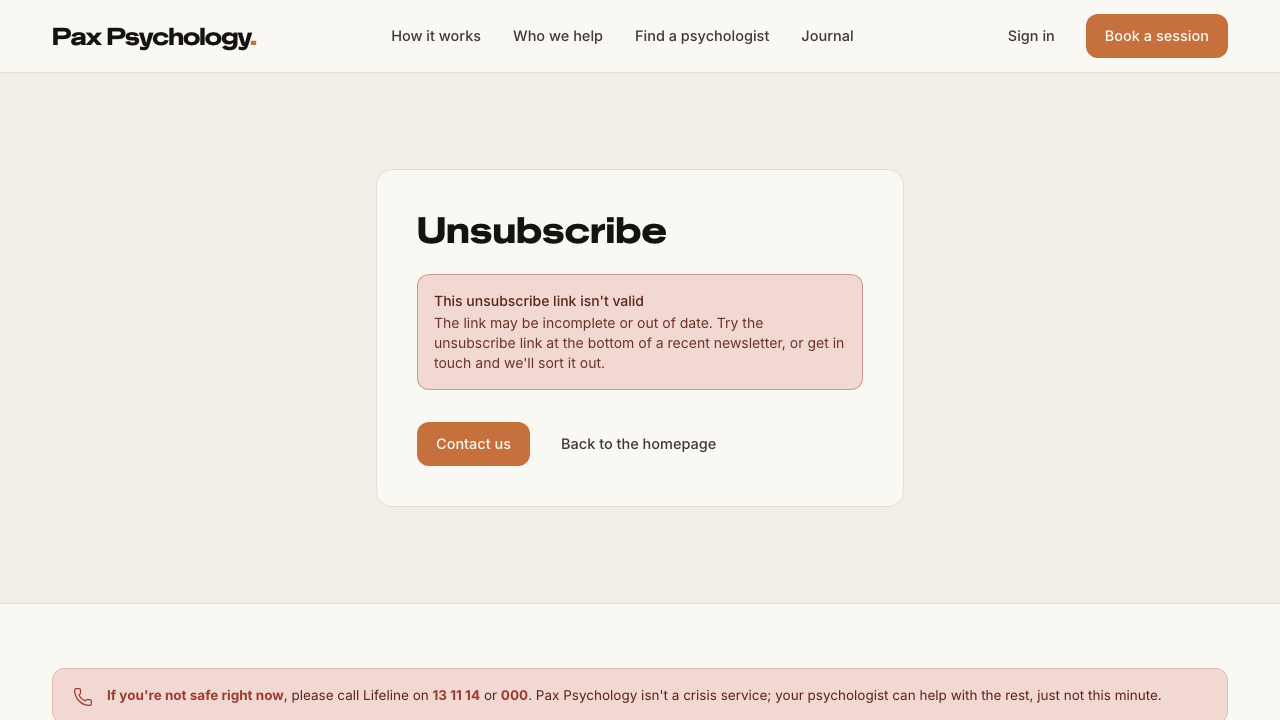
/dashboard/newsletter - No/invalid token: an alert "This unsubscribe link isn't valid" with "Contact us" and "Back to the homepage"
Notes Known copy bug – the success page says you can rejoin "from the form on our homepage", but the only form is on /journal.
Automated run
- 1. Open the unsubscribe link
- 2. Then open /newsletter/unsubscribe with no token
PassedTC-C-29For Psychologists landing page (new)3.0s
Test script
Preconditions None
Steps
- Navigate to
https://paxpsychology.dev/for-psychs - Click "Apply to join"
Expected
- Eyebrow "Pax Psychology for psychologists", H1 "Do the work. We'll handle the _rest_."; hero buttons "Apply to join" (→
/auth/register) and "See the dashboard"; footnote "Takes 10 minutes · AHPRA registration required" - Sections "How it works for you" (cards 01/02/03), "Why psychologists stay" (four cards), "Your home base" (dashboard mock with "Open the live dashboard demo →"), a practitioner quote, a five-question FAQ block, and the closing CTA "Apply to join Pax Psychology"
- "Apply to join" reaches the registration page
Notes Reachable from the footer as "Join Pax Psychology" and "How we vet".
Automated run
- 1. Navigate to https://paxpsychology.dev/for-psychs
- 2. Click “Apply to join”
PassedTC-C-30Mobile filters drawer on the directory (new)6.3s
Test script
Preconditions Browser window narrower than 768px (or a phone)
Steps
- Navigate to
https://paxpsychology.dev/psychologistsat 375px width - Confirm the desktop sidebar is hidden and a "Filters" button sits next to the sort dropdown
- Tap "Filters"
- Apply a couple of filters inside the drawer
- Tap the button at the foot of the drawer
- Widen the window past 768px
Expected
- The "Filters" button carries an ochre badge counting active filters
- The drawer is titled "Filters" and contains exactly the same groups as the desktop sidebar ("What's up", "Session type", "Location", "Psychologist's gender", "Availability")
- Filters apply immediately as you toggle them – the sticky footer button reads "Show <n> results" and simply closes the drawer
- Widening past 768px auto-closes the drawer and the sidebar reappears
Notes There is no "Clear" control inside the drawer; use the pill row's "Clear all" on the results page.
Automated run
- 1. Navigate to /psychologists at 375px width
- 2. Confirm the desktop sidebar is hidden and a “Filters” button sits next to the sort dropdown
- 3. Tap “Filters”
- 4. Apply a couple of filters inside the drawer
- 5. Tap the button at the foot of the drawer
- 6. Widen the window past 768px – the drawer auto-closes and the sidebar reappears
PassedTC-C-31FAQs page2.5s
Test script
Preconditions None
Steps
- Navigate to
https://paxpsychology.dev/faqs - Expand several questions
Expected
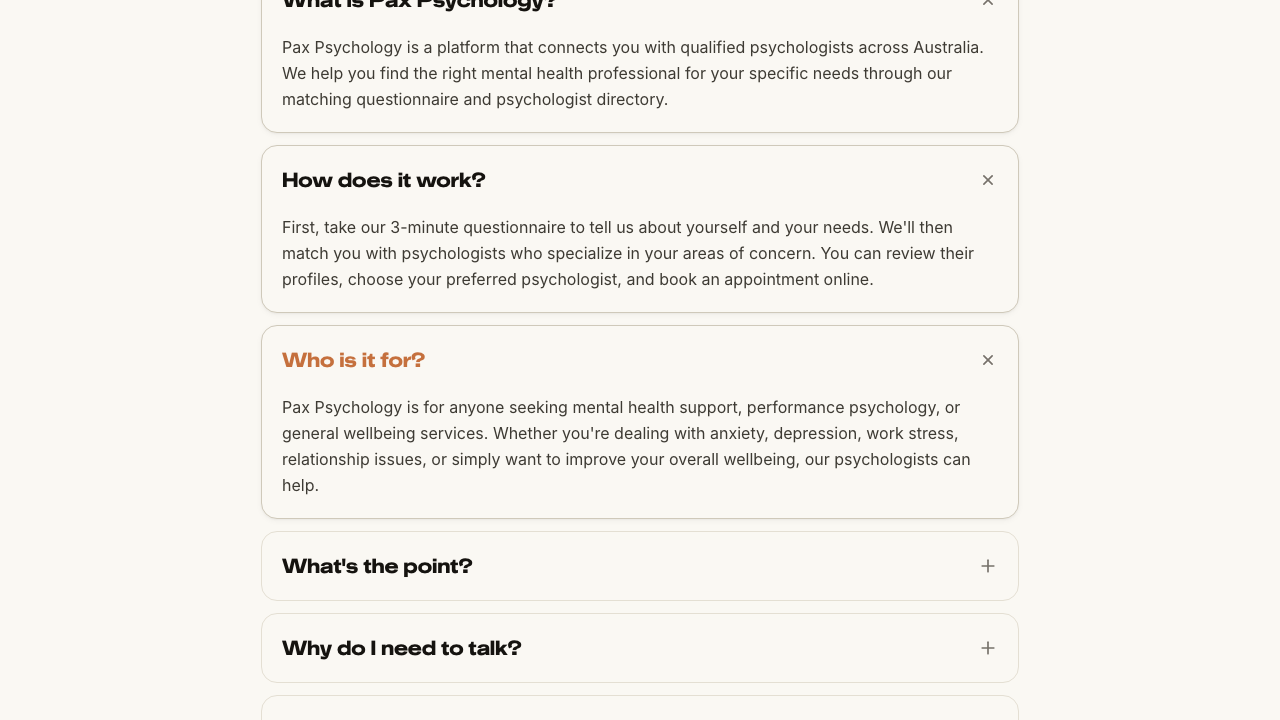
- Eyebrow "Common questions", H1 "Frequently asked questions"
- 11 accordions, hard-coded (a different source from the homepage FAQ accordion, which is DB-driven and admin-editable)
- Closing CTA "Still have questions?" with "Contact us" and "Find your match"
Notes Two answers change wording depending on the in-person bookings flag (off on staging → video-only wording).
Automated run
- 1. Navigate to https://paxpsychology.dev/faqs
- 2. Expand several questions
PassedTC-C-32Error pages2.0s
Test script
Preconditions None
Steps
- Navigate to
https://paxpsychology.dev/this-page-does-not-exist - Navigate to
/psychologists/definitely-not-a-real-username
Expected
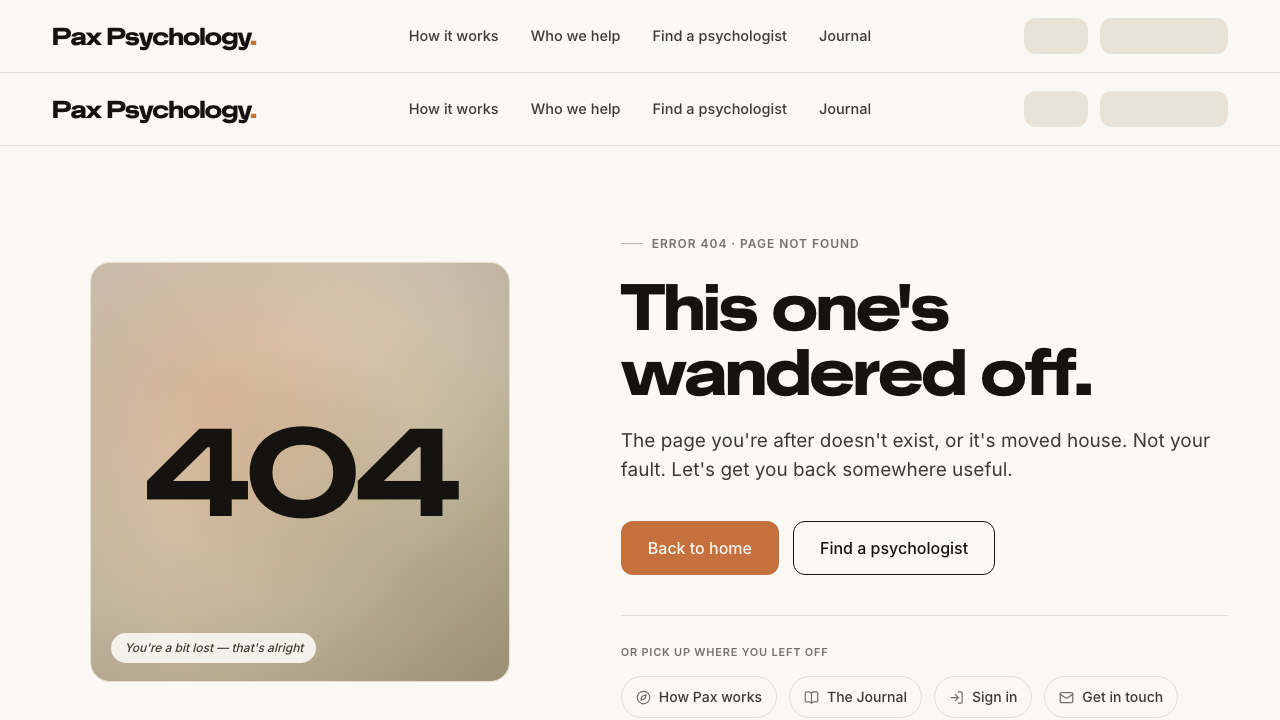
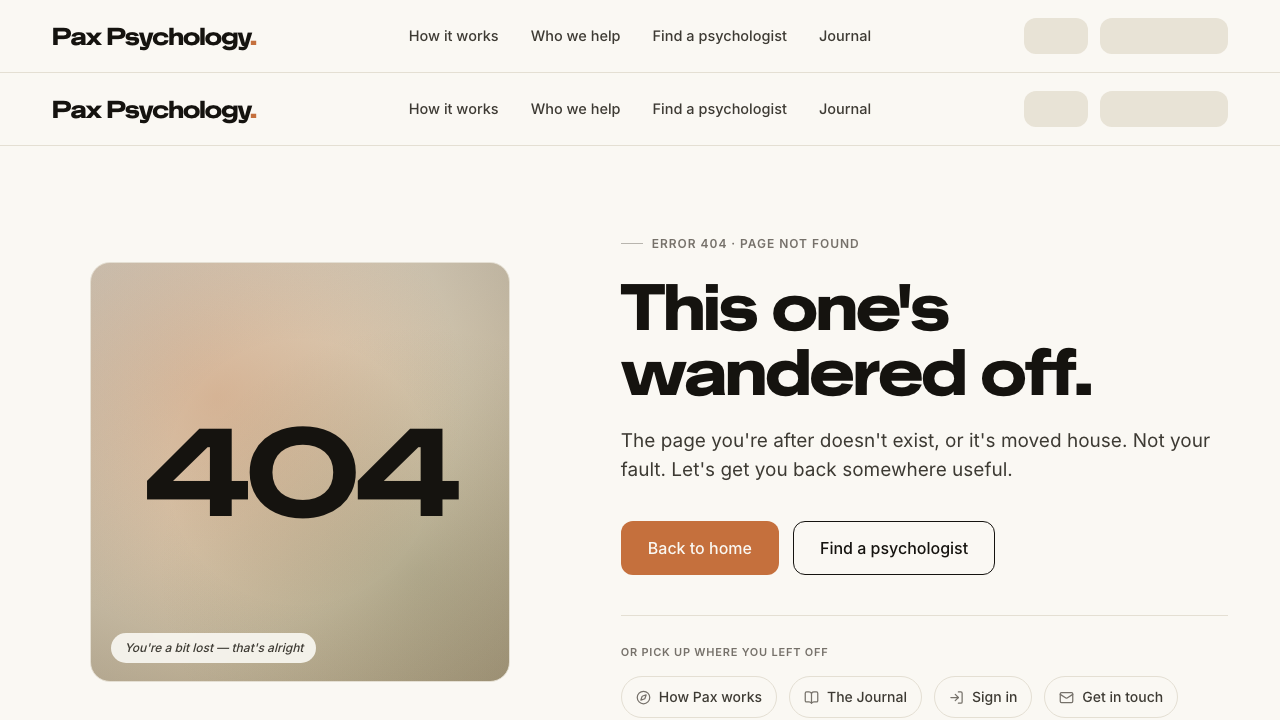
- 404 page: big "404" mark, caption "You're a bit lost – that's alright", eyebrow "Error 404 · Page not found", H1 "This one's wandered off.", buttons "Back to home" and "Find a psychologist", plus a pill row "Or pick up where you left off" (How Pax works / The Journal / Sign in / Get in touch). The marketing header and footer are present
- An unknown psychologist username also 404s
Notes For the 500 screen (H1 "Something broke on our end." with a "Try again" button) you need an induced server error – treat as optional.
Automated run
- 1. Navigate to https://paxpsychology.dev/this-page-does-not-exist
- 2. Navigate to /psychologists/definitely-not-a-real-username
1H. Other new surfaces
2 passed
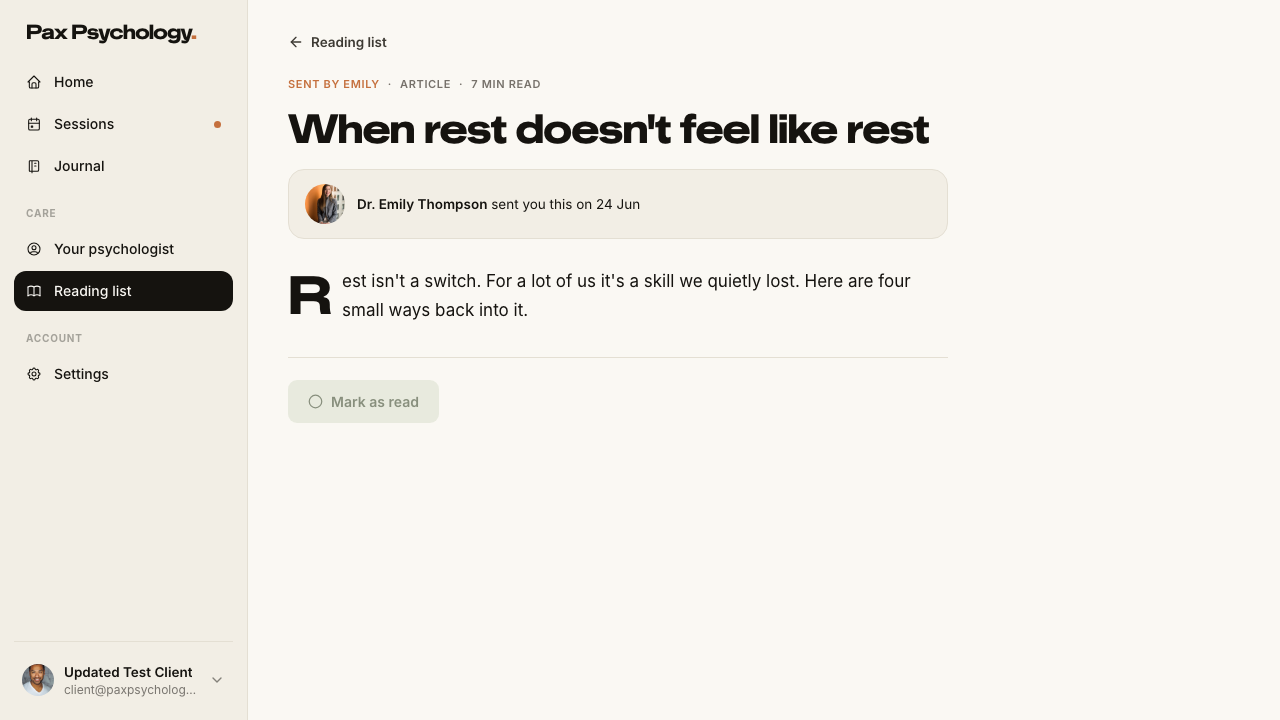
PassedTC-C-33Your psychologist and Reading list (new client Care pages)6.1s
Test script
Preconditions Logged in as client@paxpsychology.dev (who has a psychologist and some assigned readings)
Steps
- Click "Your psychologist" in the sidebar
- Click "Reading list"
- Open a reading and mark it read
Expected
- Your psychologist: H1 "Your psychologist", a hero with the psychologist's name, credentials and a "Book a session" button, their bio, fact cards ("Sessions together", "Usual rhythm", "Session rate", "Format"), a "How <First> works" tag list and a "Good to know" crisis note. With no psychologist yet: "You haven't booked a psychologist yet" and a "Find a psychologist" button
- Reading list: H1 "Reading list", filter pills "All", "From <First>", "Pax Psychology Journal", "Worksheets"; unread items carry an ochre dot; opening one shows who sent it and a "Mark as read" button that becomes "Done". Empty: "Nothing on your reading list yet."
Notes Worksheet answers save privately as you type.
Automated run
- 1. Click “Your psychologist” in the sidebar
- 2. Click “Reading list”
- 3. Open a reading and mark it read
PassedTC-C-34Self-serve registration5.1s
Test script
Preconditions An unused email address
Steps
- Navigate to
https://paxpsychology.dev/auth/register - Fill "First name", "Email" and "Password", tick the terms checkbox and click "Create account"
- Follow the flow to
/auth/check-emailand use the resend control - Open the verification email and follow the link
Expected
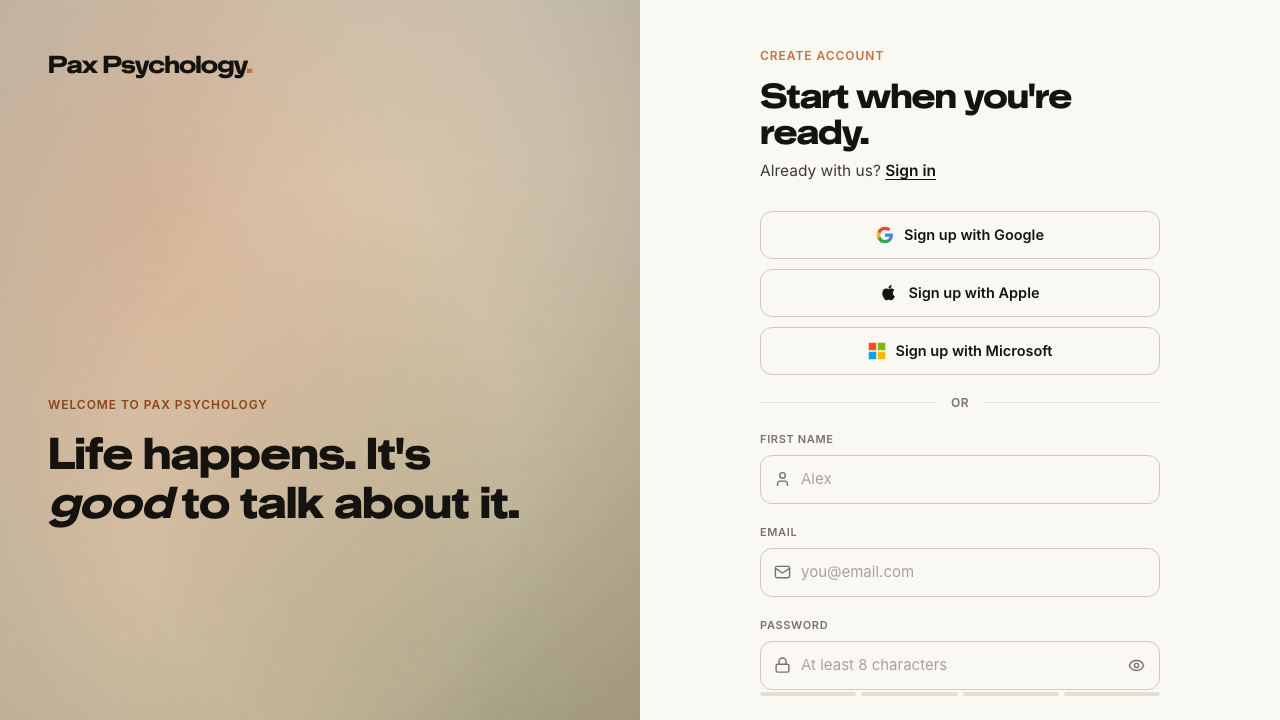
- Eyebrow "Create account", H1 "Start when you're ready.", sub "Already with us? Sign in"
- Fields "First name" (placeholder
Alex), "Email" (placeholderyou@email.com), "Password" (placeholderAt least 8 characters) with a strength meter - Consent checkbox "I agree to Pax Psychology's Terms and Privacy Policy, and understand Pax Psychology isn't a crisis service."
- Button "Create account" → "Creating your account…"
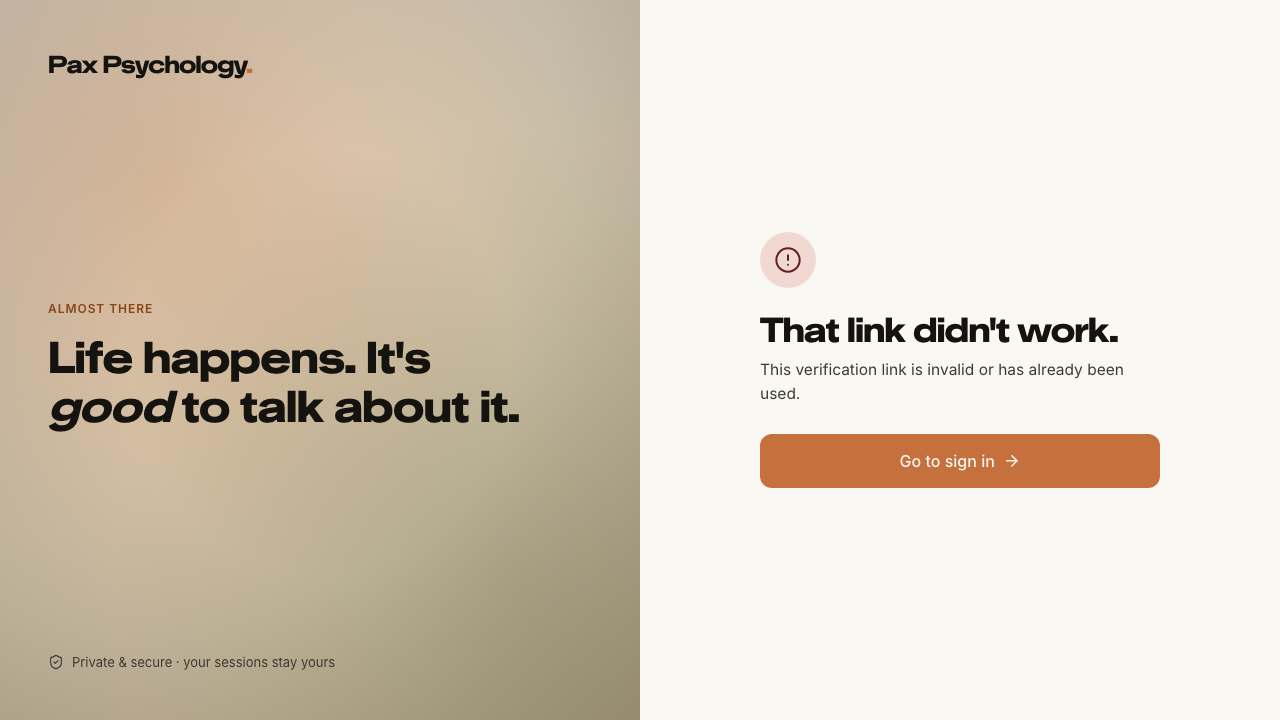
/auth/check-email: H1 "Check your email." with "…it expires in 24 hours." and a "resend" control; a successful resend says "Sent again – give it a minute and check your spam folder."- After verifying: H1 "You're all set." with a "Sign in" button. An expired link gives "That link expired."; a reused one "That link didn't work."
Notes /for-psychs sends applicants here via "Apply to join".
Automated run
- 1. Navigate to https://paxpsychology.dev/auth/register
- 2. Fill “First name”, “Email” and “Password”, tick the terms checkbox and click “Create account”
- 3. Follow the flow to /auth/check-email and use the resend control
- 4. MANUAL: open the verification email and follow the link
Psychologist
27 cases22 passed 4 manual 1 skipped
2A. Onboarding
4 passed 1 manual
ManualTC-P-01Connect the Stripe Connect payout account3.5s
Steps 4–5 leave Pax: 'Connect with Stripe' hands off to Stripe's hosted Connect onboarding (a stripe.com form with identity and bank details) and returns via an OAuth-style callback. Nothing on that hop can be automated, and completing it would burn the shared `test2@` fixture's 'payouts not set up' state that other cases rely on. Everything Pax itself renders – the banner, the sidebar alert, the Stripe Connect card and its CTA – is checked below; a reviewer only needs to eyeball the hosted form and the post-connect 'Connected' badge (see TC-P-20).
Test script
Preconditions Logged in as test2@paxpsychology.dev (Stripe not connected)
Steps
- Navigate to
https://paxpsychology.dev/dashboard - Note the payout banner and click its CTA
- On
/dashboard/settings?section=payouts, read the Stripe Connect card - Click "Connect with Stripe" and complete the Stripe-hosted onboarding
- Return to Pax
Expected
- The Today page shows the banner "Finish setting up payouts to accept bookings" with the body "Your Stripe Connect onboarding is incomplete, so session fees can't reach you yet. It takes about 2 minutes." and the button "Set up payouts" →
/dashboard/settings?section=payouts - The sidebar "Settings" item carries an alert icon (
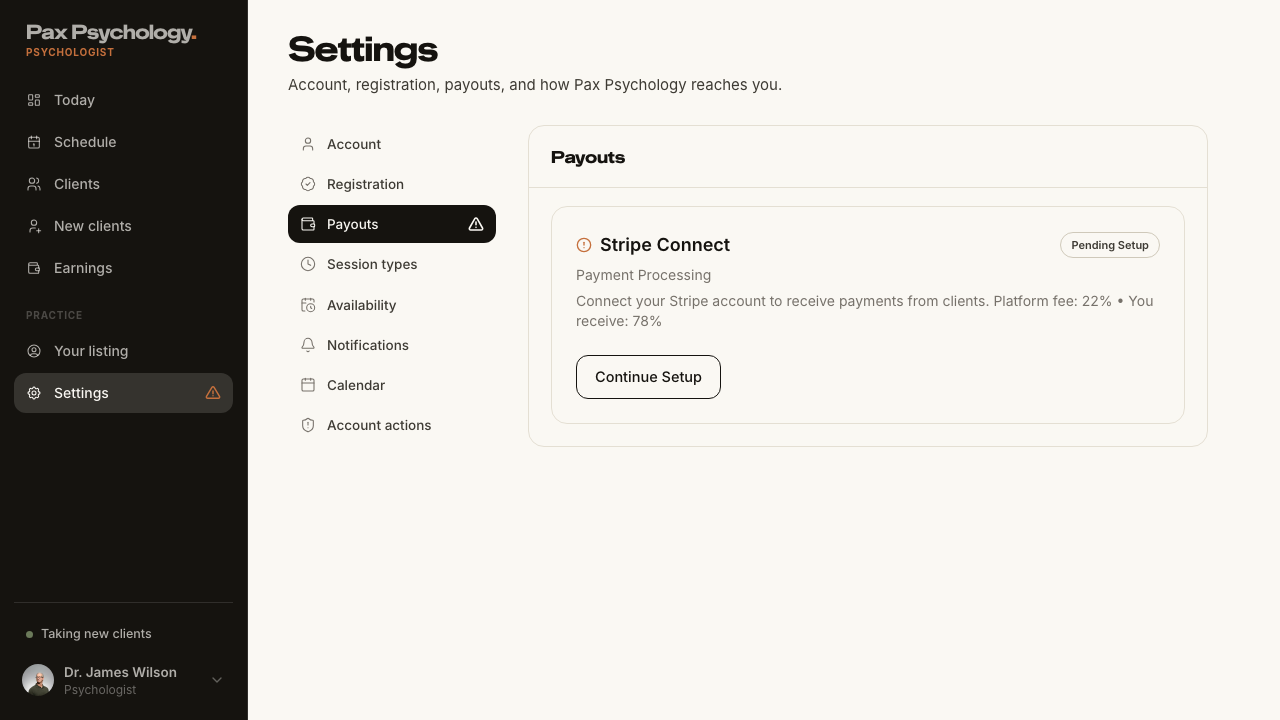
aria-label"Action needed") and the Payouts nav item shows an ochre badge, until this is done - The card is titled "Stripe Connect" / "Payment Processing" with the line "Connect your Stripe account to receive payments from clients. Platform fee: 22% • You receive: 78%" and a "Not Connected" badge
- After connecting: badge "Connected", rows "Account ID:", "Country:", "Currency:", flags "Charges Enabled" and "Payouts Enabled", and a "Stripe Dashboard" button
Notes A part-finished account shows the "Pending Setup" badge and a "Continue Setup" button. Until payouts are connected the psychologist is not bookable from the public site.
Automated run
- 1. Navigate to https://paxpsychology.dev/dashboard
- 2. Note the payout banner and click its CTA
- 3. On /dashboard/settings?section=payouts, read the Stripe Connect card
- 4. Click "Connect with Stripe" and complete the Stripe-hosted onboarding – MANUAL
- 5. Return to Pax – MANUAL
PassedTC-P-02Complete profile / account details6.6s
Test script
Preconditions Logged in as a psychologist
Steps
- Navigate to
https://paxpsychology.dev/dashboard/settings?section=account - Upload a profile picture, change "Full name", click "Save changes"
- Switch to
?section=registrationand fill the professional fields - Open
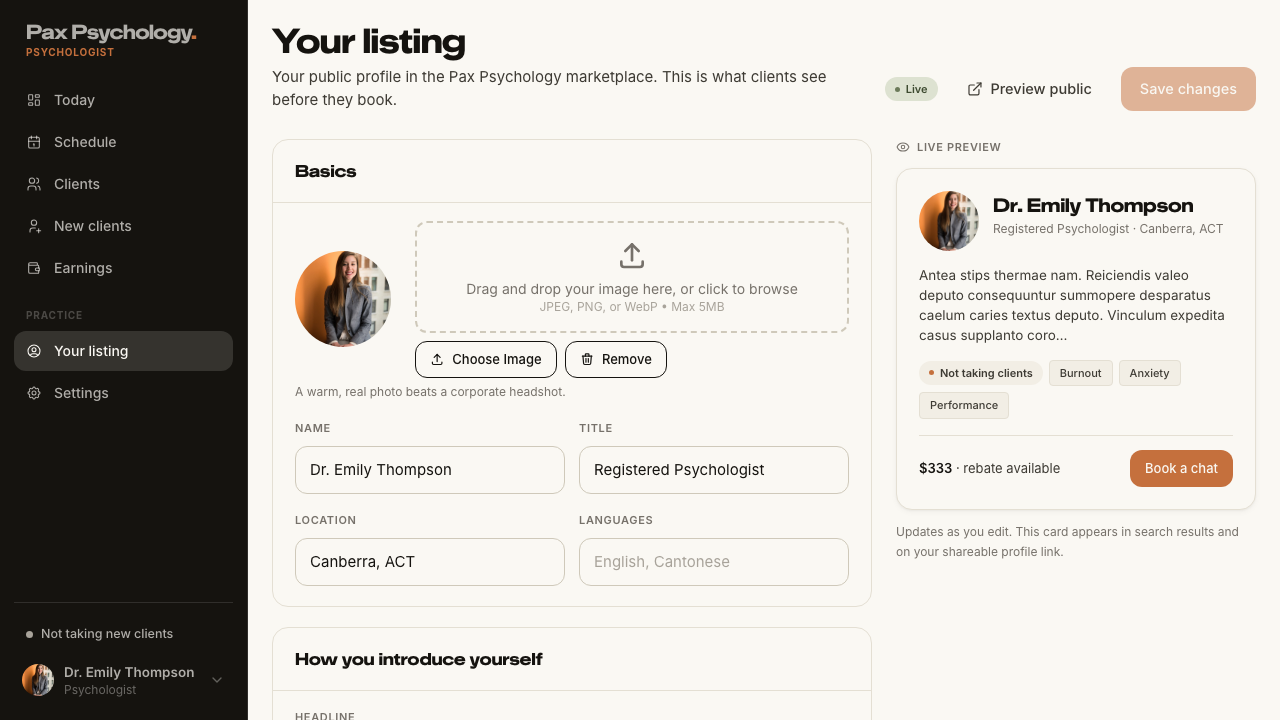
/dashboard/listingand check the public-facing profile editor
Expected
- H1 "Settings", subtitle "Account, registration, payouts, and how Pax Psychology reaches you."
- Account panel "Your details": avatar upload (helper "A clear photo of your face. JPEG, PNG or WebP, up to 5MB."), "Full name", "Email" disabled ("Email cannot be changed here"), "Timezone" disabled ("Synced from your browser automatically"). Button "Save changes"; toast "Account updated"
- There is no Mobile field for a psychologist (client-only)
- "Registration" section panel "Registration & billing" with "AHPRA registration", "Medicare provider no.", "ABN", "Account name", "BSB", "Account number"
/dashboard/listing(H1 "Your listing") is where the public profile copy, bio and specialities are edited – those are no longer on the settings profile form
Notes /dashboard/settings/profile 307-redirects to ?section=account.
Automated run
- 1. Navigate to https://paxpsychology.dev/dashboard/settings?section=account
- 2. Upload a profile picture, change "Full name", click "Save changes"
- 3. Switch to ?section=registration and fill the professional fields
- 4. Open /dashboard/listing and check the public-facing profile editor
- Notes: /dashboard/settings/profile 307-redirects to ?section=account
PassedTC-P-03Set weekly availability6.6s
Test script
Preconditions Logged in as a psychologist
Steps
- Navigate to
https://paxpsychology.dev/dashboard/appointments - Click the "Availability" button in the page header
- In the modal, switch Monday on and set "From"
09:00and "To"17:00 - Switch Saturday off
- Click "Save availability"
- Deliberately set an invalid combination (e.g. From later than To) and save again to see the error
Expected
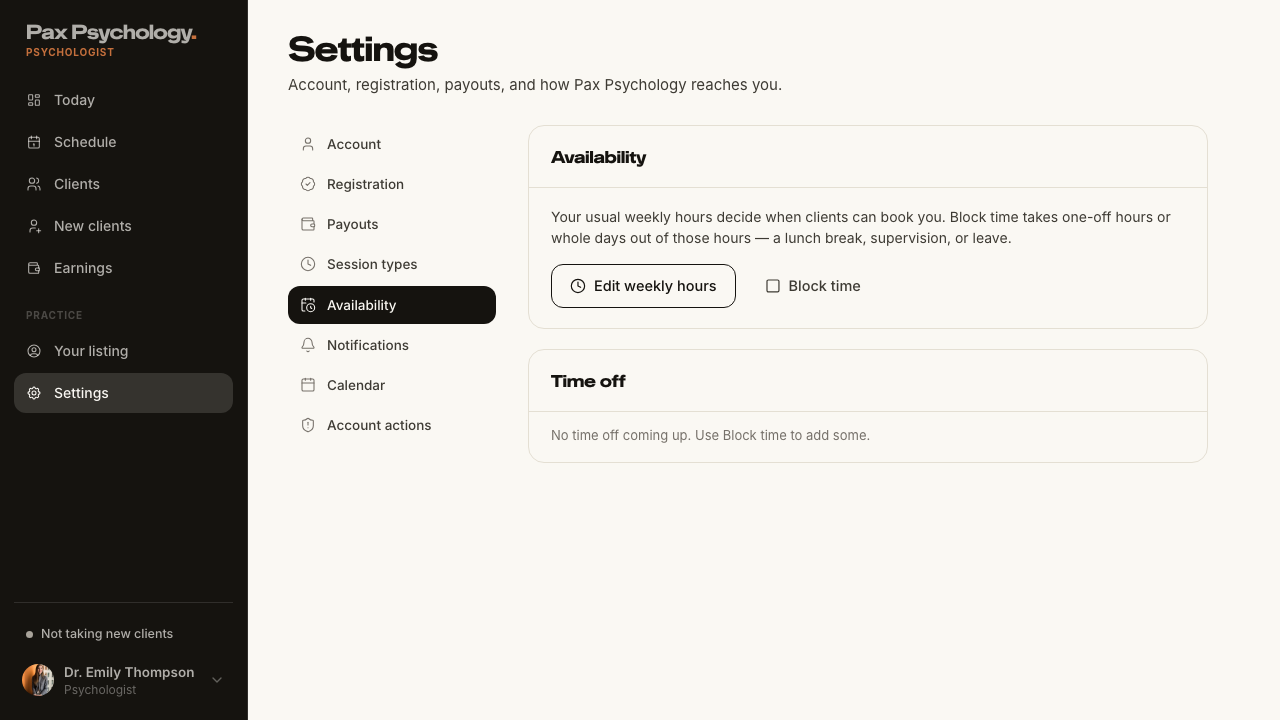
- Modal title "Your usual availability", sub "The hours clients can book you each week. Block time covers one-off changes."
- One row per day: a switch labelled with the day name, then "From" and "To" selects; a day that is off reads "Unavailable"
- Footnote "Pax Psychology only offers clients slots inside these hours, minus anything you've booked or blocked."
- Buttons "Cancel" and "Save availability" ("Saving…" while pending)
- Errors appear inline in a red alert above the footer – not as a toast
- Success is an in-modal screen, not a toast: "Availability saved." / "Clients can now book you across <n> days a week. One-offs and time off are handled by Block time." with a "Done" button
- The public booking page reflects the new hours (Monday 9–5 bookable, Saturday not)
Notes The same modal opens from Settings › Availability (TC-P-21) and from the "Block time" / "Schedule" buttons on Today.
Automated run
- 1. Navigate to https://paxpsychology.dev/dashboard/appointments
- 2. Click the "Availability" button in the page header
- 3. In the modal, switch Monday on and set "From" 09:00 and "To" 17:00
- 4. Switch Saturday off
- 5. Click "Save availability"
- 6. Deliberately set an invalid combination (From later than To) and save again to see the error
- Restore the original weekly hours
PassedTC-P-04Block out time (time off)18.8s
Test script
Preconditions Logged in as a psychologist with availability set
Steps
- On
/dashboard/appointments, click "Block time" - Pick a reason chip, use the week arrows to page forward a week, pick a day, set "From" and "To", add a note
- Click "Block time"
- Repeat over a slot that already has a booking, and read the warning
- Try the "Repeat weekly" switch
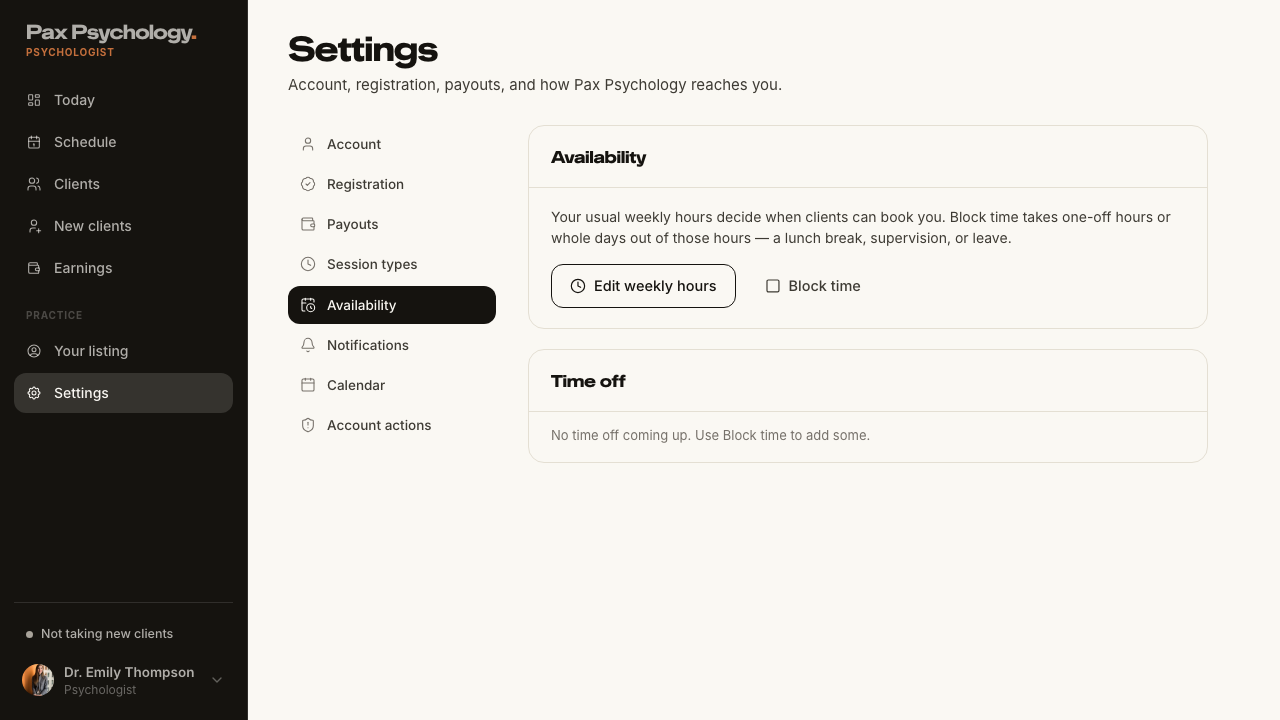
- Delete the block from Settings › Availability › Time off
Expected
- Modal title "Block out time", sub "Clients won't be able to book this slot."
- Reason chips "Lunch", "Admin & notes", "Leave", "Personal"; fields "Reason", "Day", "From", "To", "Note (optional)" (placeholder "e.g. Supervision, or just heads-down notes time")
- Week paging with "Previous week" / "Next week" arrows around a "<d Mon> – <d Mon>" label, five weekday chips, up to 25 weeks ahead
- "Repeat weekly" switch with the note "Blocks this time on the same day each week for the next 12 weeks."
- Conflict: "<n> booked appointments fall in this window. Blocking will cancel them." and "Press Block time again to confirm."; the submit button becomes "Block & cancel"
- Success is an in-modal screen, not a toast: "Time blocked." / "<Dow D Mon>, <from>–<to> is now off your booking calendar." with a "Done" button
- The blocked slot is no longer offered on the public booking page
- Deleting from the Time off list opens "Delete this time off?" / "<range> will be bookable again." with a "Delete" button
Notes Errors render inline in the modal.
Automated run
- 1. On /dashboard/appointments, click "Block time"
- 2. Pick a reason chip, page forward a week, pick a day, set "From" and "To", add a note
- 3. Click "Block time"
- 4. Repeat over a slot that already has a booking, and read the warning
- 5. Try the "Repeat weekly" switch
- 6. Delete the block from Settings › Availability › Time off
PassedTC-P-05Create a session type6.3s
Test script
Preconditions Logged in as a psychologist
Steps
- Navigate to
https://paxpsychology.dev/dashboard/settings?section=appointment-types - Click "Add session type"
- Fill the form: Title
Initial Consultation, Urlinitial-consultation, DescriptionA 50-minute initial consultation session., Duration1 hour, Video Call Provider "Google Meet", Schedule Fee (AUD)220.00 - Click "Add appointment type"
Expected
- With none set up, the panel is titled "Session types" with the copy "Set up the session types clients can book – length, fee, and how the call happens." and an "Add session type" button
- Form labels: "Title" (placeholder
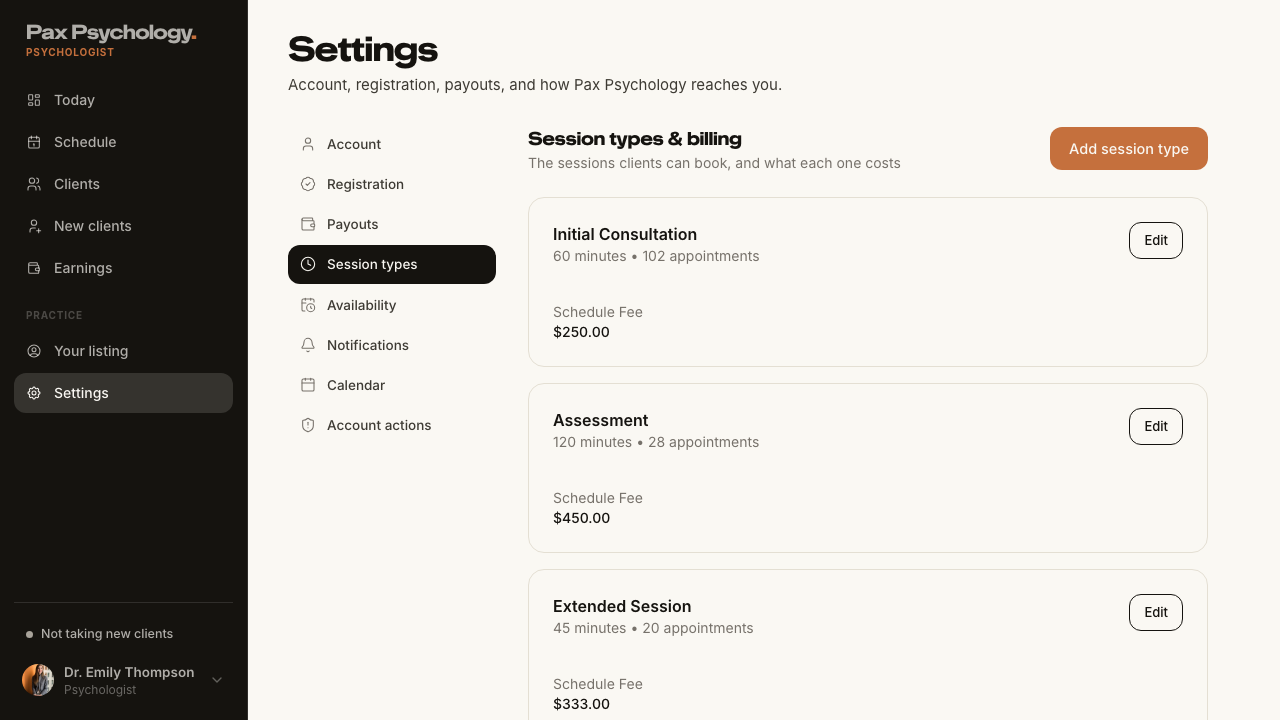
30 min meeting), "Url" (prefixedhttps://www.paxpsychology.com.au/book/<username>/), "Description", "Duration" (select, "Select the duration"), "Video Call Provider" (segmented Zoom / Google Meet / Microsoft Teams), then a "Billing Settings" heading with "Schedule Fee (AUD)" and an "Enable Bulk Billing" toggle - After saving, the list is headed "Session types & billing" / "The sessions clients can book, and what each one costs"; each card shows "<n> minutes • <n> appointments", an "Edit" button, and columns "Schedule Fee", "Medicare Rebate", "Gap Payment"
- The new type is bookable at the generated URL
Notes Unconfigured video providers are disabled with the tooltip "This provider is not configured". Medicare/bulk-billing fields only appear with the insurance flag on (off on staging).
Automated run
- 1. Navigate to https://paxpsychology.dev/dashboard/settings?section=appointment-types
- 2. Click "Add session type"
- 3. Fill the form: Title, Url, Description, Duration, Video Call Provider, Schedule Fee
- 4. Click "Add appointment type"
- The new type is bookable at the generated URL
2B. Dashboard
2 passed
PassedTC-P-06Psychologist Today page3.8s
Test script
Preconditions Logged in as test@paxpsychology.dev
Steps
- Navigate to
https://paxpsychology.dev/dashboard
Expected
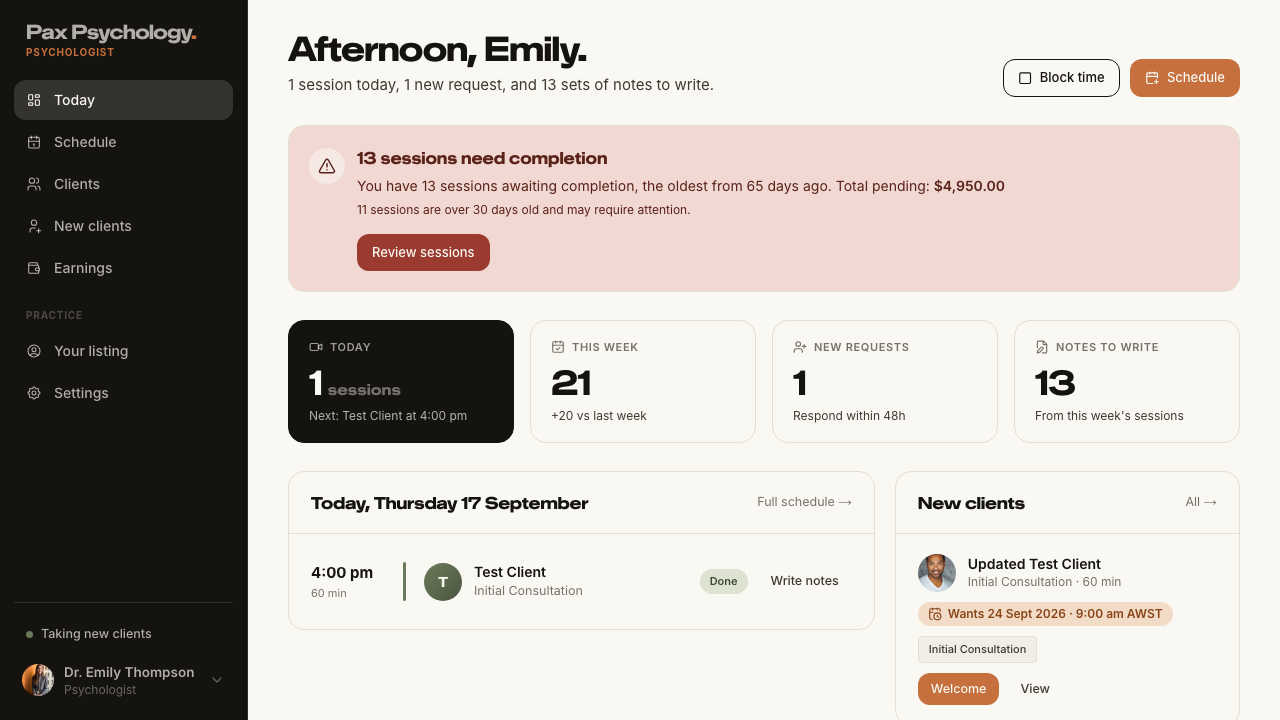
- Sidebar: Today, Schedule, Clients, New clients, Earnings in the main group and Your listing, Settings under "Practice". (Messages, Medicare and Claims are flag-gated and off on staging.) The sidebar footer carries a "Taking new clients" / "Not taking new clients" switch
- H1 "Morning, <First>." / "Afternoon, …" / "Evening, …" with a sub-line counting today's sessions, new requests and notes to write
- Header buttons "Block time" and "Schedule"
- Four KPI cards: "Today", "This week", "New requests", "Notes to write"
- A two-column row: "Today, <Weekday D Month>" with a "Full schedule →" link (empty: "Nothing booked today.") and "New clients" with an "All →" link (empty: "No new clients right now." / "New matches will land here for you to welcome.")
- A full-width "Worth a look" panel with a "Clients →" link (empty: "Nothing needs your eye today.")
Notes The old "This Month's Earnings / Active Clients / Completion Rate / Outstanding Invoices" cards, the earnings chart, the weekly schedule block and the four Quick Action buttons have all been replaced by the above.
Automated run
- 1. Navigate to https://paxpsychology.dev/dashboard
- Sidebar: Today, Schedule, Clients, New clients, Earnings, then Practice › Your listing, Settings
- H1 greeting with the sessions / requests / notes sub-line, and the Block time + Schedule buttons
- Four KPI cards: "Today", "This week", "New requests", "Notes to write"
- Two-column row: "Today, <Weekday D Month>" with "Full schedule →", and "New clients" with "All →"
- Full-width "Worth a look" panel with a "Clients →" link
- Notes: the old earnings cards, chart, weekly schedule block and Quick Actions are gone
PassedTC-P-07Pending completions alert2.9s
Test script
Preconditions Logged in as a psychologist with past sessions not yet marked complete
Steps
- Navigate to
https://paxpsychology.dev/dashboard - Click "Review sessions"
Expected
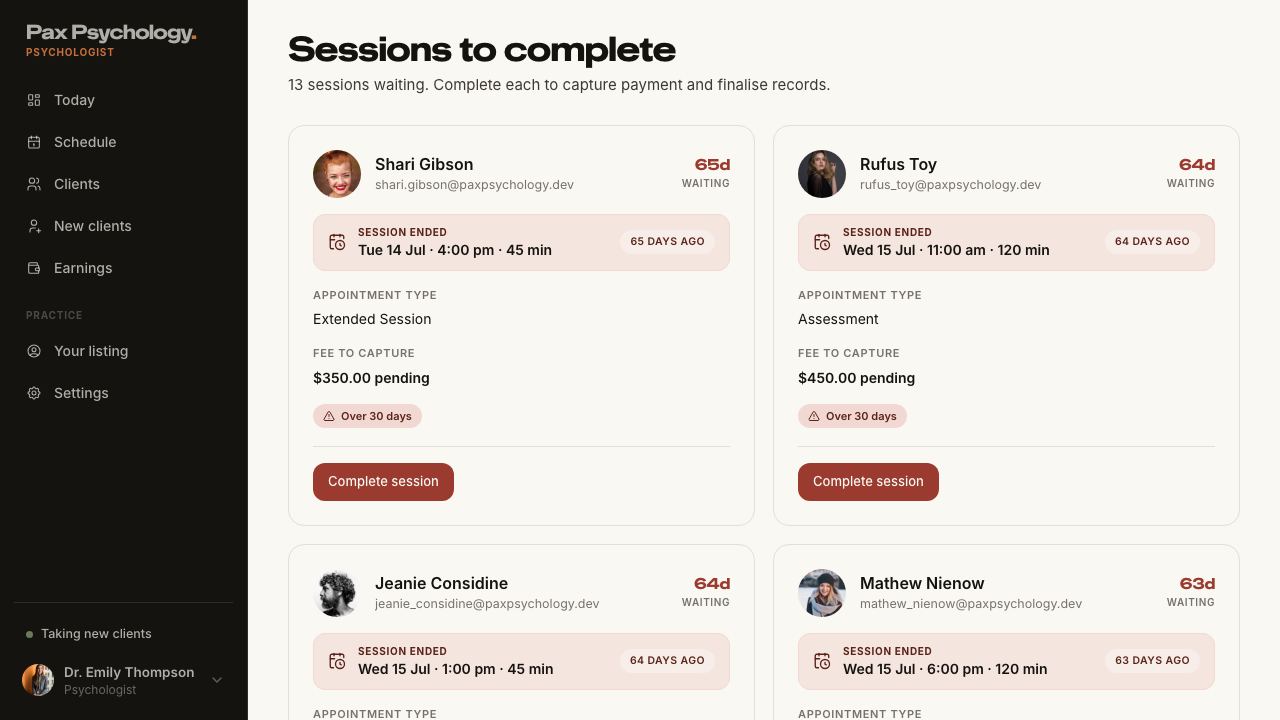
- An alert headed "<n> sessions need completion" (singular "1 session needs completion") with a body naming when the oldest was, and optionally "Total pending: $X"
- Sessions over 30 days old add "<n> sessions are over 30 days old and may require attention."
- "Review sessions" goes to
/dashboard/actions
Automated run
- 1. Navigate to https://paxpsychology.dev/dashboard
- The alert is headed "<n> sessions need completion" and names when the oldest was
- 2. Click "Review sessions"
2C. Schedule and Appointments
6 passed 1 skipped
PassedTC-P-08Schedule views8.8s
Test script
Preconditions Logged in as a psychologist with appointments
Steps
- Navigate to
https://paxpsychology.dev/dashboard/appointments - Switch between the "Day", "Week" and "Month" segments
- Use the previous / next arrows and the "Today" button
- Click an appointment
Expected
- H1 "Schedule" with a sub-line such as "<n> sessions booked this week."
- A segmented Day / Week / Month control, then the header buttons "Availability", "Block time" and "Schedule"
- Navigation arrows (
aria-label"Previous" / "Next"), a "Today" button and the period label - A legend reading "Video", "Intake", "Blocked" (plus "In person" when that flag is on)
- Clicking an appointment opens its detail page
Notes The old calendar/list toggle, the "Upcoming (X)" / "Past (X)" tabs and the search box are gone from this page – this is now a calendar-first Schedule. Clients see their own version of this route (TC-C-21).
Automated run
- 1. Navigate to https://paxpsychology.dev/dashboard/appointments
- 2. Switch between the "Day", "Week" and "Month" segments
- 3. Use the previous / next arrows and the "Today" button
- The legend reads "Video", "Intake", "Blocked"
- 4. Click an appointment
PassedTC-P-09Appointment detail (psychologist)13.5s
Test script
Preconditions Logged in as a psychologist with an appointment whose client has a referring GP recorded on their profile
Steps
- Open
/dashboard/appointments/[appointmentId]
Expected
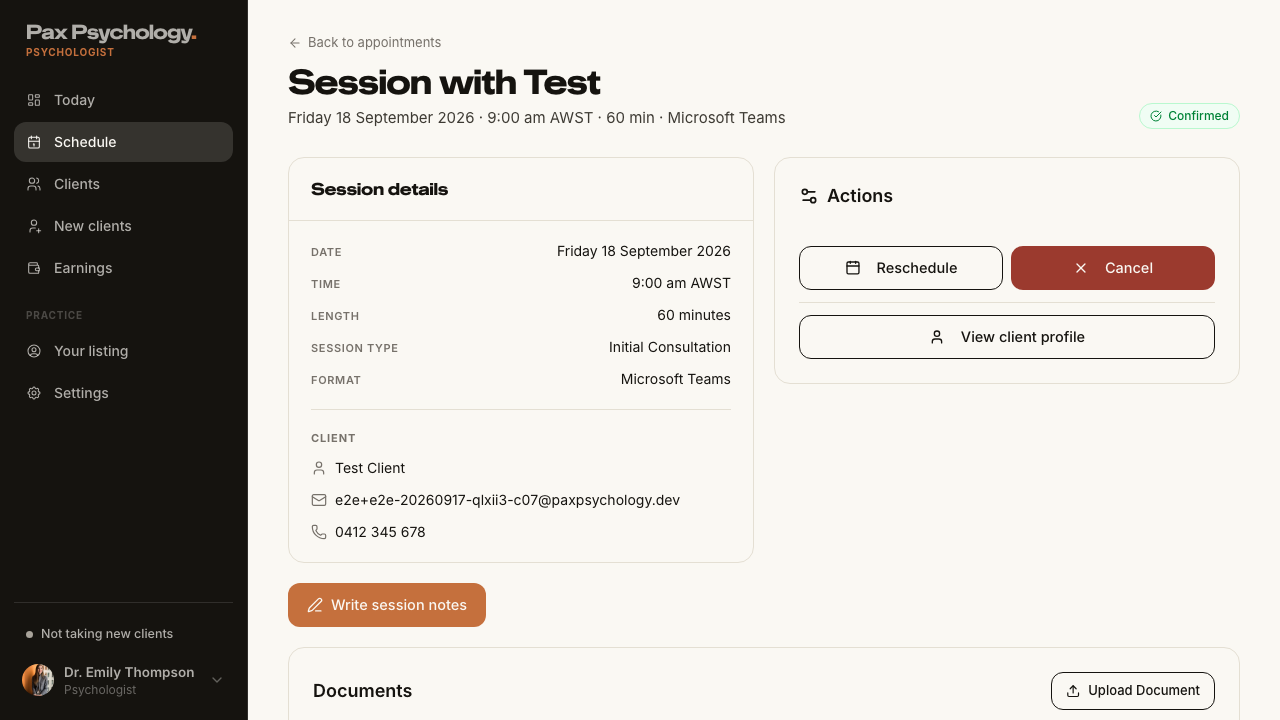
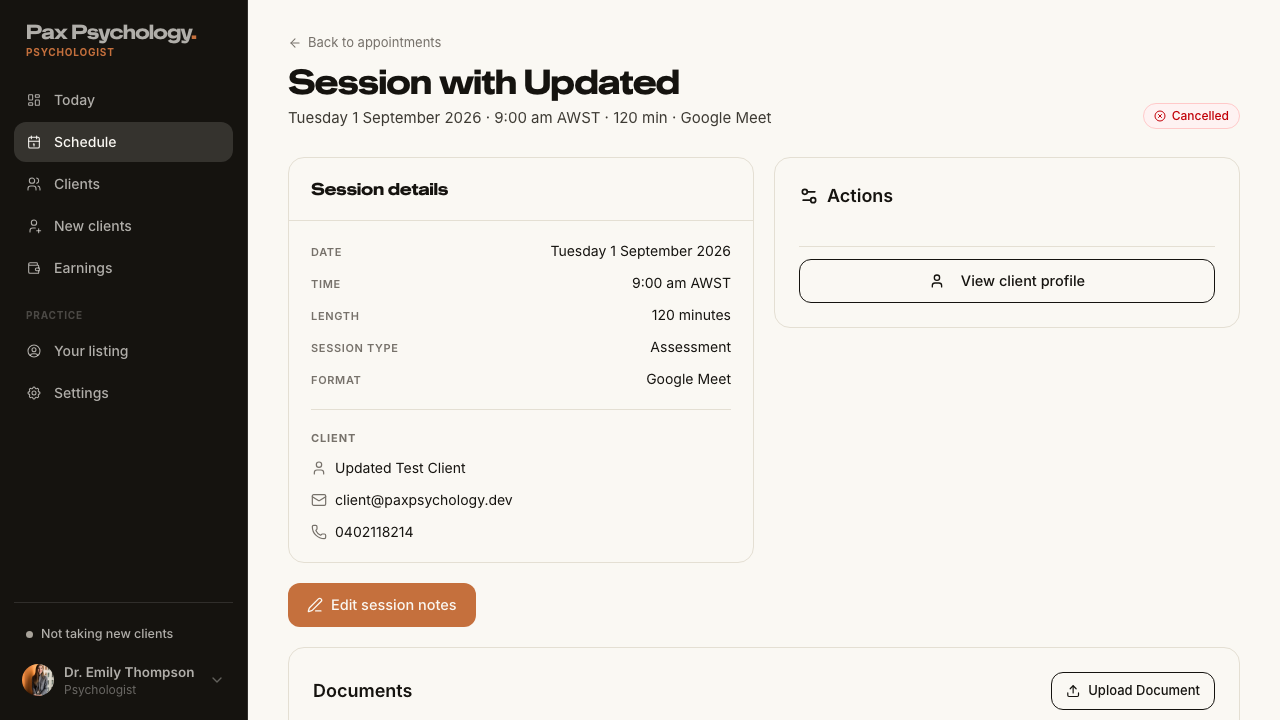
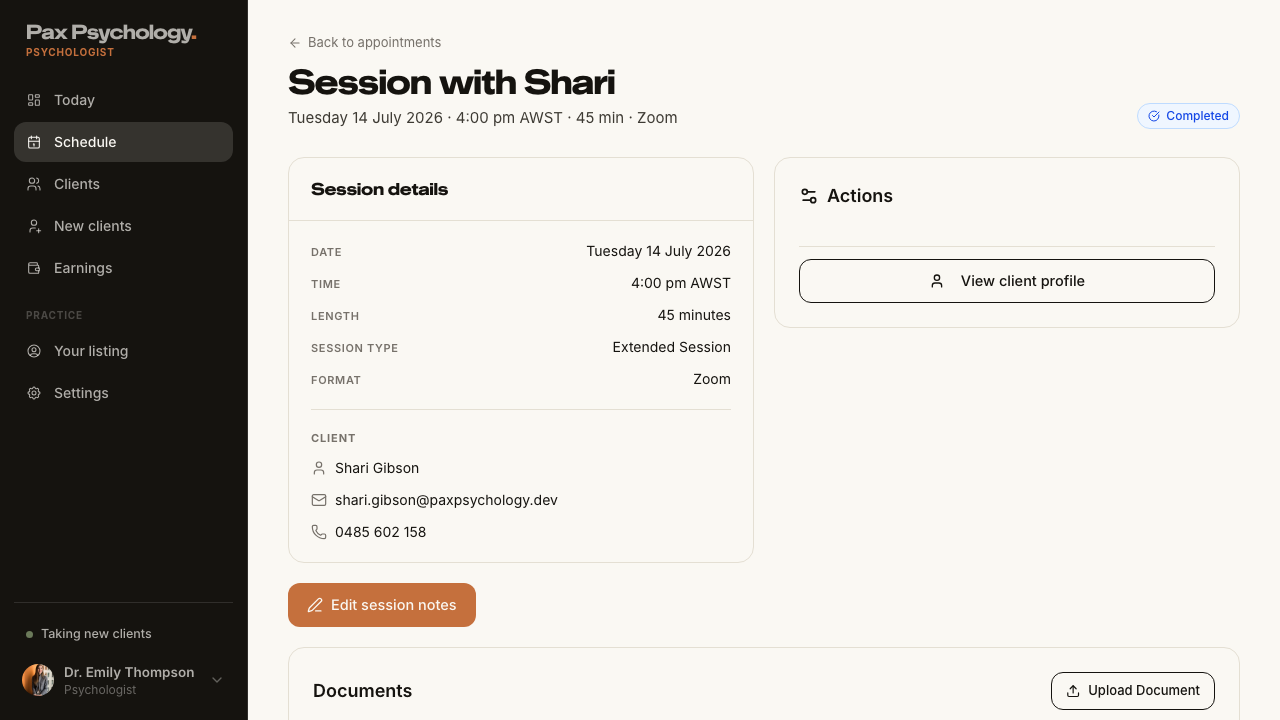
- Back link "Back to appointments"; H1 "Session with <ClientFirstName>"; meta line date · time · duration · video provider; a status pill
- Panel "Session details" with Date, Time, Length, Session type, Format, followed by a "Client" block listing the client's name, email, mobile and the referring GP – read from the client profile, rendered as the doctor's name with the clinic name and "Provider no. <number>" beneath it
- An "Actions" card with the applicable buttons: "Join video call", "Reschedule", "Cancel", "Complete appointment" and "View client profile"
- A "Payout details" panel (Amount / Status / Paid on) with a "View payout" button
- A "Write session notes" (or "Edit session notes") button, and a "Documents" card
Notes The referring GP now comes from the client profile rather than only the appointment record, so it is present even when the appointment was created without it.
Automated run
- 1. Open /dashboard/appointments/[appointmentId]
- Back link, H1 "Session with <ClientFirstName>", meta line and status pill
- Panel "Session details" with Date, Time, Length, Session type, Format and the Client block
- The referring GP is read from the client profile, with clinic and provider number
- An "Actions" card with the applicable buttons, plus "View client profile"
- "Payout details" panel, a session-notes button and a "Documents" card
PassedTC-P-10Complete an appointment (client attended)44.4s
Test script
Preconditions Logged in as a psychologist with a CONFIRMED appointment whose end time has passed, booked through the normal flow so the client has a saved card
Steps
- Open the appointment detail page and click "Complete appointment"
- Step 1 – Session Attendance. Choose "Client Attended", then "Continue"
- Step 2 – Session Notes. Type notes in the textarea, then "Continue" (or "Skip")
- Step 3 – Documents. Optionally attach a file, then "Continue" (or "Skip")
- Step 4 – Complete Session. Review the summary and click "Complete & Capture Payment"
Expected
- Step titles and descriptions: "Session Attendance" / "Did the client attend the session?"; "Session Notes" / "Add optional notes about the session"; "Documents" / "Upload any relevant documents"; "Complete Session" / "Review and capture payment"
- Step 1 shows "Session with <client> • <session type>" and two option cards, "Client Attended" and "No-Show"
- Step 2 has no "Share notes with client" switch. It carries the line "Clinical notes stay private to you. Never shared with the client."
- Step 3 accepts PDF, Word and image files up to 10MB and has a per-file "Share with client" switch
- Step 4 shows "Session Summary" with Client / Session Type / Status "Attended" / "Amount to charge", plus the warning "Clicking 'Complete & Capture Payment' will charge the client's saved payment method."
- The button shows "Processing..." and the toast reads "Appointment completed successfully"
- Status becomes Completed, an invoice is raised, the saved card is charged and the client is emailed
- Any failure is shown as an inline red alert inside the dialog, not a toast (e.g. "Failed to complete appointment. Please try again.")
Notes If the charge does not settle, the session still completes but the toast comes through as a warning so you know money is outstanding.
Automated run
- Find a CONFIRMED session whose end time has passed and whose client has a saved card
- 1. Open the appointment detail page and click "Complete appointment"
- 2. Step 1 – Session Attendance. Choose "Client Attended", then "Continue"
- 3. Step 2 – Session Notes. Type notes in the textarea, then "Continue"
- 4. Step 3 – Documents. Optionally attach a file, then "Continue" (or "Skip")
- 5. Step 4 – Complete Session. Review the summary and click "Complete & Capture Payment"
- The status becomes Completed and an invoice is raised
PassedTC-P-11Mark an appointment as No-Show27.4s
Test script
Preconditions As TC-P-10
Steps
- Click "Complete appointment"
- Choose "No-Show" and read the warning, then click "Continue"
- On the confirm step, click "Confirm No-Show"
Expected
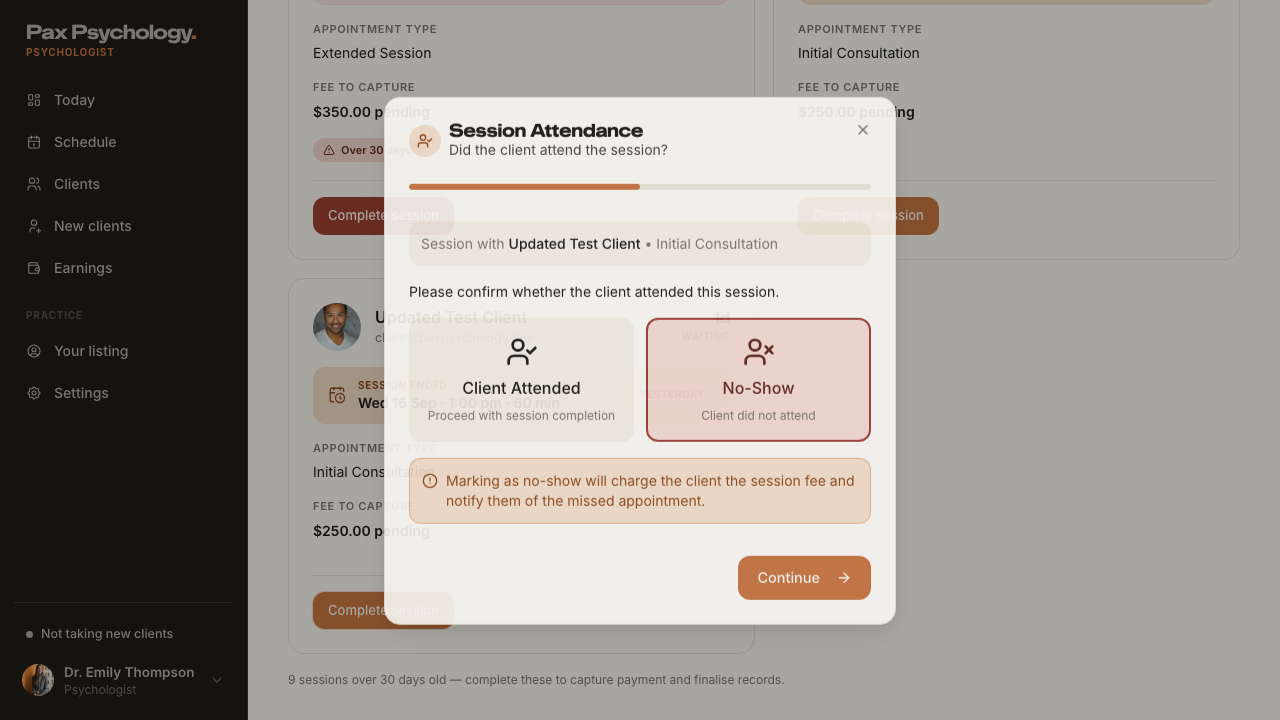
- Choosing No-Show shows "Marking as no-show will charge the client the session fee and notify them of the missed appointment."
- The stepper skips notes and documents – it goes straight from attendance to the confirm step
- The confirm step is headed "No-Show Summary" with Status "No-Show" and the fee row "No-show fee to charge", plus "Clicking 'Confirm No-Show' will charge the client the session fee and send them a missed appointment notification."
- Toast "Appointment marked as no-show"; the client is charged and notified
Automated run
- Find another CONFIRMED session whose end time has passed, with a card on file
- 1. Click "Complete appointment"
- 2. Choose "No-Show" and read the warning, then click "Continue"
- 3. On the confirm step, click "Confirm No-Show"
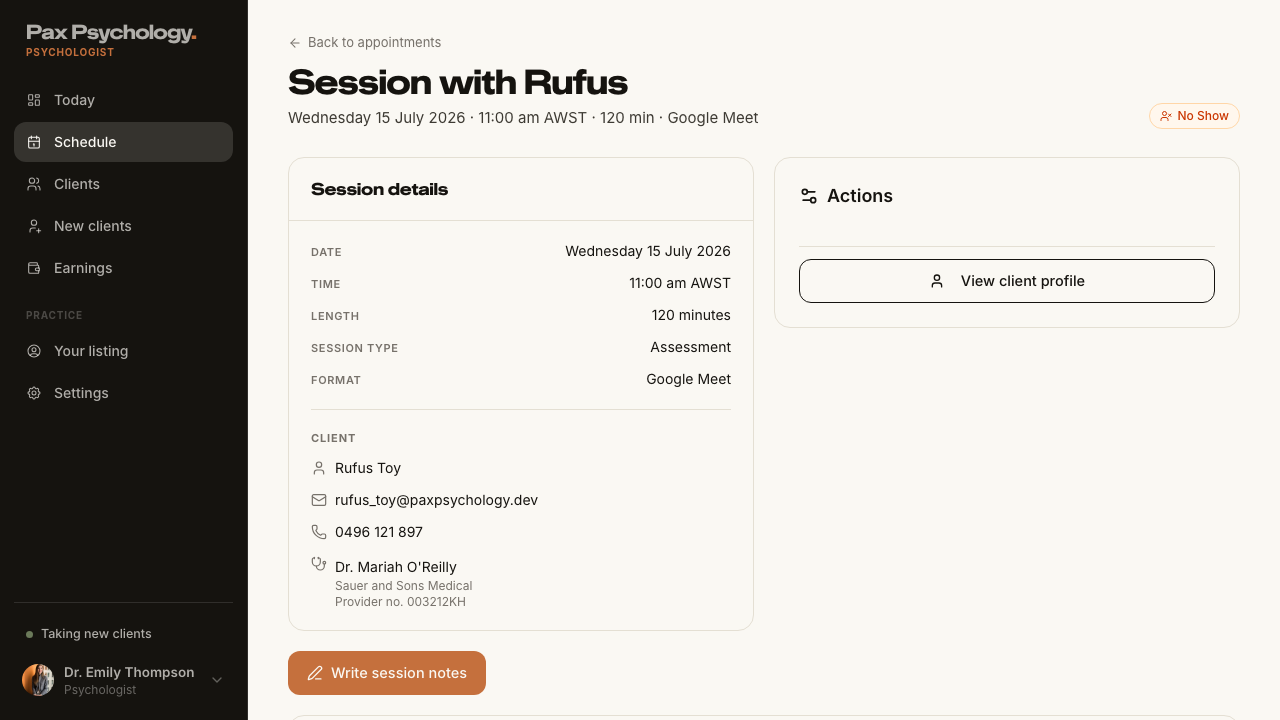
- The client is charged and notified, and the session reads No Show
SkippedTC-P-27Complete an appointment for a client with no saved card (new)2m 52s
No completable session without a card on file
Test script
Preconditions An appointment created without a saved payment method (e.g. one an admin created directly, rather than a public booking)
Steps
- Click "Complete appointment" and step through to the confirm step
Expected
- The fee row reads "Session fee (not charged)" rather than "Amount to charge"
- The callout reads "No payment method on file, so nothing will be charged and no invoice will be raised. The session will only be recorded as complete – arrange billing with the client separately."
- The primary button reads "Complete session" (or "Mark as no-show" on the no-show path) instead of "Complete & Capture Payment" / "Confirm No-Show"
- The appointment is marked complete and no invoice is created
Notes This branch is new – previously the dialog promised a charge in all cases.
Automated run
- Find a past CONFIRMED session whose client has no payment method on file – failed
PassedTC-P-12Reschedule an appointment8.8s
Test script
Preconditions Logged in as a psychologist with an upcoming CONFIRMED appointment
Steps
- On the appointment detail page, click "Reschedule"
- Pick a new date under "Select New Date", wait for slots, and pick one under "Select New Time"
- Click "Confirm Reschedule"
Expected
- Dialog title "Reschedule Appointment" with the description "Select a new date and time for this appointment." and sections "Current Appointment", "Select New Date", "Select New Time"
- The dialog is wider than before and scrolls as a single column – check there is no nested inner scrollbar
- Helper text "Please select a date first." before a date is chosen, "Selected time: <slot>" after a slot is chosen, and "No available time slots for this date." where applicable
- Errors come back as a red toast, not inline – e.g. "This time slot is no longer available. Please select a different time." when someone else has taken the slot since the list was fetched. The dialog stays open so another time can be picked
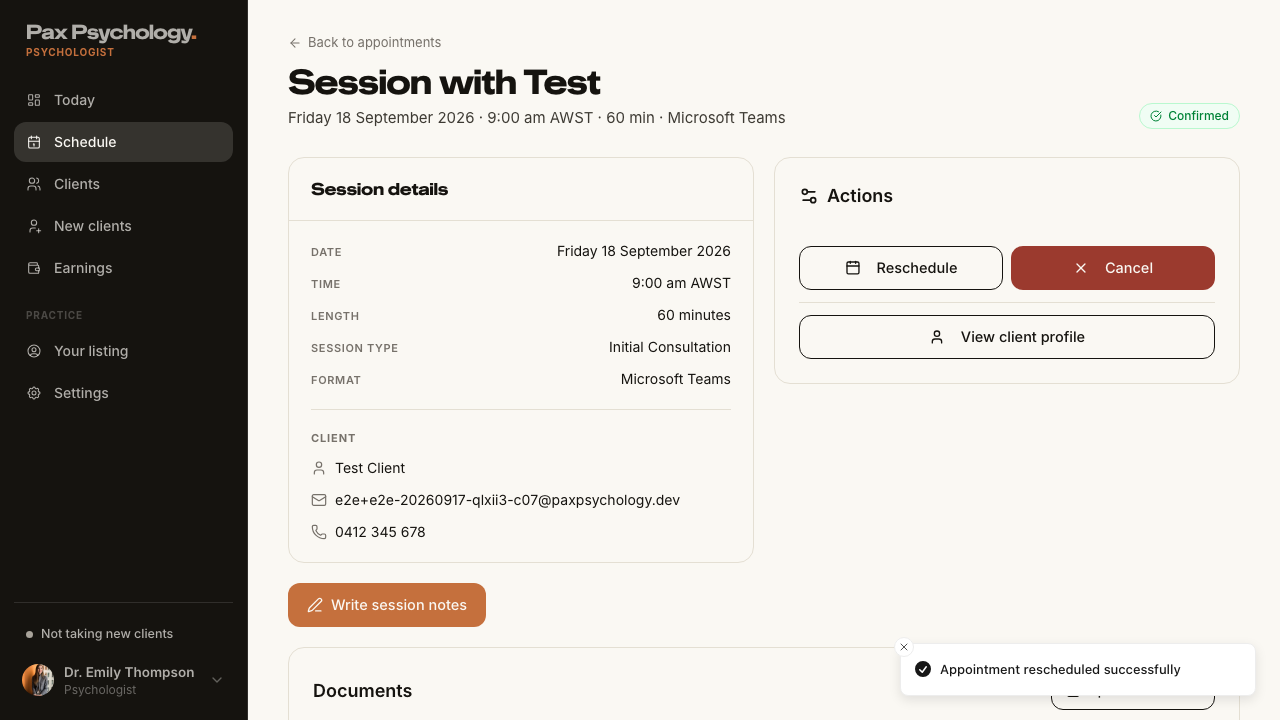
- Button "Confirm Reschedule" → "Rescheduling..."; toast "Appointment rescheduled successfully"; the detail page updates and the client is emailed
Automated run
- Find an upcoming CONFIRMED appointment to reschedule
- 1. On the appointment detail page, click "Reschedule"
- 2. Pick a new date under "Select New Date", wait for slots, and pick one under "Select New Time"
- 3. Click "Confirm Reschedule"
PassedTC-P-13Session Notes workspace5.4s
Test script
Preconditions Logged in as a psychologist with a completed appointment
Steps
- On the appointment detail page click "Write session notes" (or "Edit session notes" if notes already exist)
- Choose a template, type notes, optionally add a note to the client and assign a reading
- Click "Save notes" / "Save & send"
Expected
- A full-screen workspace headed "Session notes" with the sub-line "After your session with <client>"
- A "Template" select offering "SOAP note", "DAP note", "Progress note", "Blank", and a "Draft from transcript" action
- The notes textarea is labelled "Your notes · private" with the placeholder "Write your note, or draft it from the transcript…" and the standing line "Clinical notes stay private to you. Never shared with the client."
- A separate optional "Note to <First>" field and an "Assign reading & worksheets" column – these, not the notes, are what the client sees
- The footer status reads "Notes stay private to you" or "<n> items to share with <First>"; the success screen reads "Notes saved." with a "Done" button
- Anything assigned appears on the client's Reading list (TC-C-33)
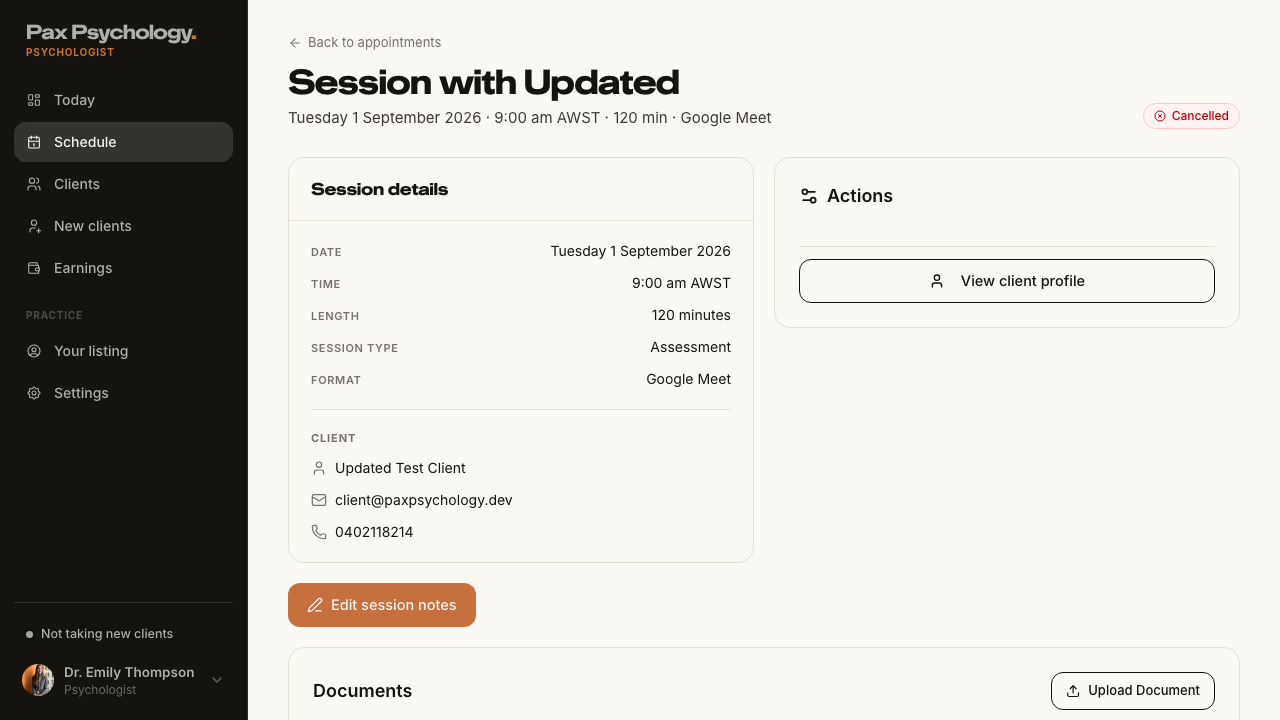
Notes This case replaces the old "Add/edit session notes and toggle sharing". The "Share notes with client" switch is retired – clinical notes are always private, so there is no Lock/Unlock indicator and no "These notes are shared with the client" state to check any more. Sharing is now done through the separate "Note to <client>" field and assigned readings, which land on the client's Reading list rather than on their appointment page.
Automated run
- Open a completed appointment
- 1. Click "Write session notes" (or "Edit session notes" if notes already exist)
- 2. Choose a template, type notes, add a note to the client and assign a reading
- 3. Click "Save notes" / "Save & send"
- Notes: the "Share notes with client" switch is retired
2D. Client Management
2 passed
PassedTC-P-14View the clients list8.5s
Test script
Preconditions Logged in as a psychologist with at least one client
Steps
- Navigate to
https://paxpsychology.dev/dashboard/clients - Search for a client, then try each status tab
- Click a row
Expected
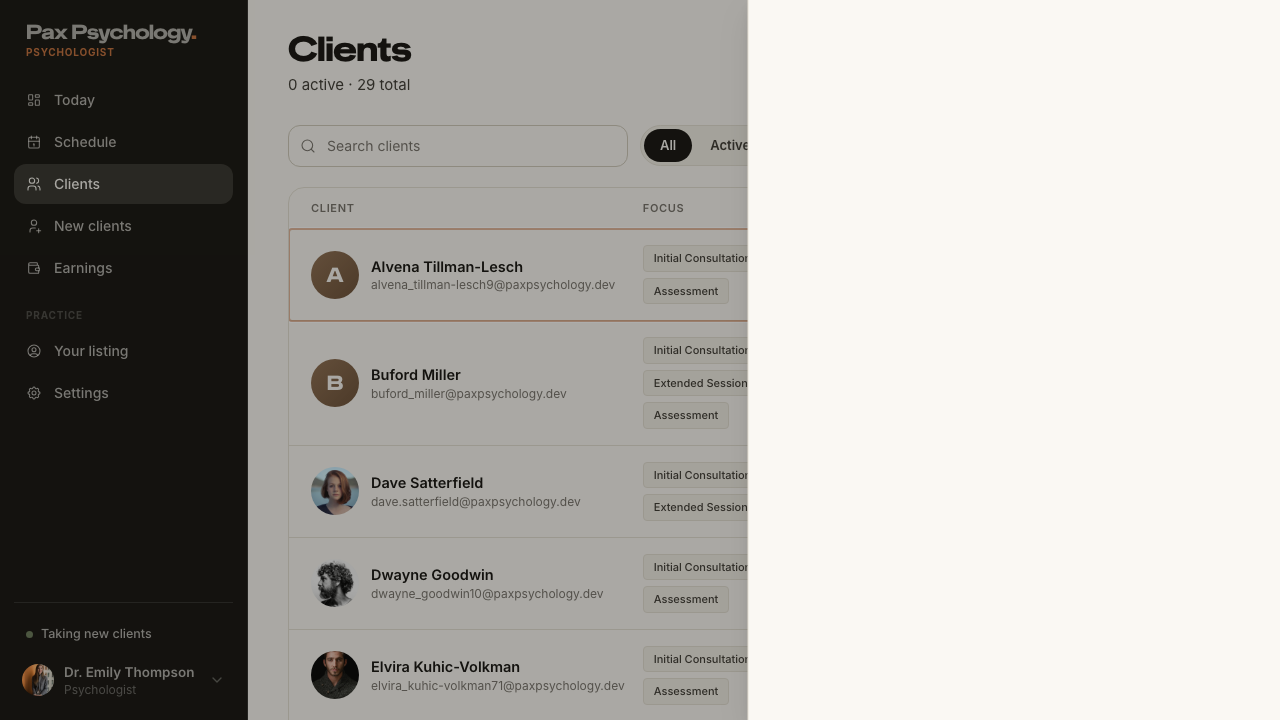
- H1 "Clients", sub "<n> active · <n> total", an "Export" button, a search box (placeholder "Search clients") and status tabs "All", "Active", "New", "Paused"
- Table columns: "Client", "Focus", "Sessions", "Next", and a status column with "Active" / "New" / "Paused" pills
- Empty state "No clients found." (or "No clients found matching your search.")
- Clicking a row opens a drawer with "View full profile", "Book session" and "Notes" actions and sections "Mood check-ins", "Shared journal entries", "Session history"
Notes The old Name / Email / Mobile / Referring Doctor columns have been replaced.
Automated run
- 1. Navigate to https://paxpsychology.dev/dashboard/clients
- 2. Search for a client, then try each status tab
- 3. Click a row
- Notes: the old Name / Email / Mobile / Referring Doctor columns are gone
PassedTC-P-15View the client detail page6.1s
Test script
Preconditions As above
Steps
- From the drawer click "View full profile" (or go to
/dashboard/clients/[id]) - Work through each tab
Expected
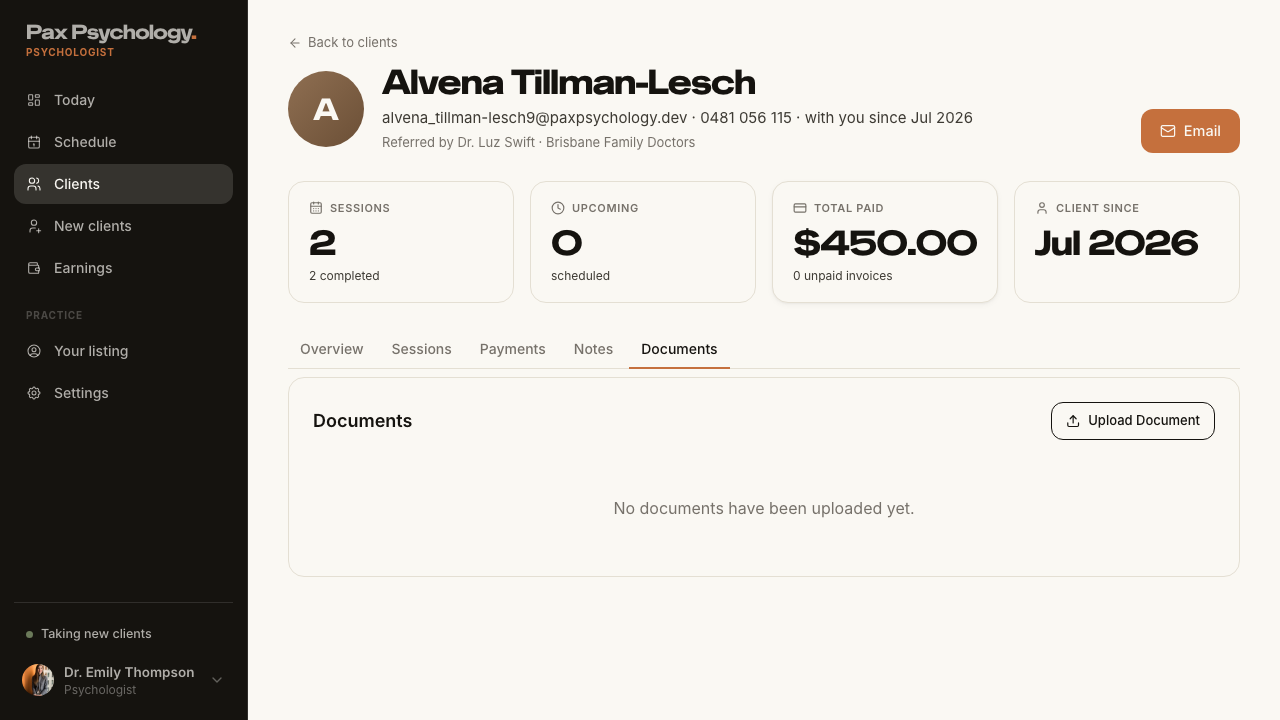
- H1 = the client's name; meta "<email> · <mobile> · with you since <Mon YYYY>"; a "Referred by <doctor> · <clinic>" line where recorded; "Message" and "Email" buttons
- KPI cards "Sessions", "Upcoming", "Total paid", "Client since"
- Tabs "Overview", "Sessions", "Payments", "Notes", "Documents" (plus "Assessments" and "Homework" when that flag is on – off on staging)
Automated run
- 1. From the drawer click "View full profile"
- H1 is the client's name, with the email · mobile · with-you-since meta line
- KPI cards "Sessions", "Upcoming", "Total paid", "Client since"
- 2. Work through each tab
2E. Invoices
2 passed
PassedTC-P-16View the psychologist invoices list10.3s
Test script
Preconditions Logged in as a psychologist with invoices
Steps
- Navigate to
https://paxpsychology.dev/dashboard/invoices - Search, then use the status filter
Expected
- Card titled "Recent Invoices" / "View and manage your recent invoices"
- Columns "Client", "Service", "Status", "Date", "Amount", "Actions"
- Search placeholder "Search by invoice ID, client name or email..."; status options "All Invoices", "Pending", "Paid", "Void"
- Row actions: "View", "Receipt" (paid client invoices) and a "⋯" menu
- Empty state "No invoices yet" / "Invoices are created automatically once sessions are completed. Invite a client to book and they'll show up here."
- Pagination at 10+ items
Notes A client hitting this URL is redirected to their Sessions page (TC-C-24).
Automated run
- 1. Navigate to https://paxpsychology.dev/dashboard/invoices
- 2. Search, then use the status filter
- Rows carry "View" and a "⋯" menu, and pagination appears at 10+ items
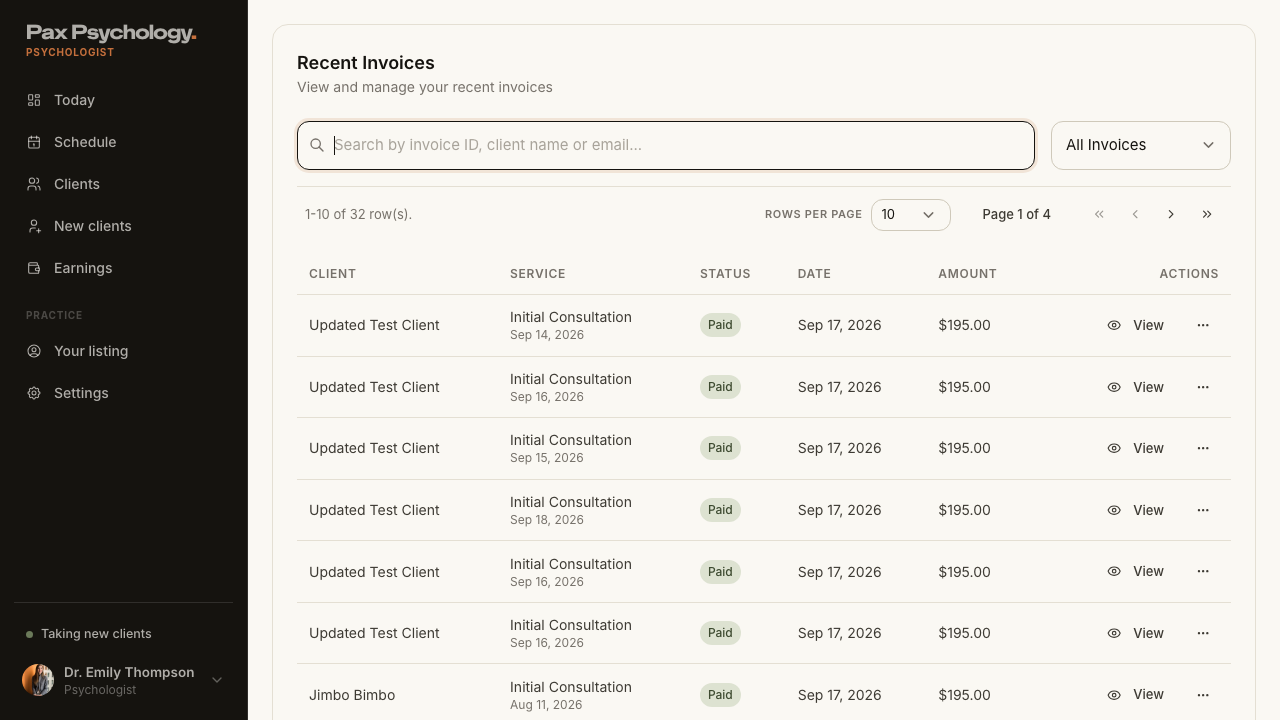
PassedTC-P-17Invoice detail and resend1m 28s
Test script
Preconditions Logged in as a psychologist with at least one payout invoice
Steps
- From
/dashboard/invoices, click "View" on an invoice - Click "Resend Invoice" and confirm
Expected
- Detail page: H1 = the invoice number (or "Invoice #<stripeInvoiceId>"), sub "Created on <Month D, YYYY>", a status pill, and cards for Invoice Information, Payment Details and the invoice document
- "Resend Invoice" opens a confirm dialog titled "Resend Invoice?" with the body "This will send a new copy of the invoice to <client> at <email>. The client will receive an email with the invoice details and payment link."
- Button shows "Resending..."; toast "Invoice has been resent to <client> at <email>" (failure: "Failed to resend invoice. Please try again.")
- Verify this works from a payout invoice, not just a client invoice – this is a fix landing in this build
Notes A payout invoice's own id is always synthetic, so the button is answered from the client invoice behind it. Pick a payout row whose session was actually invoiced through Stripe (a real in_… id); rows keyed on a PaymentIntent (pi_…, cancel_…) or on an in-app Medicare invoice (inv_…) correctly show a disabled "Resend unavailable" – that is not the bug. If the first row you open is unavailable, try another.
Automated run
- 1. From /dashboard/invoices, click "View" on an invoice
- The detail page shows the invoice number, created-on line, status pill and its cards
- 2. Click "Resend Invoice" and confirm
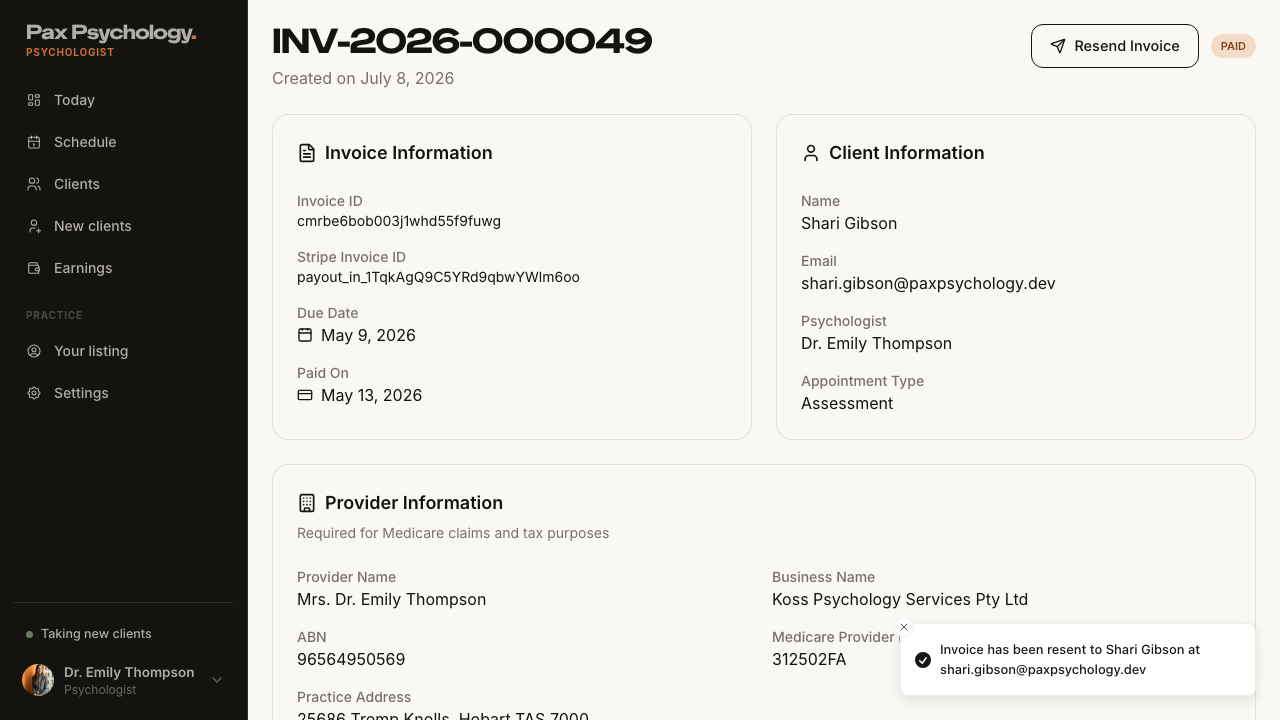
2F. Settings
4 passed 2 manual
PassedTC-P-18Edit a session type8.3s
Test script
Preconditions Logged in as a psychologist with at least one session type
Steps
- Navigate to
/dashboard/settings?section=appointment-types - Click "Edit" on a session type
- Change the Schedule Fee to
250.00, the Duration to1 hour, and the Description - Click "Update appointment type"
Expected
- The list reflects the new fee and duration
- Future bookings for this type use the new values
- "Cancel" returns to
/dashboard/settings?section=appointment-types
Automated run
- 1. Navigate to /dashboard/settings?section=appointment-types
- 2. Click "Edit" on a session type
- 3. Change the Schedule Fee to 250.00, the Duration to 1 hour, and the Description
- 4. Click "Update appointment type"
- "Cancel" returns to /dashboard/settings?section=appointment-types
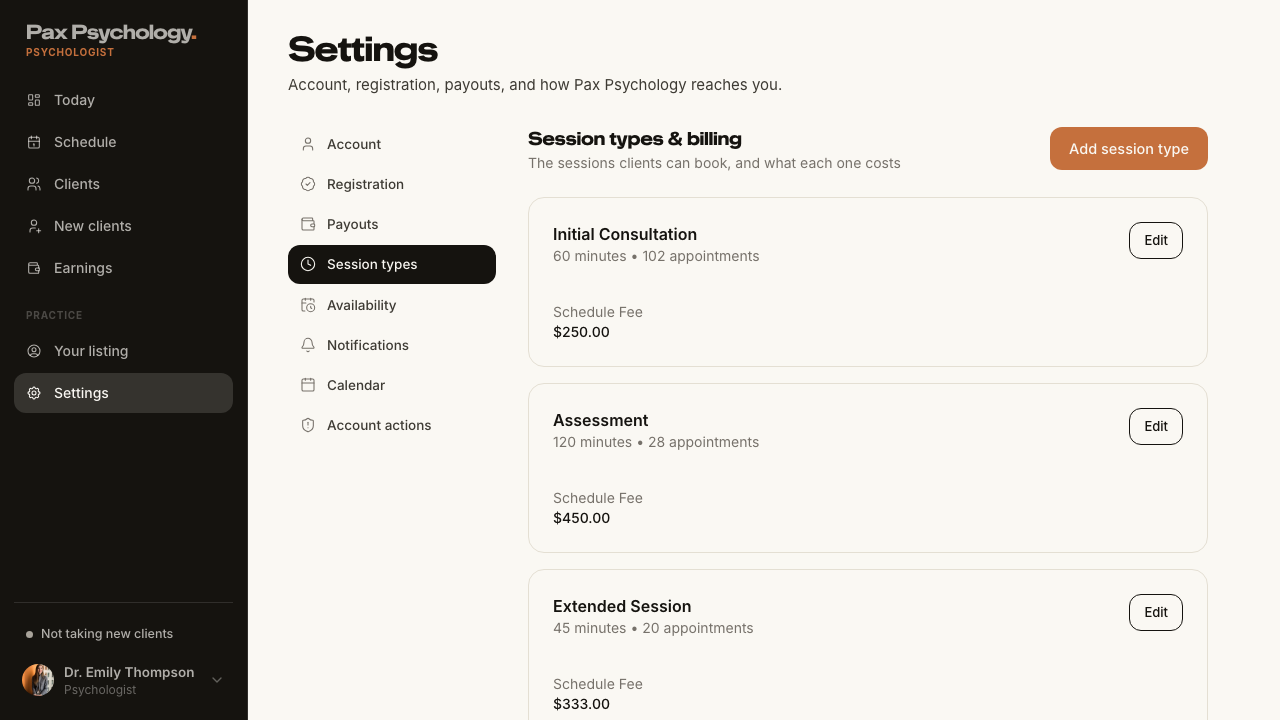
ManualTC-P-19Connect a calendar3.2s
Steps 2–3 leave Pax: 'Connect' redirects to Google's (or Microsoft's) hosted OAuth consent screen, which needs real credentials and a second factor and cannot be driven from a test browser. The Pax side – the provider rows, their state copy and the Connect/Disconnect buttons – is checked below; a reviewer grants consent by hand and then confirms the toast 'Google Calendar connected successfully!' and the row flipping to 'Connected · two-way sync of sessions and blocks'.
Test script
Preconditions Logged in as a psychologist
Steps
- Navigate to
https://paxpsychology.dev/dashboard/settings?section=calendar - Click "Connect" next to Google Calendar and complete OAuth
- Return to Pax
- Click "Disconnect"
Expected
- Panel "Calendar" listing "Google Calendar", "Microsoft Calendar" and "Apple Calendar"
- Each row reads "Connected · two-way sync of sessions and blocks" or "Not connected", with a "Connect" / "Disconnect" button ("Connecting…" / "Disconnecting…" while pending)
- On return, the toast reads "Google Calendar connected successfully!"
- Disconnect gives the toast "Calendar disconnected"
- Apple Calendar opens a modal rather than an OAuth redirect
Notes The old "Connected Calendars" table with "Sync Now", per-calendar "Primary / Sync Events / Block Time" toggles and the Calendar Settings dialog is gone – connection is now a single on/off per provider. /dashboard/settings/calendars redirects here.
Automated run
- 1. Navigate to https://paxpsychology.dev/dashboard/settings?section=calendar
- The panel lists Google Calendar, Microsoft Calendar and Apple Calendar with their state and action
- 2.–3. Click "Connect" next to Google Calendar, complete OAuth, return to Pax – MANUAL
- 4. Click "Disconnect" – MANUAL (only meaningful once a provider is connected)
- Notes: /dashboard/settings/calendars redirects here
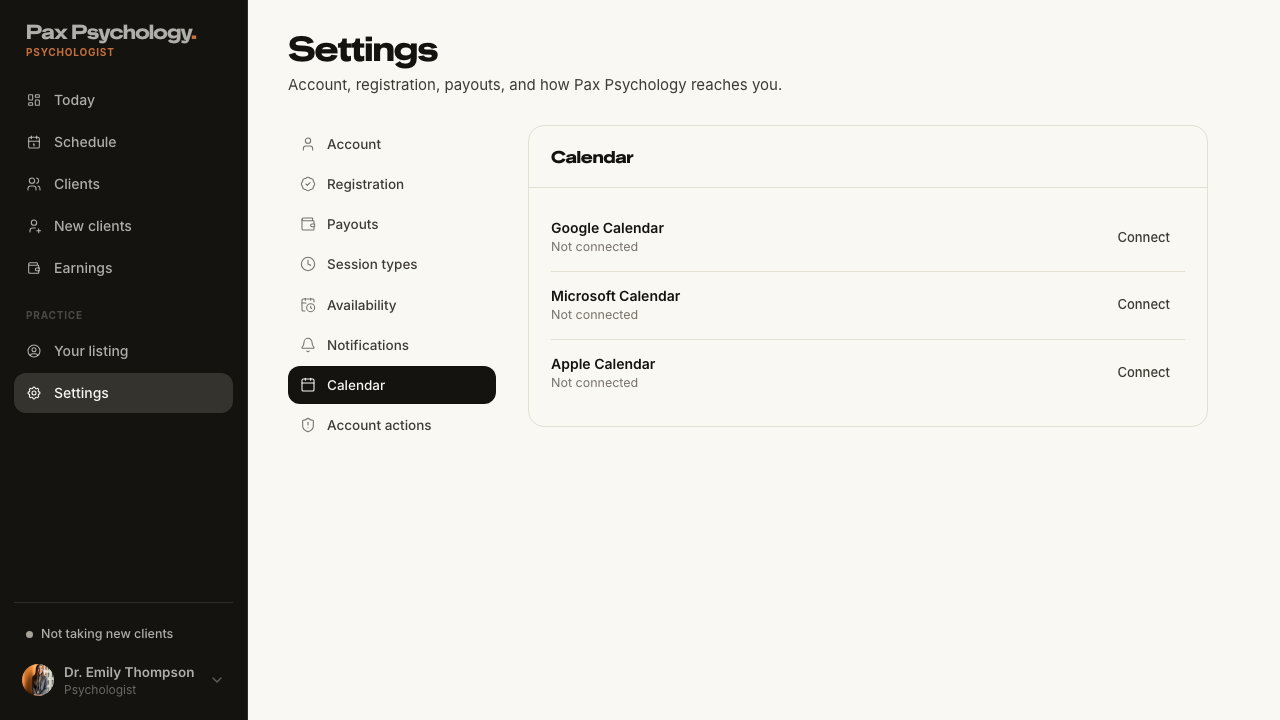
ManualTC-P-20Open the Stripe Express dashboard3.6s
The last hop of step 2 leaves Pax: 'Stripe Dashboard' mints a one-time Express login link and opens connect.stripe.com, which is Stripe's own product and cannot be asserted from here. Everything Pax renders – the 'Connected' badge, the Account ID / Country / Currency rows, the Charges Enabled / Payouts Enabled flags and the button itself – is checked below.
Test script
Preconditions Logged in as a psychologist with Stripe connected
Steps
- Navigate to
/dashboard/settings?section=payouts - Click "Stripe Dashboard"
Expected
- The card shows the "Connected" badge, the Account ID / Country / Currency rows and the "Charges Enabled" / "Payouts Enabled" flags, and the button opens the Stripe Express dashboard for the connected account.
Automated run
- 1. Navigate to /dashboard/settings?section=payouts
- The card shows the "Connected" badge, the account rows and both enabled flags
- 2. Click "Stripe Dashboard" – the button opens the Stripe Express dashboard (hosted hop is MANUAL)
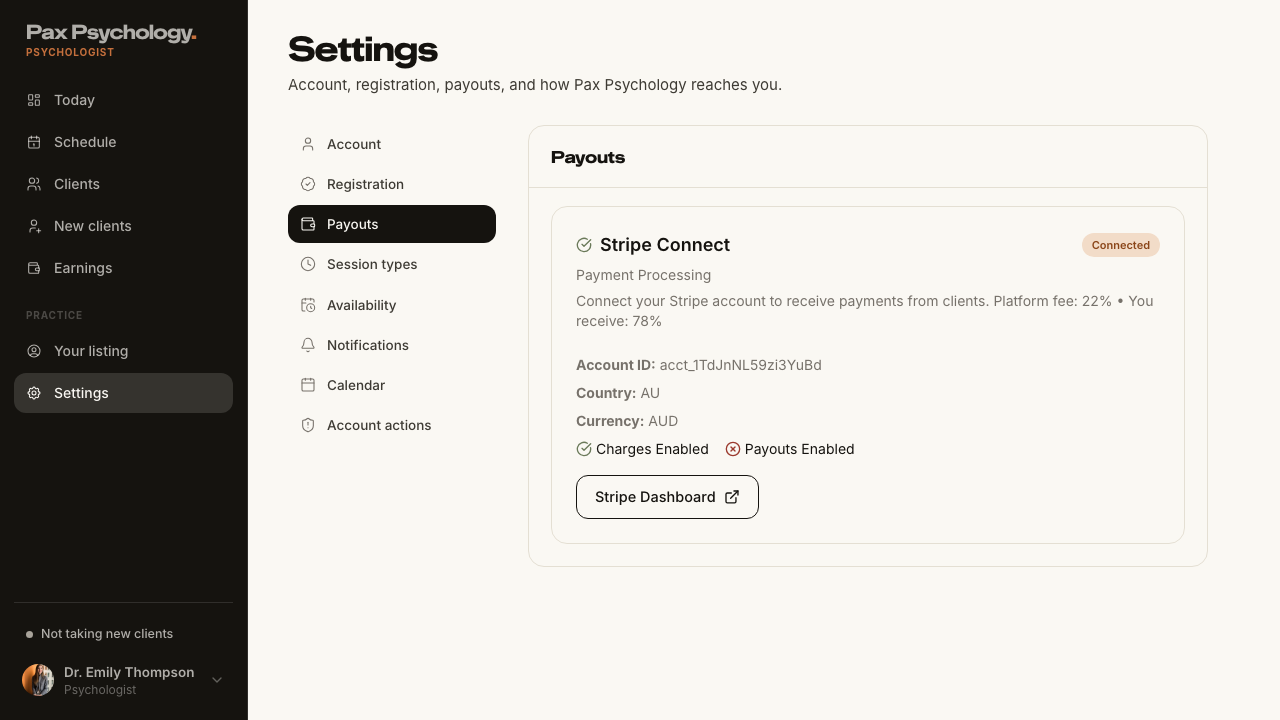
PassedTC-P-21Settings › Availability (new)7.0s
Test script
Preconditions Logged in as a psychologist
Steps
- Navigate to
https://paxpsychology.dev/dashboard/settings?section=availability - Click "Edit weekly hours", change something and save
- Close, then click "Block time" and add a block
- Check the "Time off" panel and delete an entry
Expected
- Panel "Availability" with the copy "Your usual weekly hours decide when clients can book you. Block time takes one-off hours or whole days out of those hours – a lunch break, supervision, or leave."
- Two buttons: "Edit weekly hours" and "Block time" – they open exactly the same modals as the Schedule page header (TC-P-03, TC-P-04)
- A second panel titled "Time off" listing upcoming blocks as "<Wed 3 Sep> · 9:00am–5:00pm" with the reason beneath, each with a delete (trash) button
- Empty state "No time off coming up. Use Block time to add some."
- Deleting shows "Delete this time off?" / "<range> will be bookable again."
- A block added here immediately appears in the list after the modal's "Done"
Notes This section is new in the redesign; /dashboard/settings/availability 307-redirects here.
Automated run
- 1. Navigate to https://paxpsychology.dev/dashboard/settings?section=availability
- 2. Click "Edit weekly hours", change something and save
- 3. Close, then click "Block time" and add a block
- 4. Check the "Time off" panel and delete an entry
- Notes: /dashboard/settings/availability 307-redirects here
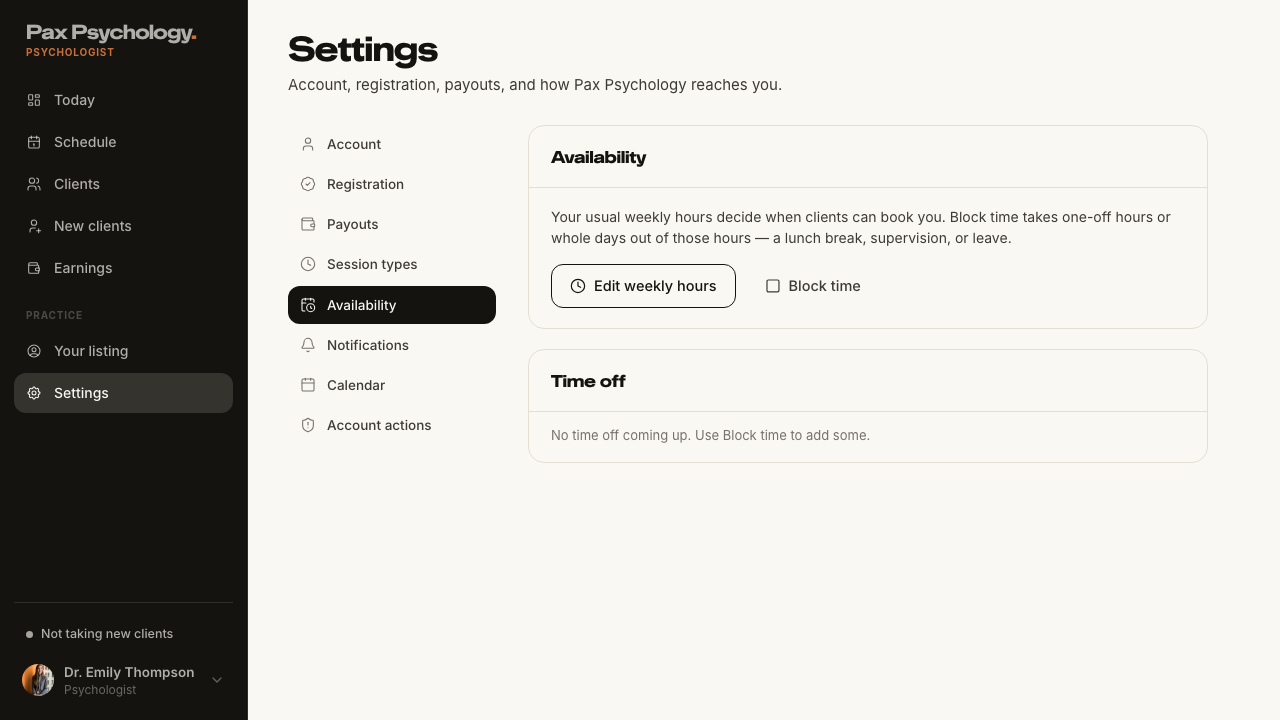
PassedTC-P-22Legacy settings URLs redirect (new)9.9s
Test script
Preconditions Logged in as a psychologist
Expected
- Each redirects (307, i.e. temporary) to the settings hub with the right section already selected. No 404s and no flash of an empty page.
Notes /dashboard/settings/appointment-types/add and /dashboard/settings/appointment-types/[id] are still real pages and must NOT redirect.
Automated run
- Visit /dashboard/settings/availability and note where you land
- Visit /dashboard/settings/profile and note where you land
- Visit /dashboard/settings/billing and note where you land
- Visit /dashboard/settings/payments and note where you land
- Visit /dashboard/settings/payment-methods and note where you land
- Visit /dashboard/settings/calendars and note where you land
- Visit /dashboard/settings/notifications and note where you land
- Visit /dashboard/settings/appointment-types and note where you land
- Notes: appointment-types/add and appointment-types/[id] are real pages and must NOT redirect
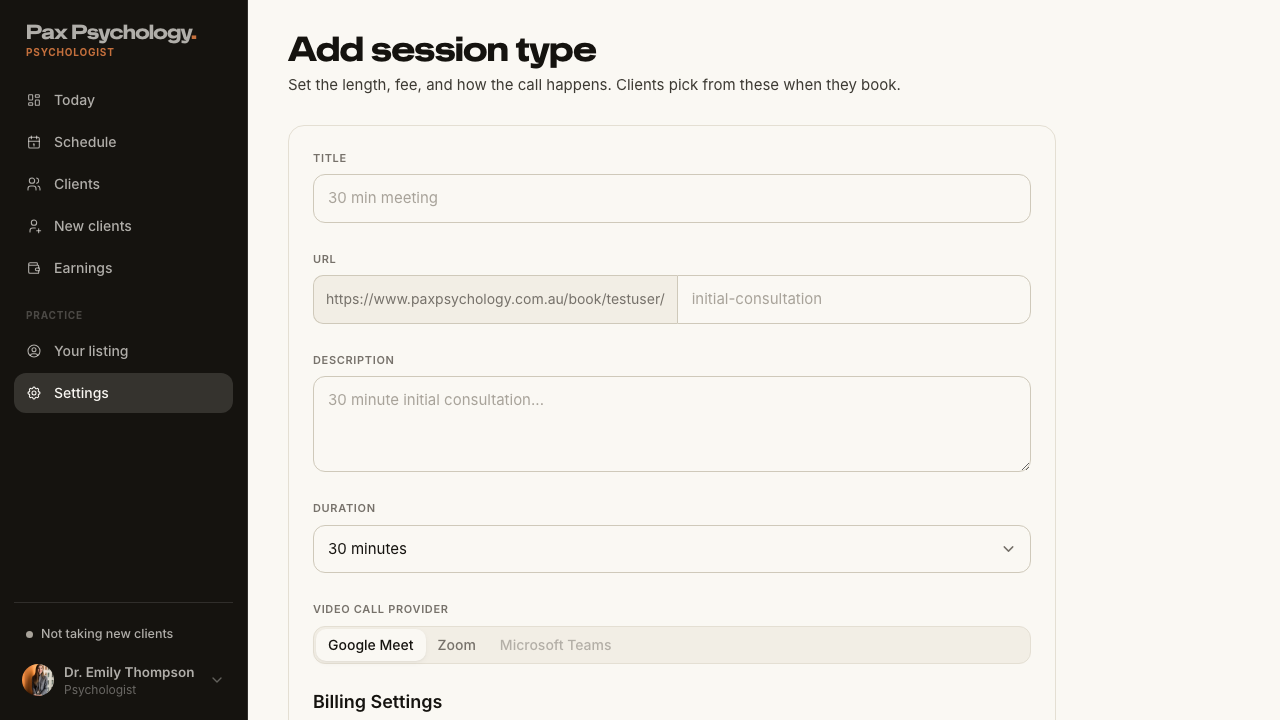
PassedTC-P-23Account actions – pause and resume the listing (new)8.1s
Test script
Preconditions Logged in as a psychologist
Steps
- Navigate to
/dashboard/settings?section=actions - Click "Pause"
- Check
/psychologistsin a signed-out window - Return and click "Resume"
Expected
- Panel "Account actions" with the row "Pause your listing" / "Hide from search and stop new requests, keep existing clients." and a "Pause" button
- Once paused the row reads "Resume your listing" / "Your listing is paused. Resume to appear in search and take new requests."
- A paused psychologist does not appear in the public directory
- The same panel carries "Sign out" / "You'll need to log back in on this device."
Notes The sidebar footer also has a "Taking new clients" switch.
Automated run
- 1. Navigate to /dashboard/settings?section=actions
- 2. Click "Pause"
- 3. Check /psychologists in a signed-out window
- 4. Return and click "Resume"
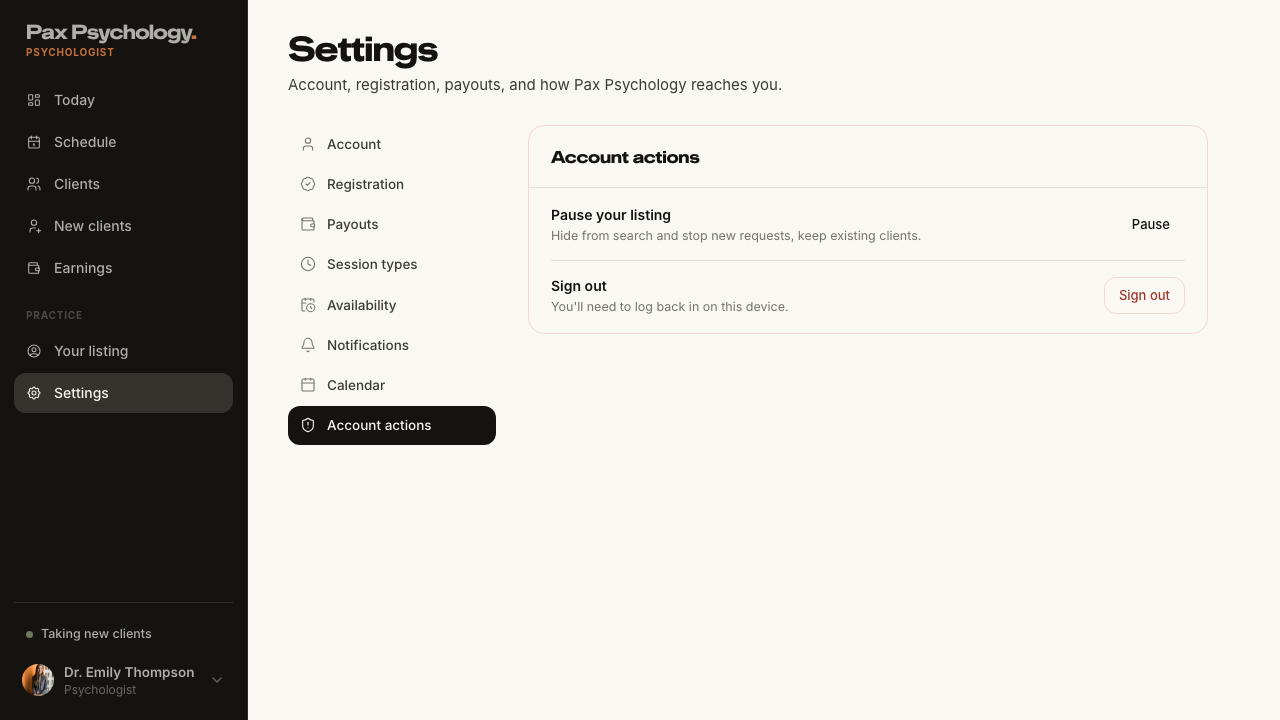
2G. New surfaces
2 passed 1 manual
ManualTC-P-24New clients queue (new)7.7s
'Suggest another time' emails the client and 'Not a fit' refunds them and pushes them back into matching. Neither can be undone on the shared staging database, so this run asserts both buttons are present and enabled and leaves the two outcomes ('Reschedule options sent to <First>.' and 'Referred on, they've been refunded and re-matched.') to a manual pass.
Test script
Preconditions Logged in as a psychologist with an inbound match request
Steps
- Navigate to
https://paxpsychology.dev/dashboard/new-clients - Click "Welcome <First>" on a request
- On another request, try "Suggest another time" and "Not a fit"
Expected
- H1 "New clients" with the sub-line "New matches who've booked and paid for a first session. Say hello to welcome them, or refer them on if you're not the right fit, they'll be refunded and re-matched."
- Cards lead with the client's name and a "<n>% match" figure, then a sage "Booked first session" band reading "<date> · <time> · <n> min · video" with a "Paid" pill, the intake Q&A ("What's bringing them here" / "What they're looking for"), issue tags, and the buttons "Welcome <First>", "Suggest another time" and "Not a fit"
- Welcoming shows "✓ Welcomed <First>. First session's locked into your calendar."; referring on shows "Referred on, they've been refunded and re-matched."
- Empty state "No new clients right now"
Notes The same requests appear on the Today page under "New clients", in a compact rail whose chip reads "Wants <date> · <time>" – that wording belongs to the rail, not to the full queue card. The queue is cached (cacheLife("minutes")), so a request seeded straight into the database takes up to a minute or two of reloads to appear. Step 2 consumes the request, so re-seed before each pass.
Automated run
- 1. Navigate to https://paxpsychology.dev/dashboard/new-clients
- The queue lists requests, or shows its empty state
- Cards carry the "Booked first session" band and the three actions
- 2. Click "Welcome <First>" on a request
- 3. On another request, try "Suggest another time" and "Not a fit"
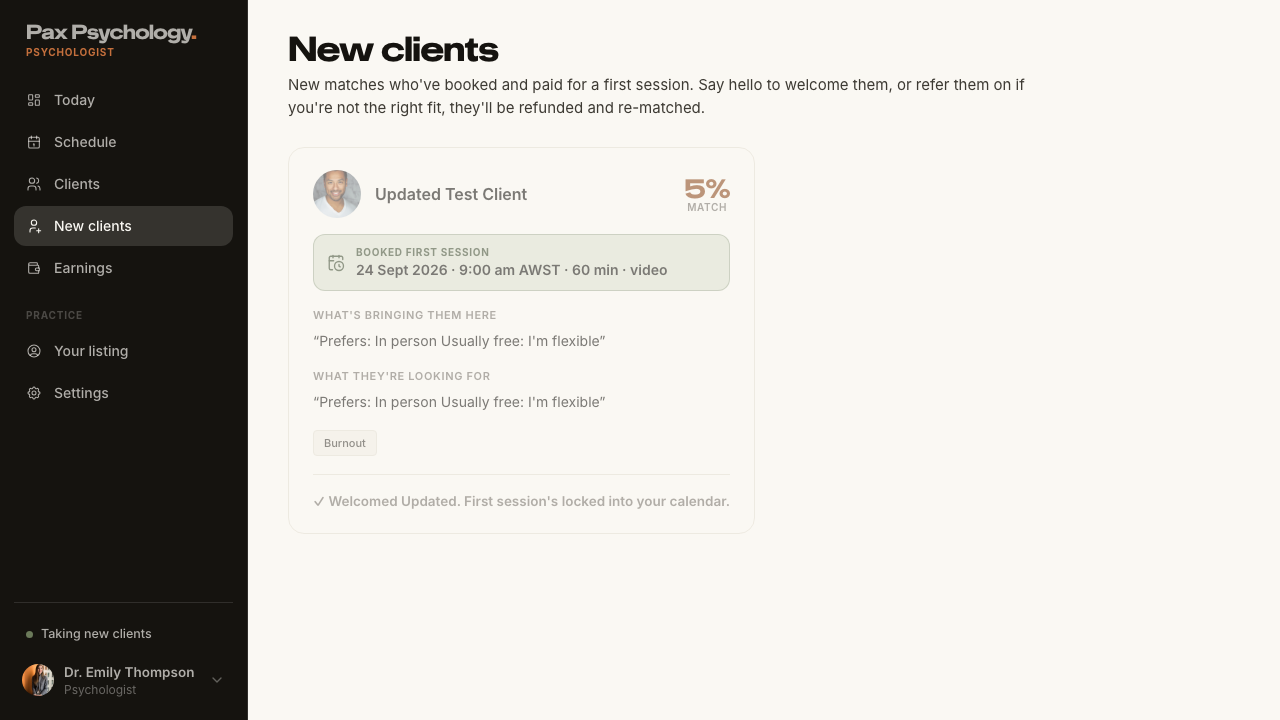
PassedTC-P-25Earnings (new)6.6s
Test script
Preconditions Logged in as a psychologist with completed, paid sessions
Steps
- Navigate to
https://paxpsychology.dev/dashboard/earnings
Expected
- H1 "Earnings" with the sub-line "<Month> so far. Session fees settle to your account instantly via Stripe."
- KPI tiles for billed this month, pending and paid to you
- With Stripe Connect incomplete the page shows the payout setup prompt instead
Automated run
- 1. Navigate to https://paxpsychology.dev/dashboard/earnings
- H1 Earnings with the month sub-line and the KPI tiles
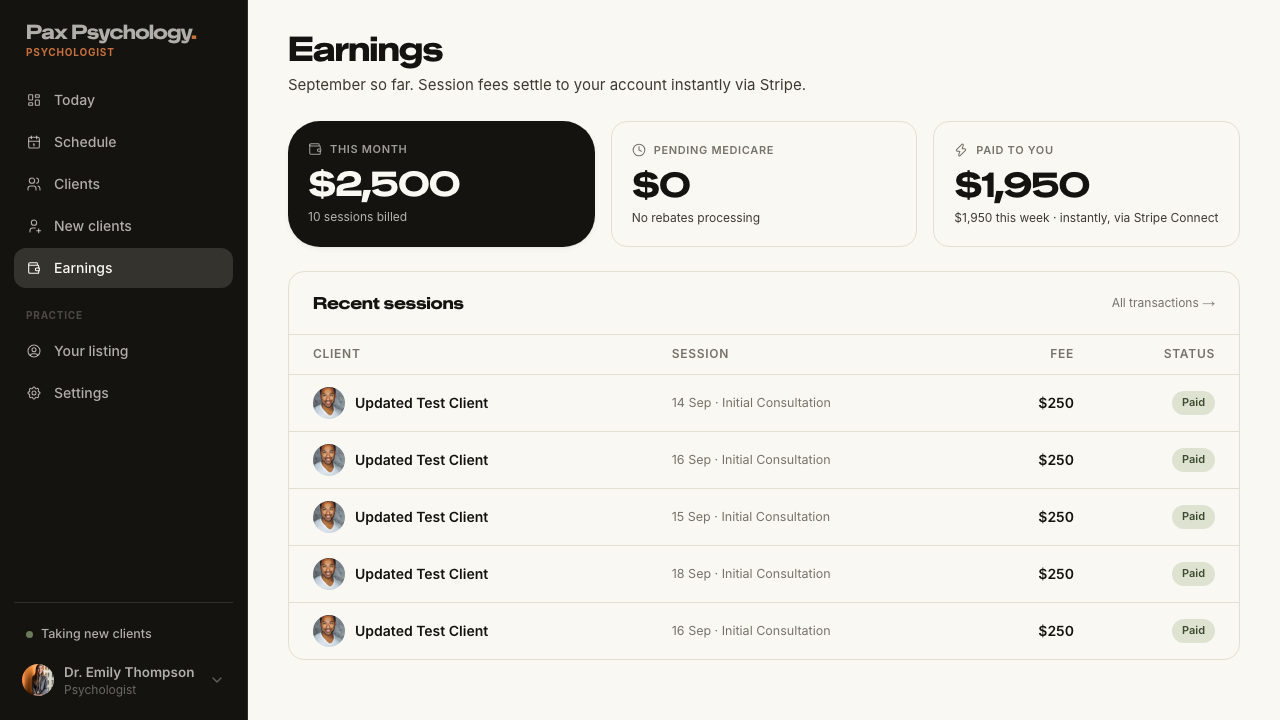
PassedTC-P-26Your listing (new)5.1s
Test script
Preconditions Logged in as a psychologist
Steps
- Navigate to
https://paxpsychology.dev/dashboard/listing - Edit the public-profile fields and save
- Open
/psychologists/[username]in a signed-out window
Expected
- H1 "Your listing"; the edits appear on the public profile page and on the directory card.
Automated run
- 1. Navigate to https://paxpsychology.dev/dashboard/listing
- 2. Edit the public-profile fields and save
- 3. Open /psychologists/[username] in a signed-out window
- Restore the original location
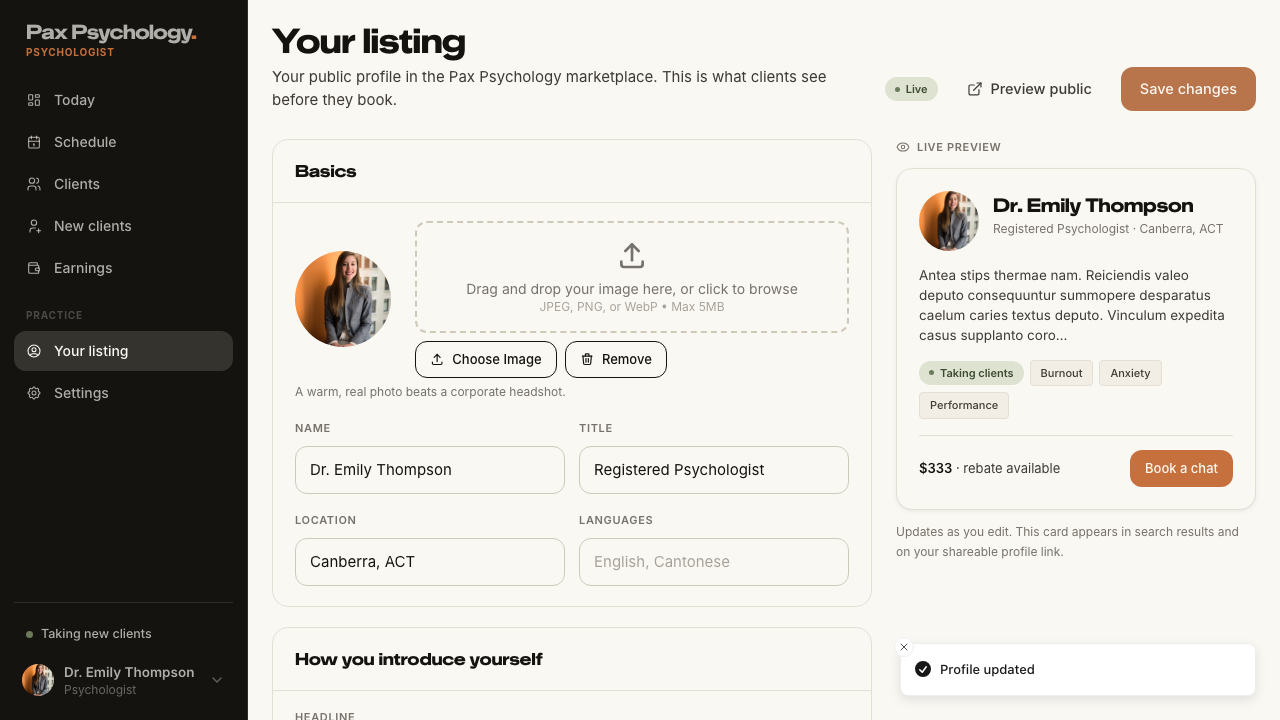
Admin
21 cases19 passed 2 retired
3A. Dashboard
1 passed
PassedTC-A-01Admin landing page4.1s
Test script
Preconditions Logged in as an admin
Steps
- Navigate to
https://paxpsychology.dev/dashboard
Expected
- An admin is redirected straight to
/dashboard/journal– there is no separate admin dashboard any more - The sidebar shows: Journal, Categories, Authors, FAQs, Media (unlabelled first group); Users, Newsletter under "Audience"; Settings, Platform Integrations under "Site". (Claims and Compliance appear only with the insurance flag on – off on staging.) The brand block carries the role tag "Admin"
Notes The old admin overview – Total Users / Platform Revenue / Active Psychologists / Appointment Rate cards, the revenue chart, Recent Registrations, the three breakdown cards and the four Quick Actions – has been removed along with the "Add Blog Post" and "Add Story" actions.
Automated run
- 1. Navigate to https://paxpsychology.dev/dashboard
- Expected: the sidebar shows the admin nav and the 'Admin' role tag
- Expected: the old admin overview has been removed
3B. User Management
8 passed
PassedTC-A-02View all users9.5s
Test script
Preconditions Logged in as an admin
Steps
- Navigate to
https://paxpsychology.dev/dashboard/users - Search by name, then by email
- Try each role tab
- Click a row
Expected
- H1 "Users" with the sub-line "<n> clients · <n> psychologists · <n> admin"
- Header buttons "Impersonation log" and "Invite user" (the button is no longer labelled "Add User")
- Search placeholder "Search by name or email"; role tabs "All", "Clients", "Psychologists", "Admin"
- Columns "User", "Role", "Status", "Joined" and a row action; role tags "Admin" / "Psychologist" / "Client"; status pills "Active", "Invited" (active but email unverified) and "Suspended" (deactivated)
- Empty states "No users found matching your search." / "No users yet" with an "Invite user" CTA
Automated run
- 1. Navigate to https://paxpsychology.dev/dashboard/users
- 2. Search by name, then by email
- 3. Try each role tab
- 4. Click a row
PassedTC-A-03Create a new CLIENT user8.5s
Test script
Preconditions Logged in as an admin
Steps
- Navigate to
https://paxpsychology.dev/dashboard/users/add - Choose the "Client" role card
- Fill in: First name
New, Last nameTestClient, EmailNewTestClient@Example.com(deliberately mixed case), Usernamenewtestclient, Mobile0412 345 678; optionally the "Referring doctor (optional)" fields; leave Password blank - Click "Create client"
- Open the new user's detail page and check the stored email
Expected
- H1 "Invite user" with "Pick a role to get started."; role cards "Admin" / "Full platform access and user management", "Psychologist" / "Manage appointments, clients, and billing", "Client" / "Book appointments and manage their profile"
- Fields: "First name", "Last name", "Email" (placeholder
client@example.com), "Username", "Mobile", "Medicare number" (placeholderOptional), the "Referring doctor (optional)" section, and "Password (optional)" with the helper "If no password is provided, a welcome email with setup link will be sent." - Button "Create client" ("Creating…" while pending); toast "Client created successfully"
- The stored email is lower-cased (
newtestclient@example.com) – this is a fix in this build. Creating a second user with the same address in different casing must be rejected as a duplicate
Notes Known gap – for an admin-created _client_ with no password the setup token is created but no welcome email is actually sent, despite the helper text. Test the welcome email via the psychologist path (TC-A-04). Raise as an issue if you see it.
Automated run
- 1. Navigate to https://paxpsychology.dev/dashboard/users/add
- 2. Choose the "Client" role card
- 3. Fill in the details, using a deliberately mixed-case email, and leave Password blank
- 4. Click "Create client"
- 5. Open the new user's detail page and check the stored email
- Expected: the same address in different casing is rejected as a duplicate
PassedTC-A-04Create a new PSYCHOLOGIST user (and the welcome email)7.8s
Test script
Preconditions Logged in as an admin, with access to the target inbox
Steps
- Navigate to
/dashboard/users/addand choose "Psychologist" - Fill the form (name, email, username, professional details) and submit, leaving the password blank
- Open the welcome email and click its call to action
- Set a password and sign in
Expected
- The psychologist is created and appears in the list with the "Psychologist" role tag
- A welcome email arrives with the subject "Welcome to Pax Psychology - Your psychologist account is ready", heading "Welcome aboard.", and the CTA button "Set your password & get started"
- The CTA links to
/auth/reset-password?token=… - The note under it reads "This setup link expires in 7 days. Your login email is <email>."
- The link opens the "Set a new password" screen; after "Save & sign in" the psychologist is logged in
- The email address is stored lower-cased
Notes The client welcome template (sent when a client books) uses the CTA "Set up my password" and the subject "Welcome to Pax Psychology - Set up your account" – same 7-day expiry.
Automated run
- 1. Navigate to /dashboard/users/add and choose "Psychologist"
- 2. Fill the form (name, email, username, professional details) and submit, leaving the password blank
- Expected: the psychologist appears in the list with the "Psychologist" role tag and a lower-cased email
- Manual: open the welcome email and follow 'Set your password & get started'
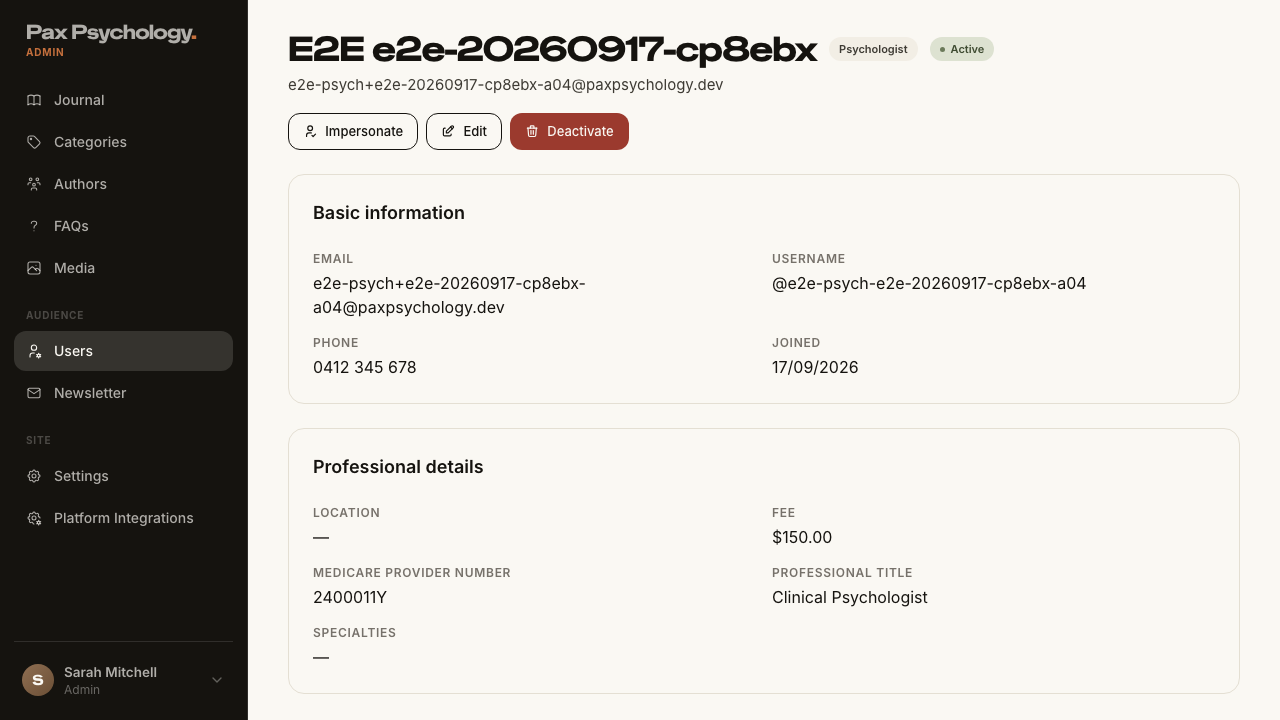
PassedTC-A-05Edit an existing user8.1s
Test script
Preconditions Logged in as an admin
Steps
- Open a user's detail page and click "Edit"
- Update the name and save
Expected
- Detail page H1 = the user's name with role and status pills; cards "Basic information" (Email, Username, Phone, Joined), "Professional details" (psychologists) and "Client details" (clients)
- Edit page H1 "Edit user"; button "Save changes" ("Updating…" while pending); toast "Client updated successfully" (or the equivalent for the role)
- The change appears in the users list
Automated run
- Setup: create a throwaway client to edit
- 1. Open a user's detail page and click "Edit"
- 2. Update the name and save
- Expected: the change appears in the users list
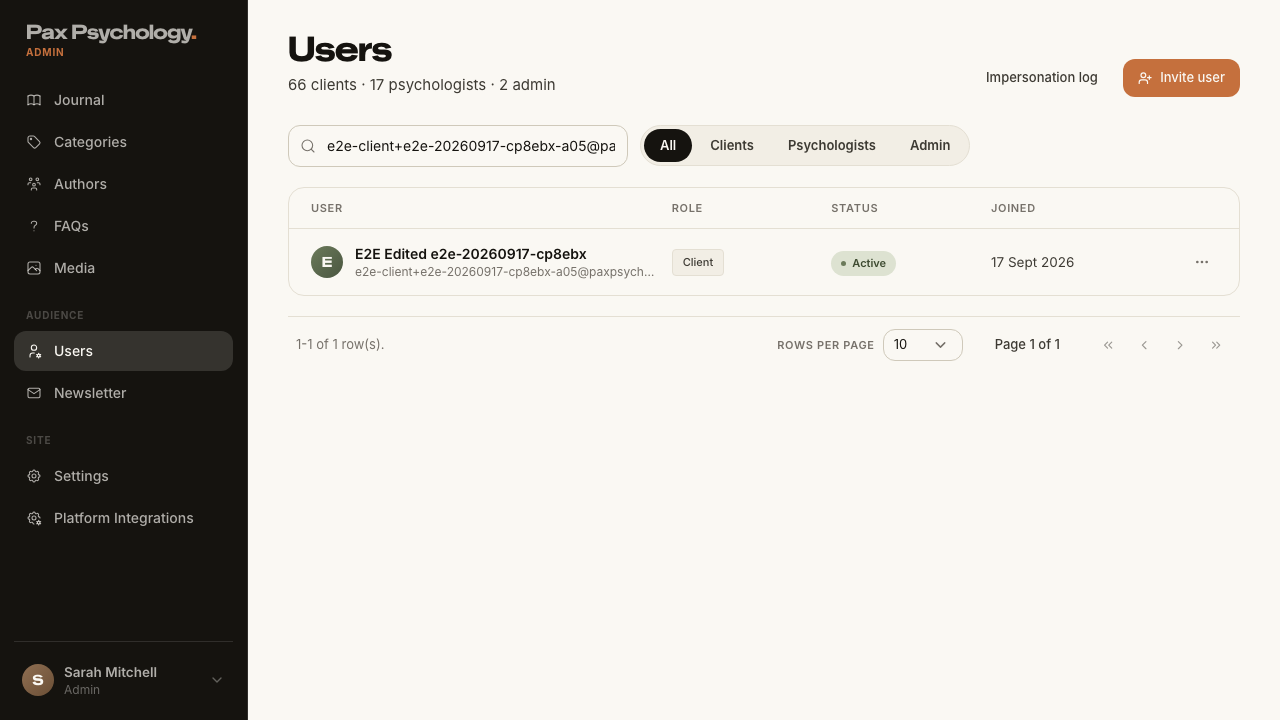
PassedTC-A-06Deactivate a user10.6s
Test script
Preconditions Logged in as an admin with a non-admin user to deactivate
Steps
- Open the user's detail page and click "Deactivate"
- Read the confirmation page and click "Deactivate user"
- Try to sign in as that user
Expected
- H1 "Deactivate user" with the identity line "<name> · <email>", the copy "Deactivate <name>? They won't be able to sign in." and "Nothing is deleted – their data stays put, and you can reactivate the account any time."
- Buttons "Deactivate user" ("Deactivating…") and "Cancel"
- Toast "<name> has been deactivated"; the list shows the "Suspended" pill
- The deactivated user cannot sign in
Automated run
- Setup: create a throwaway client (with a password) to deactivate
- 1. Open the user's detail page and click "Deactivate"
- 2. Read the confirmation page and click "Deactivate user"
- 3. Try to sign in as that user
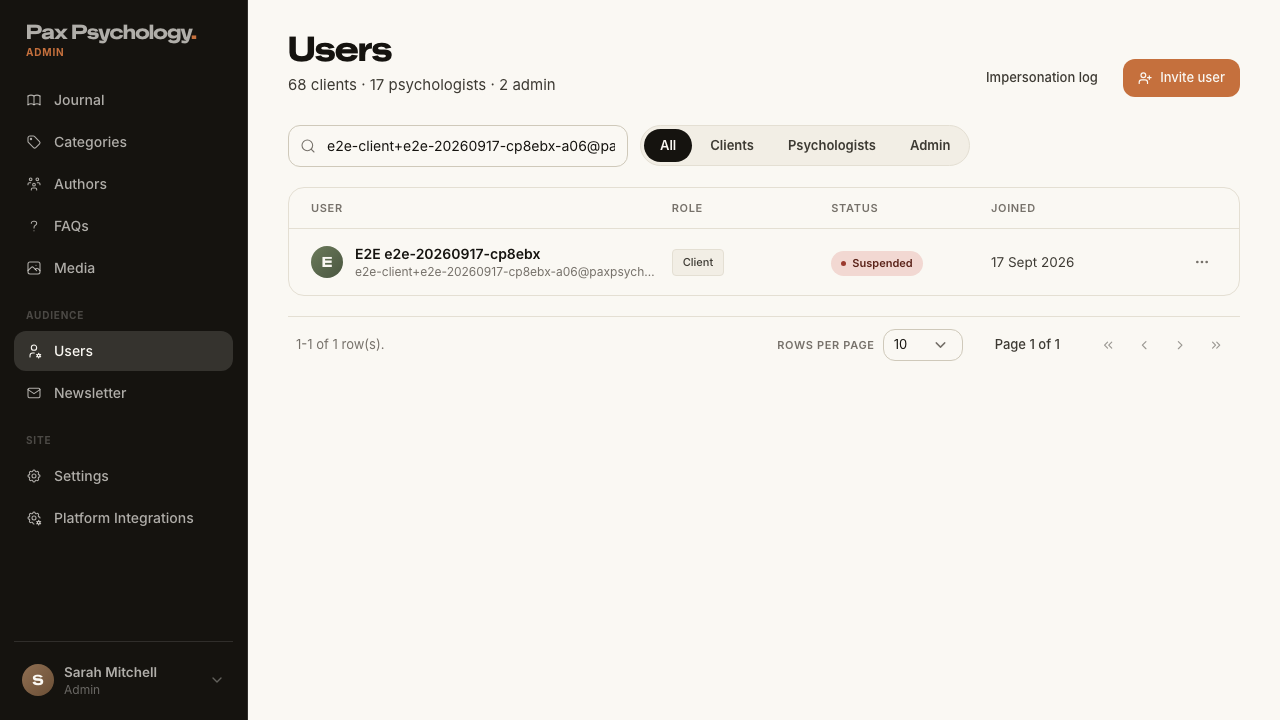
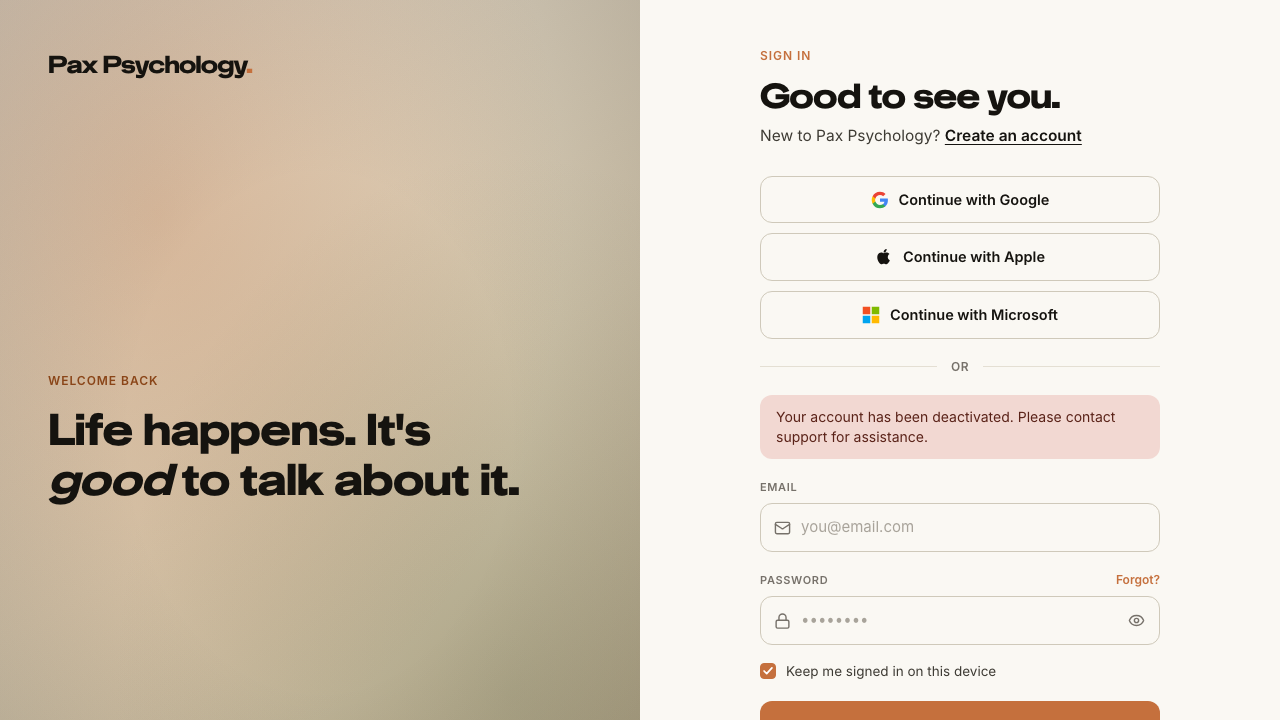
PassedTC-A-07Impersonate a client6.8s
Test script
Preconditions Logged in as an admin
Steps
- From
/dashboard/users, open a CLIENT user and click "Impersonate" - Move around the dashboard
Expected
- Button shows "Switching..."; toast "Now impersonating <name>"
- An amber banner reads "You are impersonating <name> (client)" with a "Stop Impersonating" button
- The dashboard shows the client portal (Home / Sessions / Care) with that client's data
- The sidebar user chip shows an "Impersonating" badge
- The event is written to the impersonation log
Notes "Impersonate" is only offered for non-admin targets.
Automated run
- 1. From /dashboard/users, open a CLIENT user and click "Impersonate"
- 2. Move around the dashboard
- Expected: the event is written to the impersonation log
PassedTC-A-08Impersonate a psychologist5.5s
Test script
Preconditions Logged in as an admin
Steps
- From
/dashboard/users, open a PSYCHOLOGIST user and click "Impersonate"
Expected
- Toast "Now impersonating <name>"; banner "You are impersonating <name> (psychologist)"
- The dashboard shows the psychologist Today page with their sessions and requests
Automated run
- 1. From /dashboard/users, open a PSYCHOLOGIST user and click "Impersonate"
PassedTC-A-09Stop impersonation and check the audit log7.7s
Test script
Preconditions Currently impersonating (TC-A-07 or TC-A-08)
Steps
- Click "Stop Impersonating" in the amber banner
- Go to
/dashboard/usersand click "Impersonation log"
Expected
- Button shows "Returning..."; toast "Returned to <adminName>"; you land back on
/dashboard/usersas the admin /dashboard/users/impersonation-log: H1 "Impersonation log", sub "An audit trail of every admin impersonation session."- Table columns are exactly "Date", "Admin", "Target User", "Action", "IP Address"; Admin and Target User cells show name over email; Action shows
STARTorSTOP; a missing IP renders " – " - Both the START and the STOP row for the session just run are present
- Page size is 20
Notes The column headings are "Target User" and "IP Address" – update any older test note that says "Target" and "IP".
Automated run
- Setup: impersonate the seeded client so there is a session to stop
- 1. Click "Stop Impersonating" in the amber banner
- 2. Go to /dashboard/users and click "Impersonation log"
3C. Content Management
1 passed 2 retired
RetiredTC-A-10Create, edit, and publish a blog post–
The blog has been folded into the Journal. There is no /dashboard/blog any more; /dashboard/blog, /dashboard/blog/add and /dashboard/blog/:id 307-redirect to the equivalent Journal routes. The Journal editor is tested as TC-A-16.
RetiredTC-A-11Create, edit, and publish a story/testimonial–
The Story model was rebranded to Journal. There is no /dashboard/stories; /dashboard/stories and /dashboard/stories/* 307-redirect to /dashboard/journal. The "It's normal" stories carousel on the directory page has been replaced by the journal carousel. The Journal editor is tested as TC-A-16.
PassedTC-A-12Create, edit, and publish an FAQ14.0s
Test script
Preconditions Logged in as an admin
Steps
- Navigate to
https://paxpsychology.dev/dashboard/faqs - Click "New FAQ"
- Enter a Question and Answer, pick an Audience, turn "Published" on, and click "Create FAQ"
- Edit the FAQ and save
- Check the FAQ accordion on the homepage
- Delete the FAQ
Expected
- List: H1 "FAQs" with "<n> questions across the site" and a "New FAQ" button; search placeholder "Search by question or answer"; a status select ("All FAQs" / "Published" / "Draft") and an audience segmented control ("All", "For clients", "For psychologists", "Billing")
- Columns "Question", "Audience", "Status" and row actions; uncategorised rows read "Uncategorised"
- Form fields "Question" (placeholder
What services do you offer?), "Answer", "Audience (Optional)", and a "Published" toggle described as "Visible on the public marketing site." - Buttons "Create FAQ" / "Update FAQ" (pending "Saving…") and "Cancel"; toasts "FAQ created successfully" / "FAQ updated successfully"
- A published FAQ appears in the homepage accordion under "Common questions" / "FAQs"
- Delete opens "Delete this FAQ?" and gives the toast "FAQ deleted successfully"
Notes The standalone /faqs page uses a separate, hard-coded list – editing an FAQ here changes the homepage accordion only (see TC-C-31).
Automated run
- 1. Navigate to https://paxpsychology.dev/dashboard/faqs
- 2. Click "New FAQ"
- 3. Enter a Question and Answer, pick an Audience, turn "Published" on, and click "Create FAQ"
- 4. Edit the FAQ and save
- 5. Check the FAQ accordion on the homepage
- 6. Delete the FAQ
3D. Newsletter
3 passed
PassedTC-A-13View newsletter subscribers6.5s
Test script
Preconditions Logged in as an admin with at least one subscriber (create one via TC-C-27)
Steps
- Navigate to
https://paxpsychology.dev/dashboard/newsletter - Search for a subscriber by email, then by first name
- Try the "All", "Active" and "Unsubscribed" tabs
Expected
- H1 "Newsletter" with the sub-line "Manage subscriptions and export subscriber data."
- Search placeholder "Search by email or name"
- Tabs "All", "Active", "Unsubscribed" – the choice is reflected in the URL as
?status=; a count reads "<filtered> of <total>" - Columns "Email", "First name", "Status", "Subscribed"; status pills "Active" / "Unsubscribed"; a missing name renders " – "; dates are
en-AU - Empty states "No subscribers yet" / "Newsletter subscribers will appear here once people sign up." and, when filtered, "No subscribers found matching your criteria."
Automated run
- 1. Navigate to https://paxpsychology.dev/dashboard/newsletter
- 2. Search for a subscriber by email, then by first name
- 3. Try the "All", "Active" and "Unsubscribed" tabs
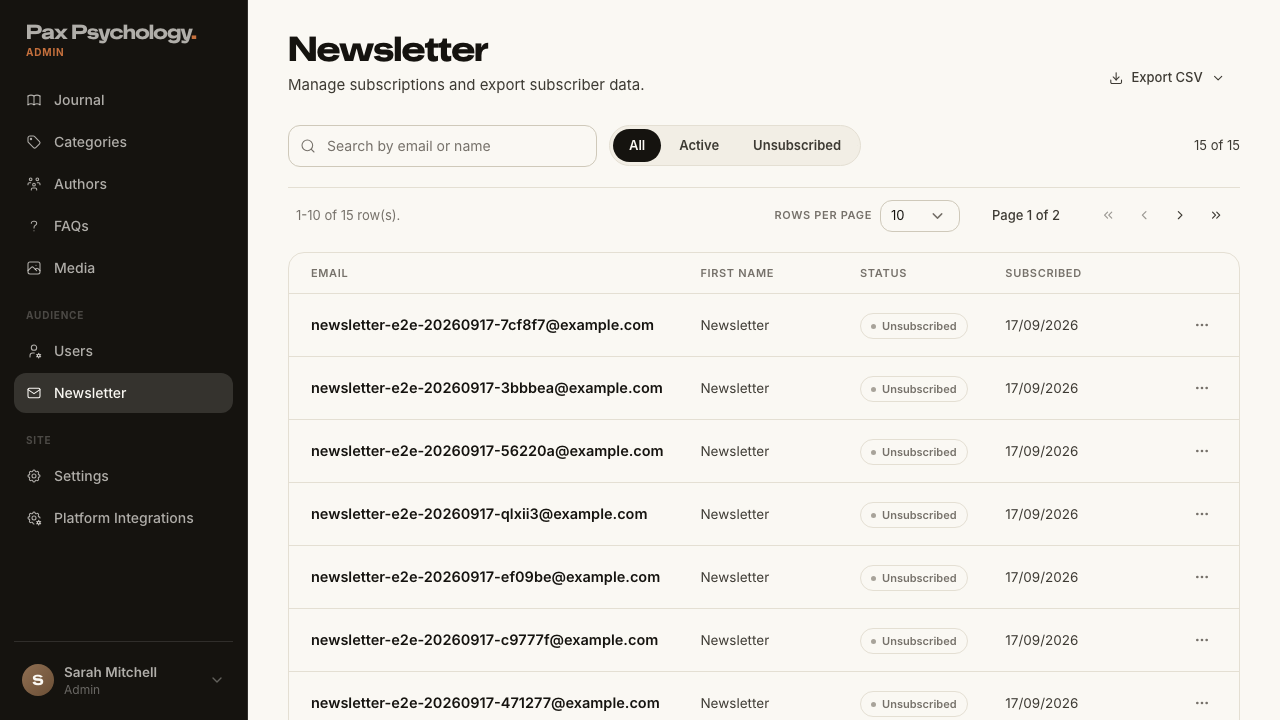
PassedTC-A-14Export subscribers as CSV6.9s
Test script
Preconditions Logged in as an admin with subscribers
Steps
- Switch to the "Active" tab
- Click "Export CSV" and choose "Export Current View (Active)"
- Open the file
- Repeat with "Export All Subscribers", "Export Active Only" and "Export Unsubscribed Only"
Expected
- "Export CSV" is a dropdown, not a plain button; it offers "Export Current View (All|Active|Unsubscribed)", "Export All Subscribers", "Export Active Only" and "Export Unsubscribed Only"
- "Export Current View" respects the tab you are on; the other three ignore it
- The file downloads as
newsletter-subscribers-<filter>-<YYYY-MM-DD>.csvwith the headers "Email", "First Name", "Subscribed At", "Status", "Unsubscribed At" - Toast "Export completed successfully" (failure: "Failed to export subscribers")
Notes The export filters by status only – the current search string is not applied to the export.
Automated run
- 1. Switch to the "Active" tab
- 2. Click "Export CSV" and choose "Export Current View (Active)"
- 3. Open the file
- 4. Repeat with "Export All Subscribers", "Export Active Only" and "Export Unsubscribed Only"
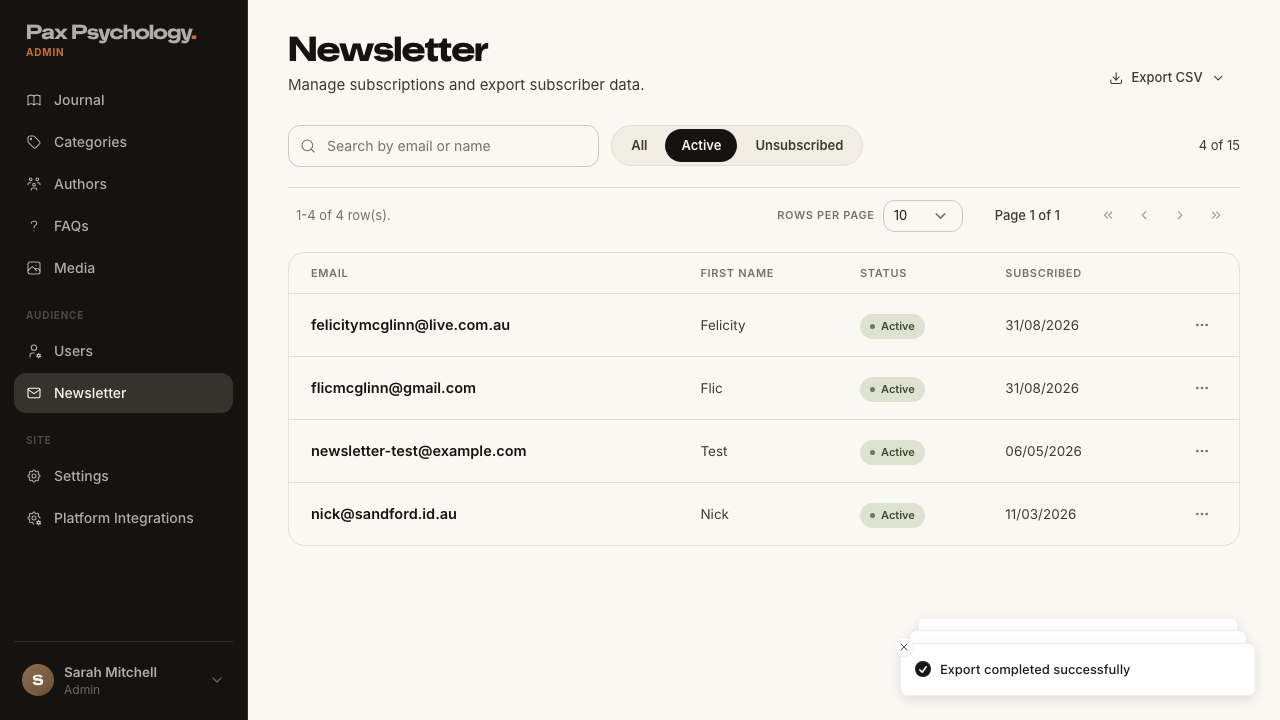
PassedTC-A-15Toggle a subscriber's status and delete a subscriber13.6s
Test script
Preconditions Logged in as an admin with at least one active subscriber
Steps
- Open the "⋯" menu on an active subscriber's row
- Click "Mark Unsubscribed"
- Reopen the menu on the same row and click "Reactivate"
- Open the menu again and click "Delete", then confirm
Expected
- The row menu is behind a kebab labelled "Actions"; the toggle item reads "Mark Unsubscribed" for an active subscriber and "Reactivate" for an unsubscribed one. It fires immediately with no confirmation
- Toasts "Subscriber marked as unsubscribed" and "Subscriber reactivated" (failure: "Failed to update subscriber status")
- Marking someone unsubscribed also emails them, subject "You're off the list"
- Delete opens the dialog "Delete Subscriber" / "Are you sure you want to delete this subscriber? This action cannot be undone."; toast "Subscriber deleted successfully"
- The row moves between the Active and Unsubscribed tabs accordingly
Automated run
- Setup: subscribe from the public /journal newsletter strip
- 1. Open the "⋯" menu on an active subscriber's row
- 2. Click "Mark Unsubscribed"
- 3. Reopen the menu on the same row and click "Reactivate"
- 4. Open the menu again and click "Delete", then confirm
3E. Journal CMS (new)
6 passed
PassedTC-A-16Create, edit and publish a journal article26.6s
Test script
Preconditions Logged in as an admin, with at least one category and author
Steps
- Navigate to
https://paxpsychology.dev/dashboard/journal - Click "New article"
- Enter a Title and click "Generate from title" next to "URL slug"
- Fill Excerpt and Body, upload a Cover image, pick a Category and Author
- Click "Save draft"
- Reopen the article from the list and click "Publish"
- Check
/journalin a signed-out window - Reopen the article, turn on "Feature on journal", and click "Update"
Expected
- List: H1 "Journal" with "<n> articles · <n> published · <n> drafts"; buttons "View live" (opens
/journalin a new tab) and "New article"; search placeholder "Search articles"; status tabs "All", "Published", "Drafts", "Scheduled"; a category select starting with "All categories" - Columns "Article", "Category", "Author", "Status", "Views"; pills "Published" / "Scheduled" / "Draft"; featured rows carry a star; Views shows " – " unless published
- Editor: crumb "Journal / New article" (or "Journal / Edit"), fields "Title" (placeholder
Untitled article, with a livepaxpsychology.com.au/journal/slug preview), "URL slug", "Excerpt", "Cover image", a "Body" card with a "<n> words · ~<n> min read" footer, and sidebar cards "Publish", "Details" (Category, Author) and "Live preview" - "Save draft" forces the status to Draft regardless of the radio selection; toast "Article created successfully"
- "Publish" on a draft promotes it to Published immediately – this is the fix in this build. On an already-published article the primary button reads "Update"; with the Scheduled radio selected it reads "Schedule"
- Both buttons show "Saving…" while submitting, and success returns you to the list
- The published article is live at
/journal/<slug>; featuring it pins it to the top of the journal index
Notes "Publish" is disabled until the Title has content.
Automated run
- 1. Navigate to https://paxpsychology.dev/dashboard/journal
- 2. Click "New article"
- 3. Enter a Title and click "Generate from title" next to "URL slug"
- 4. Fill Excerpt and Body, upload a Cover image, pick a Category and Author
- 5. Click "Save draft"
- 6. Reopen the article from the list and click "Publish"
- 7. Check /journal in a signed-out window
- 8. Reopen the article, turn on "Feature on journal", and click "Update"
PassedTC-A-17Journal status radio and scheduled articles11.1s
Test script
Preconditions Logged in as an admin with a draft article
Steps
- Open the article and look at the "Publish" card in the right-hand sidebar
- Select "Scheduled", set a "Goes live" date/time in the near past, and save
- Wait past that time and reload
/journal
Expected
- The sidebar radio group offers "Draft" / "Only you can see it", "Published" / "Live on the journal" and "Scheduled" / "Goes live on a set date"
- Choosing "Scheduled" reveals a "Goes live" datetime field, and the primary button becomes "Schedule"
- A "Feature on journal" switch ("Pin to the top spot") sits in the same card
- A SCHEDULED article does not go live on its own – there is no scheduled-publish job. It stays off
/journaluntil someone reopens it and presses Publish/Update
Notes Flag this to the team if the intent is for scheduling to be automatic; today it is a manual reminder, not a scheduler.
Automated run
- Setup: write a draft article to schedule
- 1. Open the article and look at the "Publish" card in the right-hand sidebar
- 2. Select "Scheduled", set a "Goes live" date/time in the near past, and save
- 3. Wait past that time and reload /journal
PassedTC-A-18Delete a journal article9.2s
Test script
Preconditions Logged in as an admin with a published article you can discard
Steps
- Open the article and scroll to the "Danger zone" card
- Click "Delete article" and confirm
Expected
- Copy: "Deleting takes the article off the journal straight away. This can't be undone."
- Confirmation dialog "Are you sure?" / "This article "<title>" will be permanently deleted." with "Delete" and "Cancel"
- Toast "Article deleted"; the article disappears from
/journalimmediately (failure: "Couldn't delete the article. Try again.")
Automated run
- Setup: publish an article that can be discarded
- 1. Open the article and scroll to the "Danger zone" card
- 2. Click "Delete article" and confirm
- Expected: the article disappears from /journal immediately
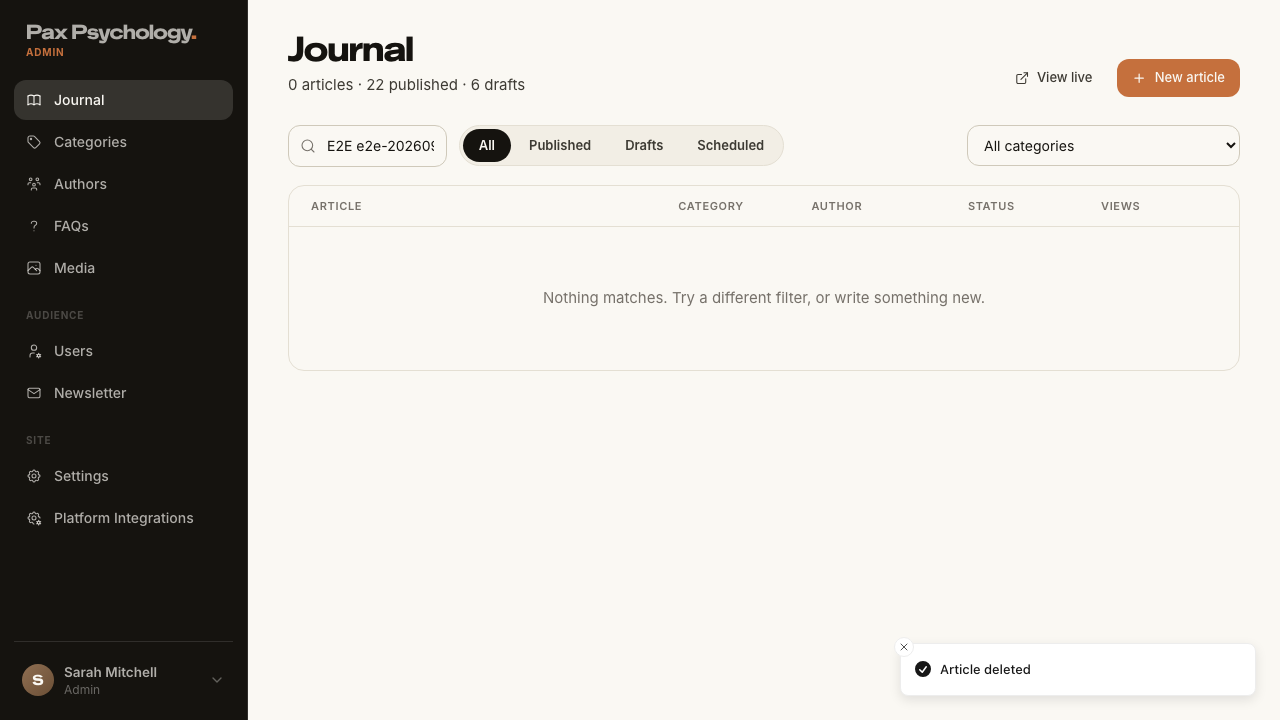
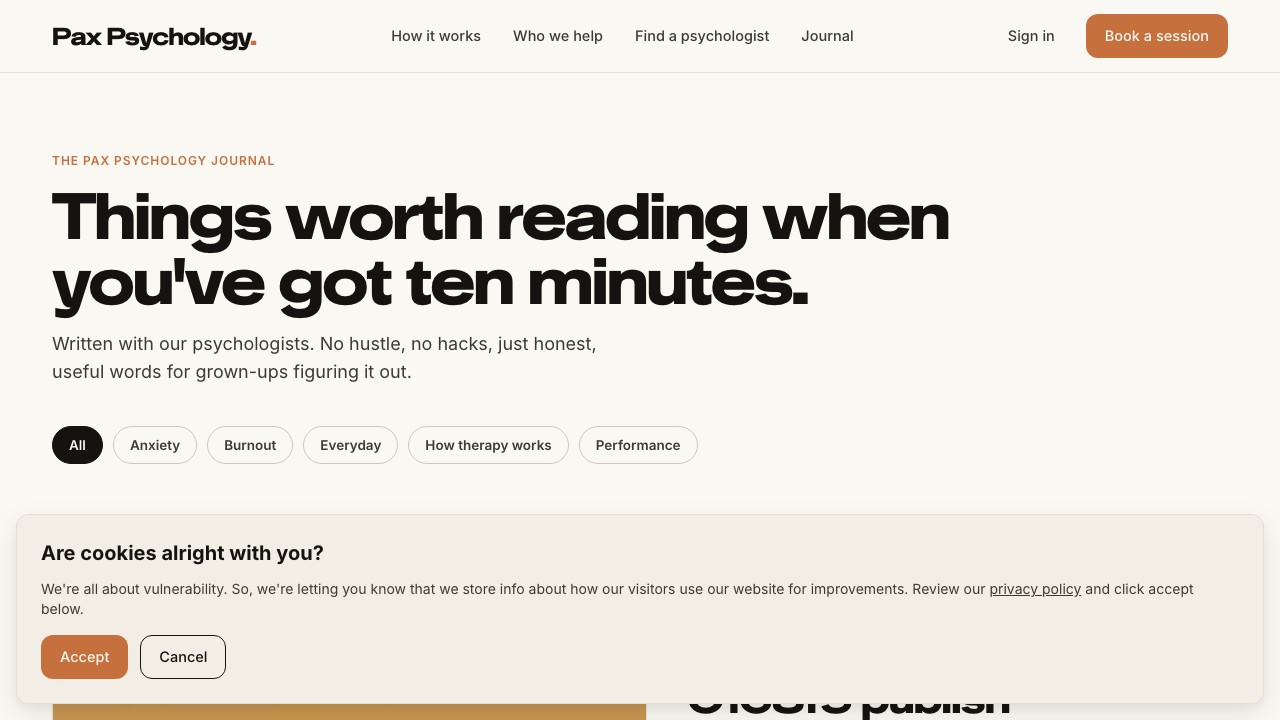
PassedTC-A-19Categories, Authors and Media (new)18.0s
Test script
Preconditions Logged in as an admin
Steps
- Navigate to
/dashboard/categories, add a category, edit it, then delete it - Navigate to
/dashboard/authors - Navigate to
/dashboard/media, upload an image, then delete it
Expected
- Categories: H1 "Categories" with "<n> categories across the journal" and a "New category" button; columns "Category", "Slug", "Description", "Live articles"; the dialog is titled "New category" / "Edit category" with fields "Name" (placeholder
e.g. Burnout), "URL slug" ("Leave blank to derive it from the name.") and "Description"; empty state "No categories yet. Create one to organise the journal." A new category appears as a chip on/journal - Authors: H1 "Authors" with "<n> contributors" and an "Invite author" button (which goes to
/dashboard/users/add); cards show "<n> articles" and "Joined <year>"; empty state "No authors yet. Authors appear here once they publish an article." - Media: H1 "Media" with "<n> images · covers and in-article art", an "Upload" button and a drop zone; each tile has a delete control
Automated run
- 1. Navigate to /dashboard/categories, add a category, edit it, then delete it
- 2. Navigate to /dashboard/authors
- 3. Navigate to /dashboard/media, upload an image, then delete it
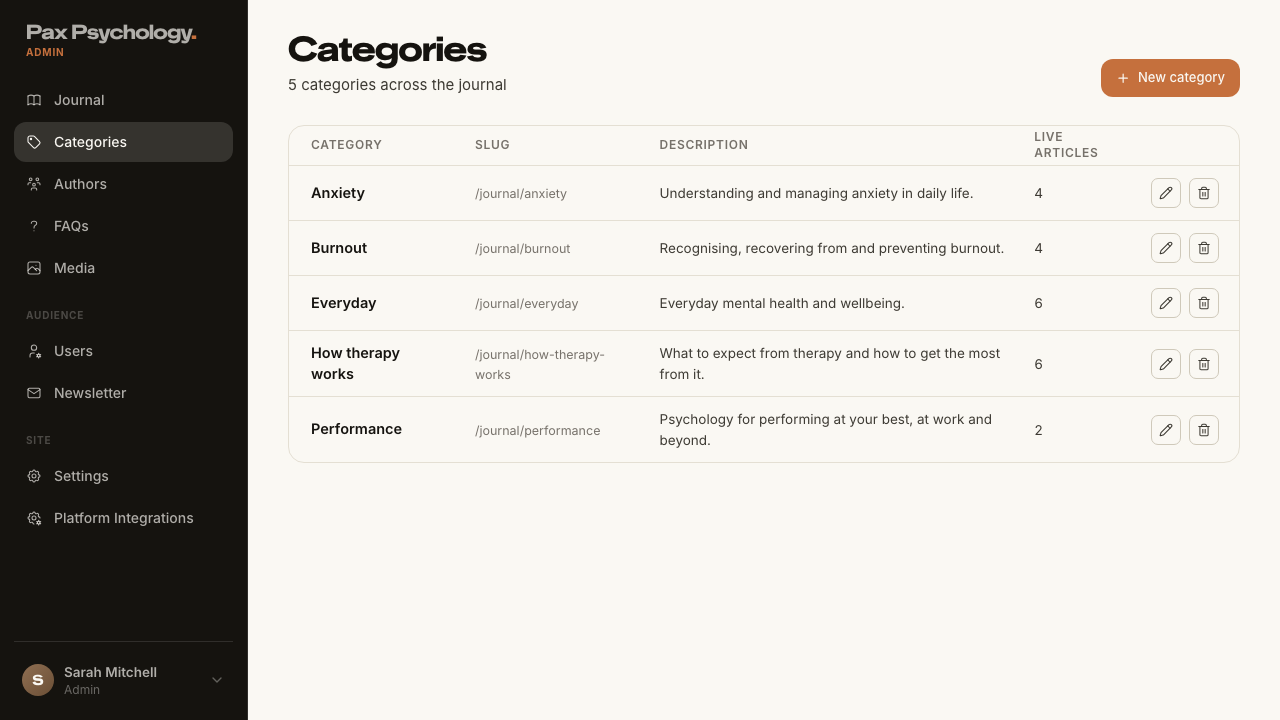
PassedTC-A-20Admin settings and platform integrations (new)8.8s
Test script
Preconditions Logged in as an admin
Steps
- Navigate to
https://paxpsychology.dev/dashboard/settings - Step through each section in the left nav
- Open
/dashboard/settings/integrations
Expected
- Admin section nav: "Account", "System", "Journal & site", "Integrations", "Notifications", "Account actions" – each selected via
?section=<id> - "Account" behaves as for other roles (Your details / Password), with no Mobile field
- "Journal & site" holds the journal and marketing-site settings
/dashboard/settings/integrationsis the platform integrations page linked from the sidebar
Automated run
- 1. Navigate to https://paxpsychology.dev/dashboard/settings
- 2. Step through each section in the left nav
- 3. Open /dashboard/settings/integrations
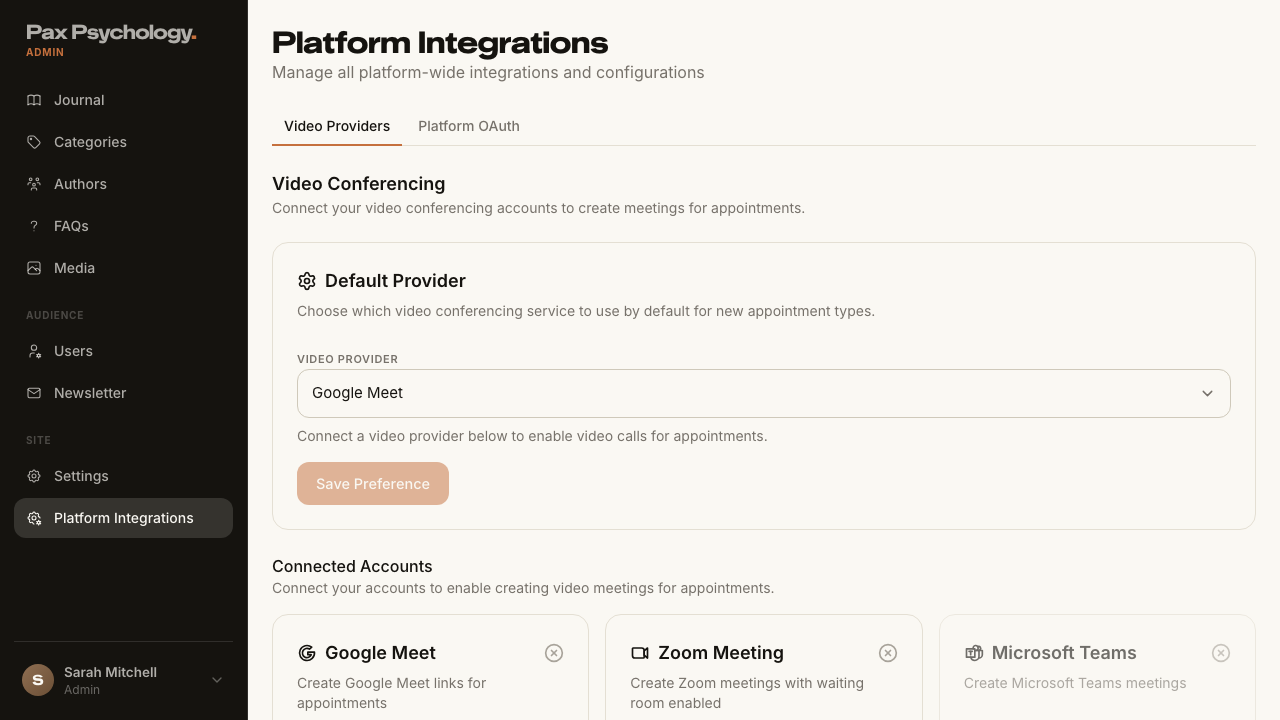
PassedTC-A-21Retired dashboard URLs redirect (new)7.8s
Test script
Preconditions Logged in as an admin
Expected
- Each 307-redirects as above.
Notes There are no public /blog or /stories redirects – those URLs now 404 (see TC-C-32).
Automated run
- Setup: pick a real article id for the /dashboard/blog/<id> row
- Visit each retired URL and note where you land